
Booking, changing and cancelling online
Book an appointment or a table on a business's website in four steps, add it to your calendar, and change or cancel it later.
This page is for customers. Many businesses on vadodara.biz let you book online: a table, a haircut, a doctor's appointment. Booking takes about a minute, and you get a confirmation at once. No account or password is needed.
Book in four steps
Open the business's booking page (often called "Book a table" or "Book an appointment").
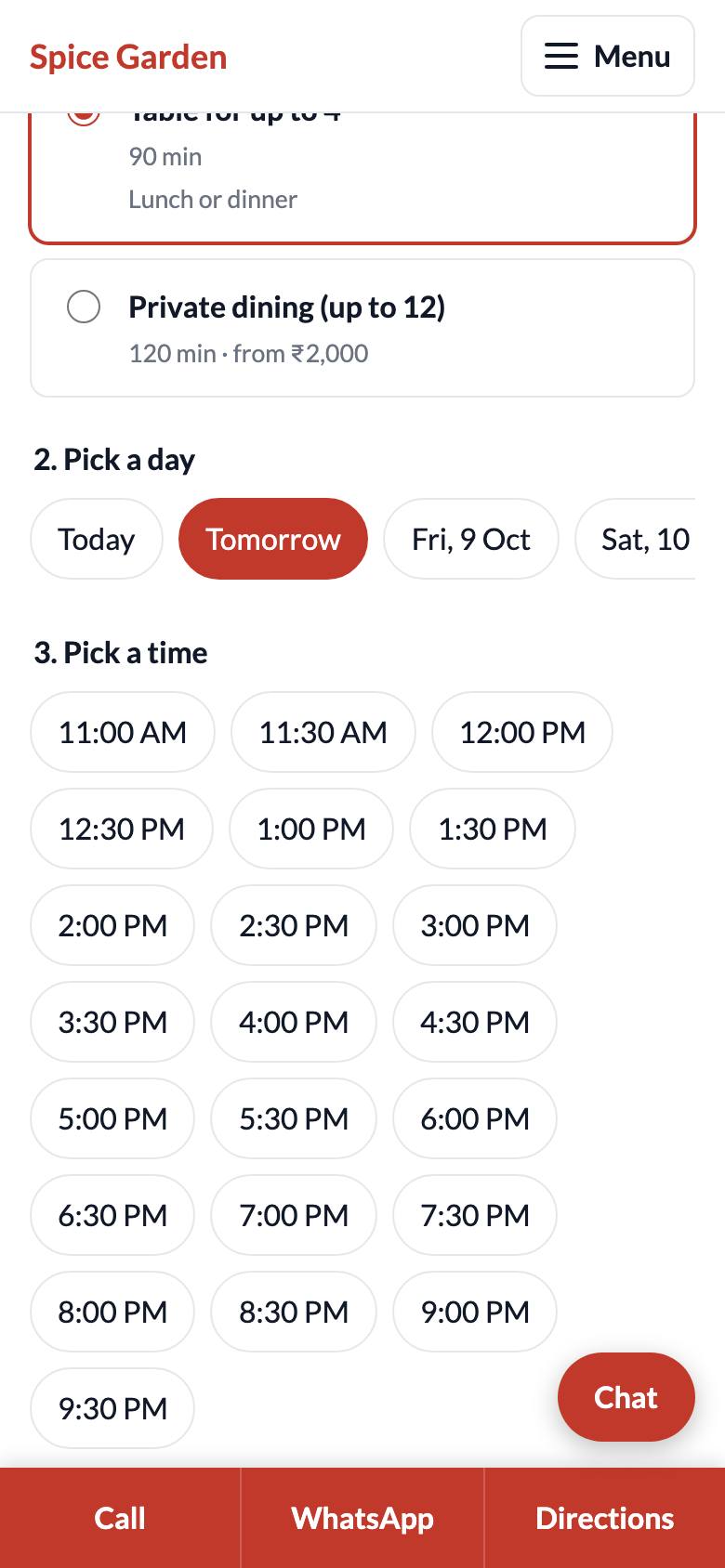
- What would you like? Tap the service you want. You see how long it takes and, if the business shows it, the price.
- Pick a day. Tap Today, Tomorrow or a later date. Days when the business is closed are not shown.
- Pick a time. Only free times are shown. If you see "No free times on this day — please try another day.", pick another day.
- Your details. Enter your Name and Phone / WhatsApp number. Add your Email if you want a confirmation by email (optional). Use Anything we should know? for notes such as "window table" or "birthday". Then tap the button at the bottom (usually Confirm booking).
If someone else took that time while you were typing, you see "That time was just taken — please pick another." Choose another time and confirm again.
After booking
You see Booked! ✓ with the service, the day and time, and any instructions from the business (for example "Please arrive 10 minutes early").
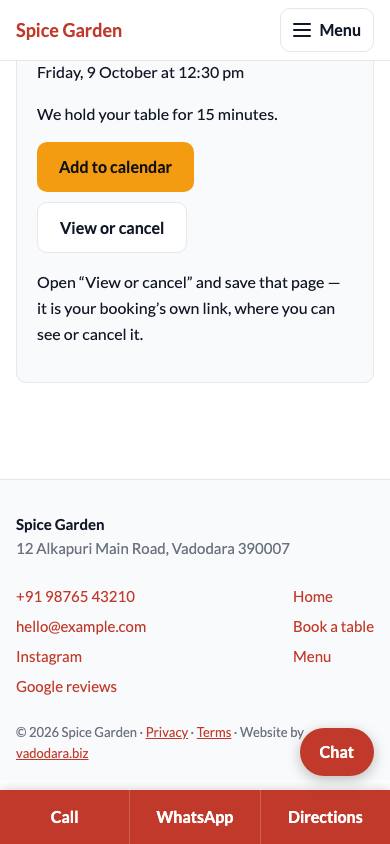
- Add to calendar saves the booking in your phone's calendar so you get your phone's own reminder.
- View or cancel opens your own booking page. Save the link of that page: bookmark it, or send it to yourself on WhatsApp. If you did not give an email, it is the only way to cancel online.
If you gave an email address, you also get:
- a confirmation email straight away, with the link to view or cancel;
- a reminder email about one day before;
- an email if the booking is cancelled.
(Emails depend on the business's website having email switched on. If nothing arrives, check your spam folder.) You can reply to these emails to reach the business, if it has an email address on its website.
View your booking
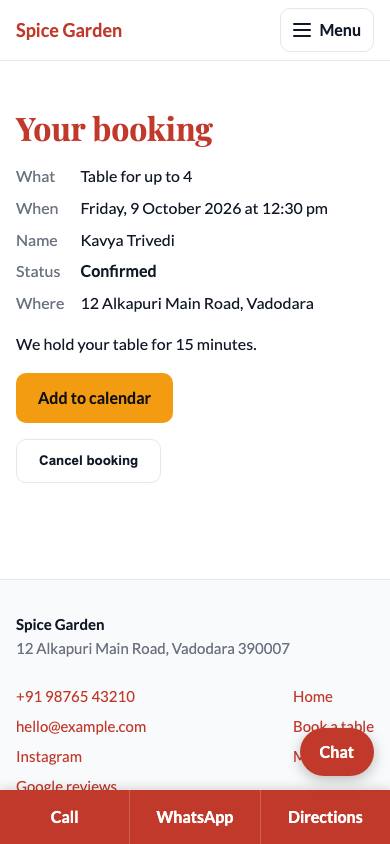
Your booking page shows What you booked, When, your Name, the Status (Confirmed, Completed, Missed or Cancelled) and Where the business is. You can tap Add to calendar here too.
Cancel online
- Open your booking page (the link you saved, or the link in your email).
- Tap Cancel booking.
- Tap Yes, cancel it to confirm, or Keep it if you changed your mind.
- You see "Your booking is cancelled." The time becomes free for others.
You can cancel online until a few hours before the booking. The business decides how many hours. After that, the page says "To change or cancel, please call" with the business's number. Please call them, so they are not left waiting.
Change a booking
There is no button to move a booking. To change the day or time:
- Cancel your booking online (see above).
- Book again with the new day or time.
Or simply call the business and ask them to change it.
Tip: If you cannot come, please cancel. It frees the time for someone else, and the business will thank you for it.