
Finding your way around the website editor
Learn the website editor's side menu, help links, language selector, lists, search and filters, and how saving differs from publishing.
The website editor is where you change your pages, photos and business details, and where you see every record in full. This guide is for owners and staff. It takes about 5 minutes. The editor works best on a computer or tablet.
Open the editor
- Go to
https://<your-business>.vadodara.biz/admin. It also works at vadodara.biz/admin. - Sign in if asked (see Signing in).
- You land on the Dashboard: one tile for each part of the editor, grouped by topic.
From the owner app, tap Website in the bottom bar to get here.
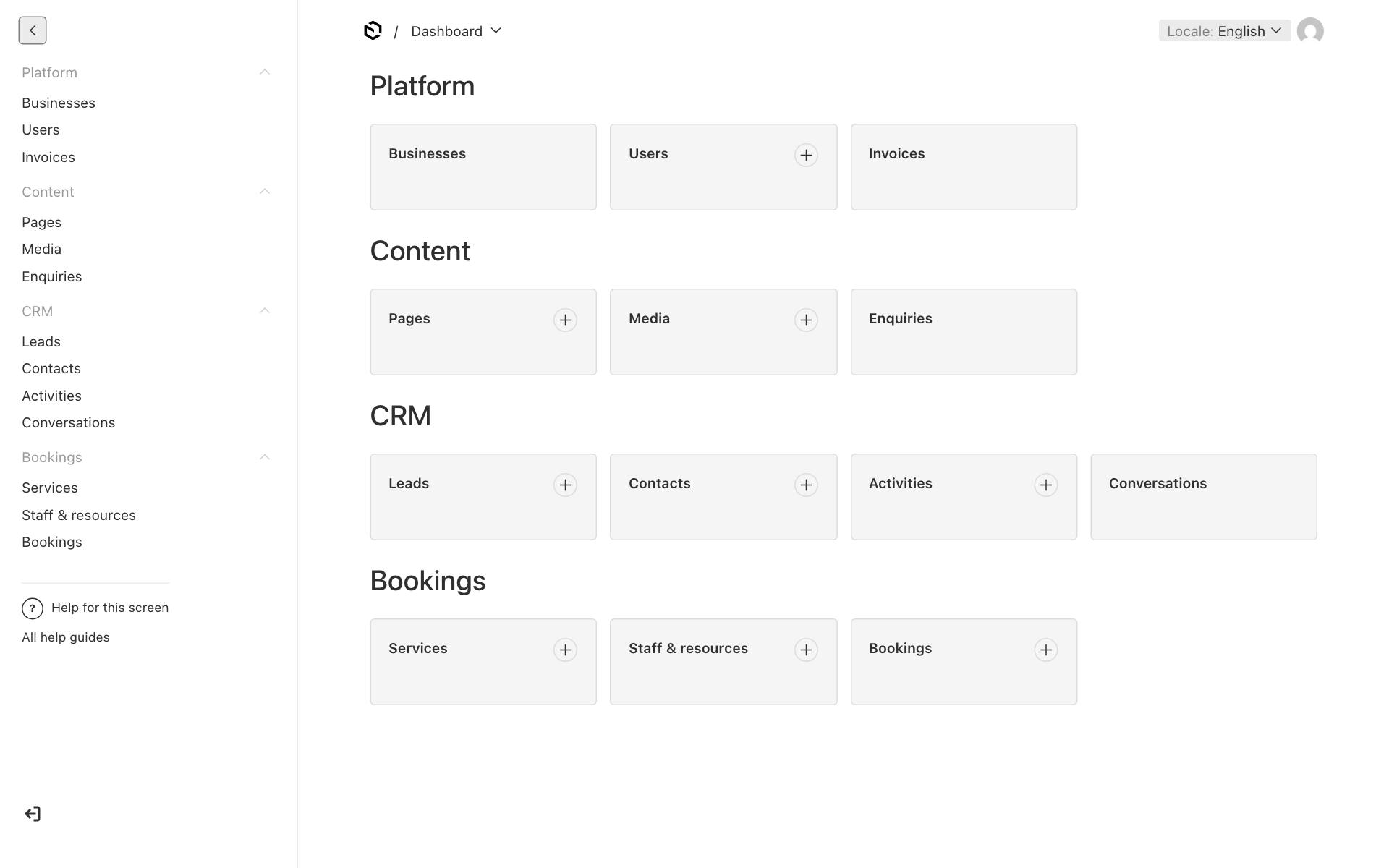
A + on a tile is a shortcut to create a new item there. Tiles without + are ones you can open but not add to.
The side menu
Click ☰ at the top left to open the side menu. It has the same groups as the dashboard.
| Group | What is in it | Owners | Staff |
|---|---|---|---|
| Platform | Businesses: your business details, contact, hours, brand, booking, chat and alerts | Can edit | Can view only |
| Users: the people with access to your business | Can add and change people | Can see colleagues and change their own account | |
| Invoices: invoices from the platform team | Can view | Hidden | |
| Content | Pages: your website pages | Full access | Full access |
| Media: photos, videos and PDFs | Full access | Full access | |
| Enquiries: messages from your website's enquiry form | View, change status, delete | View and change status | |
| CRM | Leads and Contacts | Full access | Everything except delete |
| Activities: the timeline entries on leads | Add and delete (entries cannot be edited) | Add only | |
| Conversations: website chats and WhatsApp chats | View, change, delete | View and change | |
| Bookings | Services: what customers can book | Can edit | Can view only |
| Staff & resources: the people, rooms or tables that are booked | Can edit | Can view only | |
| Bookings: every appointment | Full access | Everything except delete |
The platform team sees a few extra items, such as AI usage and push subscriptions. You do not need them.
If your account has access to more than one business, a Filter by Tenant selector appears in the side menu. Pick a business to see only its records.
Help from inside the editor
At the bottom of the side menu there are two links:
- Help for this screen opens the help guide for the part of the editor you are on. For example, on Pages it opens the pages guide.
- All help guides opens the full help centre at vadodara.biz/help.
Both open in a new tab, so you do not lose your work.
The log-out icon is also at the bottom of the side menu.
Choose the language you are editing
Your pages can have English, Gujarati and Hindi versions. The Locale selector at the top right (it shows Locale: English at first) decides which version you are editing.
- Click Locale.
- Choose English, ગુજરાતી or हिन्दी.
- The screen reloads in that language. Text you type now goes into that version.
If a Gujarati or Hindi text is empty, visitors see the English text instead. See Gujarati and Hindi pages.
Work with lists
Clicking any item in the side menu opens a list, for example all your leads.
- Search: type in the search box at the top of the list to find items by name or title. In Leads, search also looks in the message.
- Filters: click Filters to show only some items, for example leads where Stage is New.
- Columns: click Columns to choose which details are shown in the list.
- Sort: click a column heading to sort by it.
- Open an item: click its first column.
- Several at once: tick the boxes on the left to change or delete several items together (only if your role allows it).
Create something new
- Open the list, for example Pages.
- Click Create New at the top.
- Fill in the fields. A red star (*) marks fields you must fill in.
- Save (see below).
New items are linked to your business automatically.
Saving and publishing, in short
- Pages are saved as a draft automatically while you type. Visitors do not see the changes until you click Publish changes. You can also schedule publishing for later and go back to an older version. See Drafts, publishing, scheduling and undo.
- Everything else (business details, leads, bookings, photos) has a Save button. Changes take effect as soon as you save.
Good to know: There is no live preview. To see a published change, open your website in another tab and refresh it.