
The owner app on your phone
Open and install the owner app, learn its tabs and help button, and read the Today screen: new leads, follow-ups, bookings and website numbers.
The owner app is a small app for your phone that shows what needs your attention today: new leads, follow-ups, chats and bookings. Owners and staff both use it. Setting it up takes about 2 minutes, and after that you can check it in seconds, many times a day.
Open the app
- On your phone, open
https://<your-business>.vadodara.biz/appin Chrome (Android) or Safari (iPhone). - Sign in if asked (see Signing in).
- You see the Today screen.
Always open the app on your own business's address. The app shows the business that matches the address.
Add it to your home screen
The app does not ask to be installed by itself. Add it once from your browser, and it then opens full-screen like any other app.
Android (Chrome)
- Open the app address in Chrome.
- Tap ⋮ (top right).
- Tap Add to Home screen or Install app.
- Confirm.
iPhone (Safari)
- Open the app address in Safari.
- Tap the Share button (the square with an arrow).
- Tap Add to Home Screen.
- Tap Add.
Tip: On iPhone, notifications only work when you open the app from the home-screen icon. Add it first, then turn on notifications.
The top bar and the tabs
At the top you see your business name, View site ↗ (opens your public website), a round ? button and Sign out. The ? opens the help guide for the screen you are on: on Leads it opens the leads guide, on Bookings the bookings guide, and so on.
Sign out signs you out of the app and the website editor on this phone, and takes you to the sign-in page. Use it on a shared phone or when someone else needs to sign in. See Signing in.
The tabs at the bottom are always within reach of your thumb:
| Tab | What it shows | When you see it |
|---|---|---|
| Today | The summary of your day (below) | Always |
| Leads | All leads, with filters, search, Call and WhatsApp buttons | Always |
| Inbox | Website chats and WhatsApp chats | Only when website chat or two-way WhatsApp is switched on |
| Bookings | Bookings day by day, with Done / No-show / Cancel | Only when online booking is switched on |
| Business | Announcement, opening hours, alerts and your plan | Owners only |
| Website | Opens the website editor | Always |
The Today screen
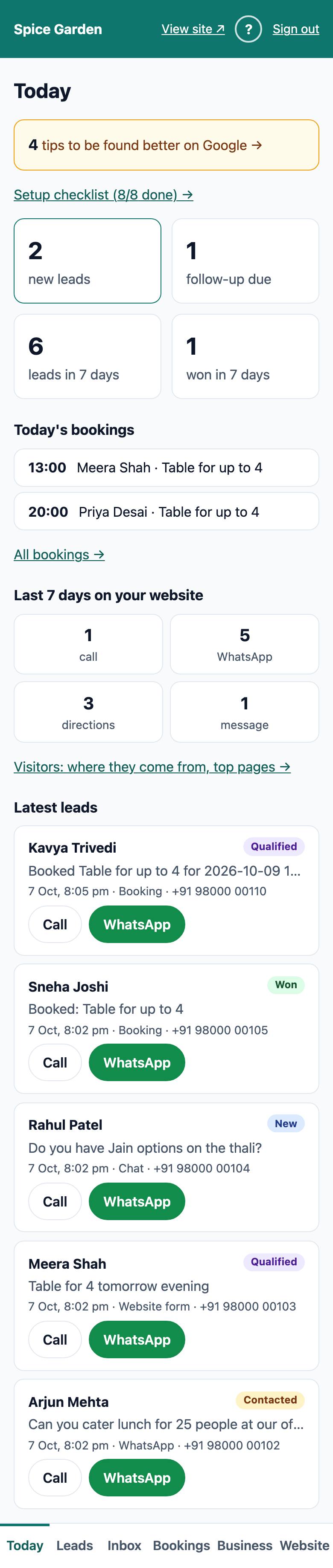
From top to bottom:
- A note if your site is not live yet: "Your website is not public yet (status: …)". Ask the platform team to publish it when you are ready.
- Setup card (owners only): "N setup steps left — finish your website →". It disappears once all the essential steps are done. Then, if your website can still be found better, you see "N tips to be found better on Google →" instead. It opens the Found on Google list on the setup screen. Once the essentials are done, a small link "Setup checklist (X/Y done) →" also stays on Today, so the checklist is always one tap away. See Your first-day checklist and Getting found on Google.
- Four cards:
- new leads: leads still at stage New. Tap to open them.
- follow-ups due: open leads (not Won or Lost) whose follow-up date is today or already past. Tap to open them.
- leads in 7 days: all new leads in the last 7 days, including today.
- won in 7 days: leads moved to Won in the same period.
- Today's bookings (only when booking is on): time, customer and service for each booking today, without cancelled ones. All bookings → opens the Bookings tab.
- Last 7 days on your website: how many visitors tapped call, WhatsApp and directions, and how many sent a message through the enquiry form. Taps on your own call-to-action buttons count too.
- Visitors: where they come from, top pages → opens the visitor numbers. See Visitor numbers.
- Latest leads: the 5 newest leads, each with Call and WhatsApp buttons. Tap a lead to open it.
- Notifications (staff only): a panel with Turn on, so you get a notification on this phone for every new lead and chat. Owners find the same switch under Business. This panel only appears if your platform has phone notifications switched on.
When you are offline
If your phone has no internet, the app shows "You are offline" and asks you to check your connection and try again. Nothing is stored on the phone, so you always see fresh information once you are back online.