
Getting found on Google
See what your website already does for Google, then write page titles and descriptions, connect Google Search Console and improve your local search results.
People in Vadodara search Google for things like "thali near Alkapuri" or "skin clinic Gotri". This guide explains what your website already does to help Google, and the few things you can do to show up better. It is for owners and staff, takes about 20 minutes, and uses the website editor.
What happens automatically
You do not need to do anything for these:
- Page titles. Every page gets a title in Google and in the browser tab: the page's title followed by your business name, for example "Menu | Spice Garden". Your home page gets your name, your type of business and your city, for example "Spice Garden — Restaurant in Vadodara". The type comes from the Type of business in your business details. Your own SEO title always wins.
- Descriptions. Every page gets the short text that Google shows under the title. The first of these that exists is used:
- the page's own SEO description;
- on the home page only: your business SEO description;
- the first text on the page itself, such as the line under the big headline or your "about us" text, cut to about 155 characters;
- if the page has almost no text: a simple line, such as "Menu — Spice Garden, Vadodara".
- Business information for Google. Your home page includes hidden details that Google reads: your name, type of business, address, the city you serve, phone, email, map location, opening hours, logo and social links. When your business details are accurate, so are your Google results.
- Your menu for Google. Dishes in a Menu section are given to Google with their category, description and price in ₹. Dishes marked Veg or Jain are labelled vegetarian, and Vegan dishes vegan.
- Your services for Google. Items in a Services section are given to Google as services of your business, with their price in ₹.
- FAQ for Google. Questions in an FAQ section are given to Google in a format it understands.
- Breadcrumbs. Every page except the home page tells Google where it sits on your site, for example "Spice Garden › Menu". Google can show this path in results instead of a plain web address.
- Sitemap. Your site keeps a list of all published pages at
https://your-business.vadodara.biz/sitemap.xml. Each page is listed in English and in each language it is translated into. It updates by itself. - Search engine access. Your site tells search engines they are welcome and points them to the sitemap.
- Share previews. When a page is shared on WhatsApp, Facebook or LinkedIn, the preview shows a title, a description and a picture.
- Quick news for Bing. When you publish a new page of your live website, or publish changes to one, Bing and other search engines that use IndexNow are told about it right away, in English and in each language the page is translated into. Drafts and saving without changes are not announced. Google finds your changes through the sitemap.
- One main address. Once your own domain name works, your vadodara.biz address sends visitors and Google there automatically. See Using your own domain name.
- Languages. A translated page tells Google about its Gujarati and Hindi versions. A page that is not translated tells Google that its English version is the main one, so Google does not list English text under a Gujarati address. A page counts as translated when its Title is filled in for that language. See Gujarati and Hindi pages.
Tip: Write prices with a number, such as
₹250or₹500 onwards. A price like "ask us" is shown on your site but not given to Google.
Important: While your business is in Draft (coming soon) status, your whole site asks Google not to list it, and it has no sitemap. Google can only find you after the platform team publishes your business.
Your Google checklist in the owner app
The owner app checks your website for the things that only you can add. Owners find it on the phone; staff do not see it.
- Open the owner app at https://your-business.vadodara.biz/app.
- On Today, tap the card "N tips to be found better on Google →". It appears once the essential setup steps are done. You can also open Set up your website at https://your-business.vadodara.biz/app/setup and scroll to Found on Google.
- You see "X of 8 done" and a list. Done items have a tick. Each open item says what is missing, and is a link to the place where you fix it.
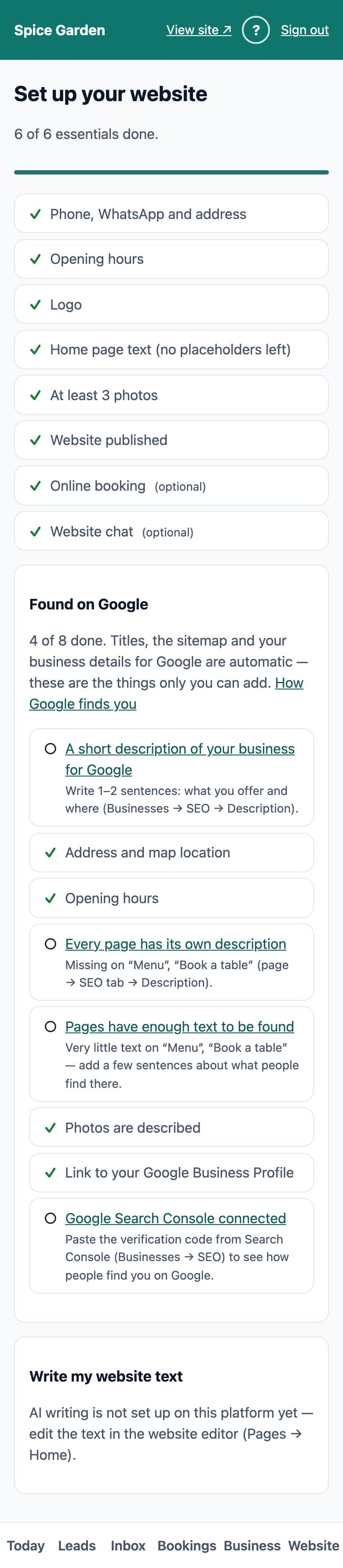
| Check | Done when |
|---|---|
| A short description of your business for Google | Your business SEO description has at least 50 characters |
| Address and map location | Your address, Latitude and Longitude are filled in |
| Opening hours | At least one day has an opening time |
| Every page has its own description | Every published page has an SEO description. For the home page, your business description also counts |
| Pages have enough text to be found | Every published page has at least about 300 characters of text |
| Photos are described | Every photo has a Description (alt text) of at least 8 characters that is not just a file name such as "IMG_1234.jpg" |
| Link to your Google Business Profile | The link is on your business's Social tab |
| Google Search Console connected | The verification code is on your business's SEO tab |
The card on Today goes away when all 8 are done. Titles, the sitemap and the business information above are automatic, so they are not on the list.
Write a title and description for each page
The SEO tab of each page lets you write exactly what Google shows.
- Open the page in the editor and click the SEO tab, next to Content.
- Title: click Auto-generate to start from the page title, then improve it. Aim for 50–60 characters, and say what you are and where. For example:
Spice Garden — North Indian restaurant in Alkapuri, Vadodara. - Description: one or two sentences of 100–150 characters that make people want to click. For example:
Tandoor, curries and thalis in Alkapuri. Family-run since 2009. Order on WhatsApp or book a table for tonight. - Meta Image: the picture shown when the page is shared. Choose a bright landscape photo. If you leave it empty, the first Hero image or your logo is used.
- Click Publish changes.
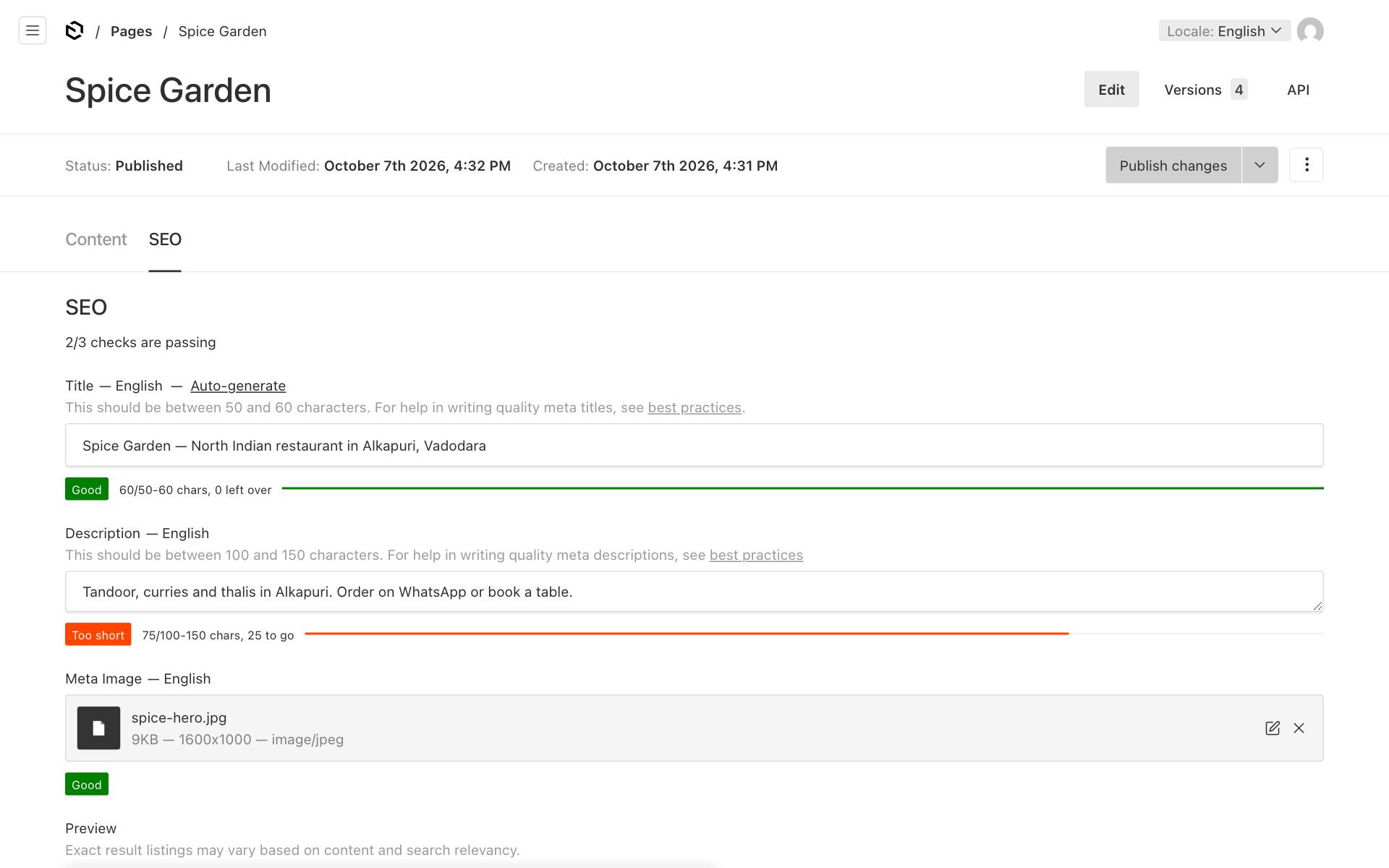
The SEO tab checks your work as you type:
- The coloured bar under each field counts the characters: Good in green, or Too short or Too long in orange.
- The line at the top, for example "2/3 checks are passing", shows how many of the three checks (title, description and image) are fine.
- Preview, at the bottom, shows roughly how the page could look in Google.
Tip: On every page except the home page, " | your business name" is added after the SEO title. Keep those titles a little shorter, for example
Menu and prices. If your title already ends with your business name (for exampleMenu and prices | Spice GardenorOur menu — Spice Garden), or has it after a " | " or " — ", the name is not added a second time.
Do this for your home page first, then for your most important pages. If you have Gujarati or Hindi pages, switch the language and write a translated title and description too.
Write your business description
Google shows this description under your home page, unless the home page has an SEO description of its own. It is also part of the business information that Google reads. Your other pages do not use it: they use their own description, or text from the page itself.
- Go to Platform → Businesses → your business → SEO tab.
- Write the Description: one or two sentences, up to 300 characters, about what you offer and where.
- Click Save.
Connect Google Search Console
Google Search Console is a free Google tool. It shows which searches find you and warns you about problems. Connecting it takes 10 minutes.
- Go to Google Search Console and sign in with your Google account.
- Click Add property and choose URL prefix.
- Type your full website address, for example
https://spice-garden.vadodara.biz, and continue. - Choose the HTML tag method. Google shows a line like
<meta name="google-site-verification" content="abc123…" />. - Copy only the part inside content="…", without the quotes.
- In the website editor, go to Businesses → your business → SEO tab, and paste it into Google site verification code.
- Click Save.
- Back in Search Console, click Verify.
- In Search Console, open Sitemaps, type
sitemap.xmland click Submit.
If you later move to your own domain, add that address as a new property and verify it the same way. See Using your own domain name.
Link your Google Business Profile
Your Google Business Profile is the box with your map pin, photos and reviews in Google Maps. It matters most for local searches.
- Open your profile on Google and copy its link. Use Share to get it.
- In the editor, go to Businesses → your business → Social tab, and paste the link into Google Business Profile URL.
- Click Save.
Your footer then shows a "Google reviews" link, and Google can connect your website with your profile. Also put your website address into your Google Business Profile, so the two link to each other.
Also paste your review link. In your Google Business Profile, choose Ask for reviews and copy the link. Paste it into Google review link on the same Social tab. Your footer then shows "Review us on Google", and in the owner app every lead with a phone number gets an Ask for a review on WhatsApp button. See Leads.
Tips for local search
- Name your area. Mention your city and neighbourhood naturally in headings and text, for example "in Alkapuri, Vadodara". Customers search for places.
- List your actual services. Write "bridal makeup", "root canal" or "Jain thali" rather than "and much more". Use a Services or Menu section so each item is written out.
- Keep your hours exact. Wrong hours send customers to a closed shutter. Add holiday closures before festivals (see Business details), and use the announcement bar for one-off news.
- Match your details everywhere. Use the same business name, address and phone number on your website, your Google Business Profile, Justdial, Zomato and similar sites.
- Add Latitude and Longitude in your business details, so your map pin is exact.
- Write alt text for every photo. See Photos and files.
- Answer real questions in an FAQ section.
- Ask happy customers for Google reviews. Reviews on your Google Business Profile help much more than reviews typed on your own website.
Google can take anything from a few days to a few weeks to notice changes. Search Console shows you when Google last visited.