
Signing in and two-step verification
Sign in to the website editor and owner app, set your own password, reset a forgotten one, and protect your account with an authenticator app.
This guide is for owners and staff. It shows how to sign in, what to do the first time, how to get back in if you forget your password, and how to add two-step verification. Signing in takes a minute; setting up two-step verification takes about 5 minutes and works on a phone or a computer.
Sign in
You use one account for both the website editor and the owner app.
- Open
https://<your-business>.vadodara.biz/admin(website editor) orhttps://<your-business>.vadodara.biz/app(owner app). - You are sent to the vadodara.biz sign-in page. Check that the address bar shows auth.vadodara.biz before you type your password.
- Type your email in Username or email.
- Type your password in Password. Tap the eye icon if you want to see what you typed.
- Tap Sign In.
- You go back to the editor or the app you started from.
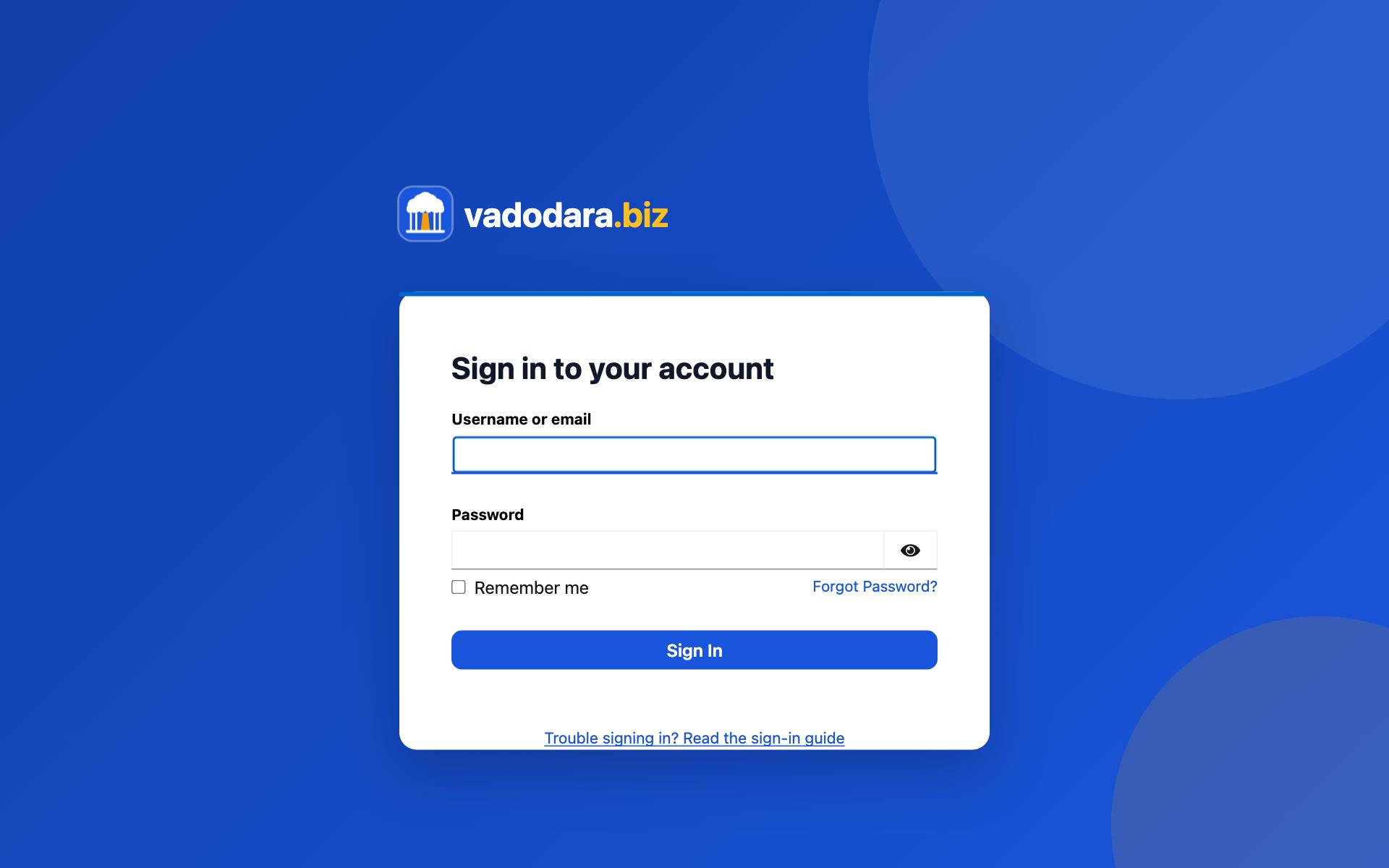
Under the form there is a link, Trouble signing in? Read the sign-in guide, which opens this page.
Good to know: You only see your own business. If you sign in on another business's address, you will be told you have no access there.
Your first sign-in: choose your own password
When an owner or the platform team creates your account, they type a starting password for you. It is temporary.
- Sign in with your email and that temporary password.
- You are asked to set a new password. Type it twice.
- Use at least 8 characters. It cannot be your email or your username.
- Save it. From now on only you know your password.
If you are a member of the platform team, you are also asked to set up an authenticator app at this point (see below).
Forgot your password?
- Open the sign-in page as above.
- Tap Forgot password? on the sign-in page.
- Enter your email and send the request.
- Open the email and follow the link to choose a new password.
The email can only be sent if your platform has email sending switched on. If you do not see the link, or no email arrives within a few minutes (check spam too), ask your business owner or the platform team. They can set a new temporary password for you in the website editor, and you choose your own at the next sign-in.
Too many wrong passwords
After 5 wrong passwords in a row, the sign-in page makes you wait before you can try again. Each further mistake makes the wait longer, by about a minute each time, up to a maximum of 15 minutes. Then it unlocks by itself. If you are not sure of your password, use Forgot password? instead of guessing.
How long you stay signed in
- Tick "Remember me" when you sign in on your own phone or computer. Then you type your password again only after 30 days without using it, or 90 days at most. The editor and the app check your sign-in every 8 hours, but they let you straight back in without asking.
- Without "Remember me" (for example on a shared computer), you must type your password again after 8 hours without activity, or 24 hours at most.
- Signing out always ends it at once, with or without "Remember me".
Sign out
In the owner app: tap Sign out in the top bar. You land on the sign-in page, ready for the next person.
In the website editor:
- Open the side menu (☰ at the top left).
- Click the log-out icon at the bottom of the menu.
Either way, this signs you out of the website editor, the owner app and the sign-in page in this browser. Always sign out on a shared or shop computer.
Two-step verification
Two-step verification means that after your password, you also type a 6-digit code from an app on your phone. Even if someone learns your password, they cannot get in without your phone.
- Platform team: it is required. You set it up at your first sign-in.
- Owners and staff: it is optional, but we recommend it, especially for owners.
Set it up
You need a free authenticator app on your phone, such as Google Authenticator or Microsoft Authenticator. Install it from the Play Store or App Store first.
- Open your account page:
https://auth.vadodara.biz/realms/vadodara-biz/account. Sign in if asked. - In the menu, open Account security, then Signing in.
- Under Two-factor authentication, next to Authenticator application, click Set up Authenticator application.
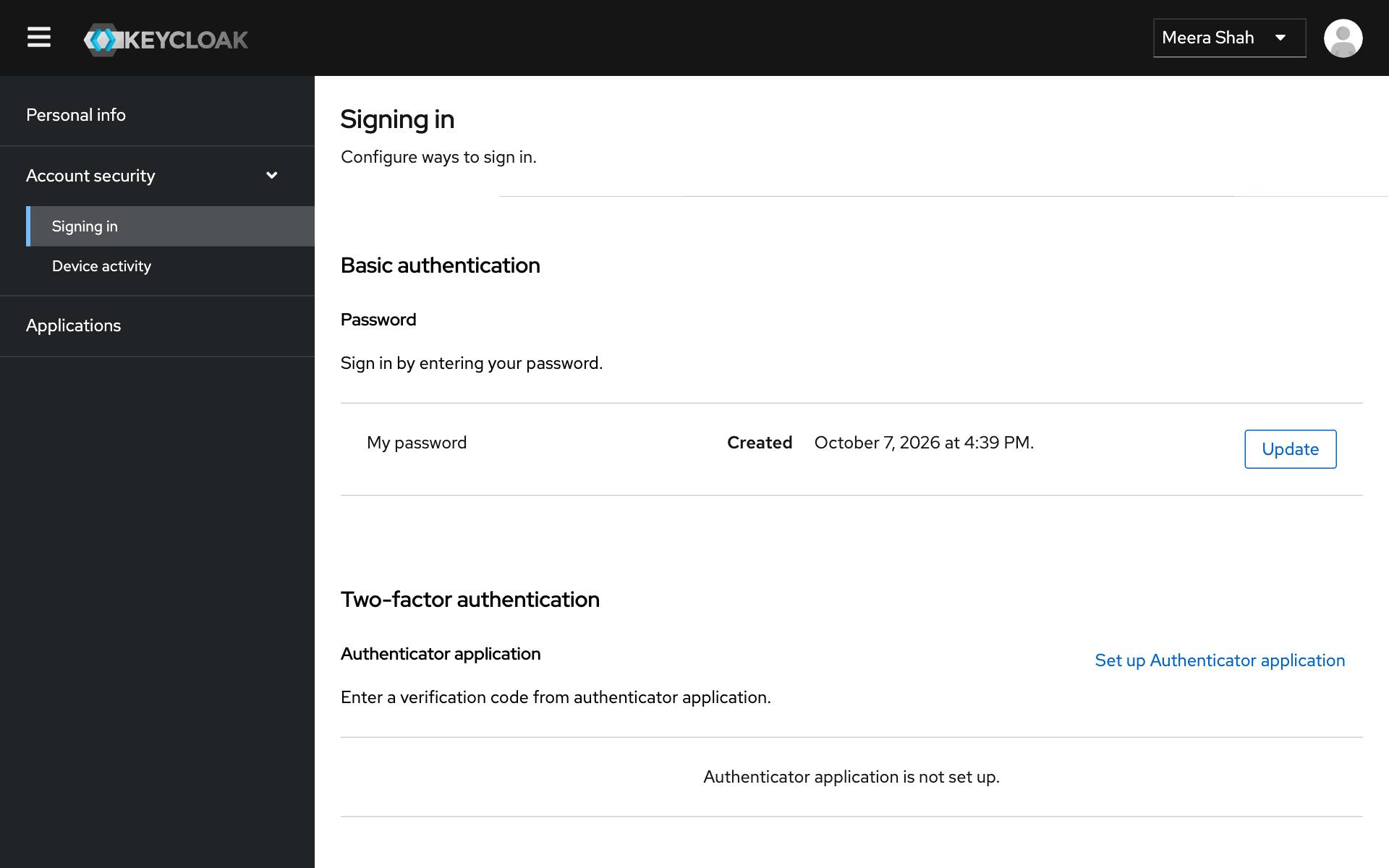
- A QR code appears. On your phone, open the authenticator app and add an account:
- Google Authenticator: tap +, then Scan a QR code.
- Microsoft Authenticator: tap +, choose Other account, then scan.
- Point your phone's camera at the QR code. The app now shows a 6-digit code that changes every 30 seconds.
- Type the current code into One-time code.
- In Device Name, type a name you will recognise, for example "Asha's phone".
- Click Submit.
From now on, after your password the sign-in page asks for a one-time code. Open the app and type the code it shows.
Tip: Doing this on the same phone that has the app? Tap Unable to scan? under the QR code. It shows a key you can type into the authenticator app instead of scanning.
If you lose or change your phone
Without your phone you cannot get the code. Ask the platform team to reset your two-step verification. Once they have done it, sign in with your password and set it up again on your new phone.
Messages you might see
| Message | What it means and what to do |
|---|---|
| "You signed in as … but that account has no access here yet. Ask the business owner or the platform team to add you." | Your sign-in worked, but your account is not linked to any business yet. Ask your owner to add you (see Adding staff). |
| "… has no access to …" (your email and a business name) | You opened a business address you are not a member of. Check the address. |
| "Please finish signing in in the same browser window you started in." | You opened the sign-in link in a different browser or app. Start again from the editor or app address in one browser. |
| "This sign-in link has expired. Please start again." | Too much time passed between steps. Open the editor or app address again. |
| "Sign-in could not be verified. Please try again." | Something went wrong in the hand-over. Try again; if it keeps happening, tell the platform team. |
| "Password sign-in is turned off here — use “Sign in” on the login page (your vadodara.biz account)." | You reached an old password form. Use the vadodara.biz sign-in page instead. |
| "No access — Your account is not linked to this business…" (owner app) | You opened the owner app on a business address where you have no role. Open it on your own business address, or tap Sign out. |