
Your first-day checklist
Work through the "Set up your website" checklist in the owner app, let AI draft your home page text, and get your website published.
When your business is new, the owner app gives you a short checklist to get your website into good shape. This guide is for owners (staff do not see the checklist). Plan about an hour. Most steps take a few minutes each; you can do many on your phone, and a few are easier on a computer.
Open the checklist
- Open the owner app:
https://<your-business>.vadodara.biz/app. - On Today, tap the card "N setup steps left — finish your website →".
- You see Set up your website, "X of 6 essentials done" and a progress bar.
Each step that is not done yet is a link. Tap it to go straight to where you fix it. Done steps show a tick.
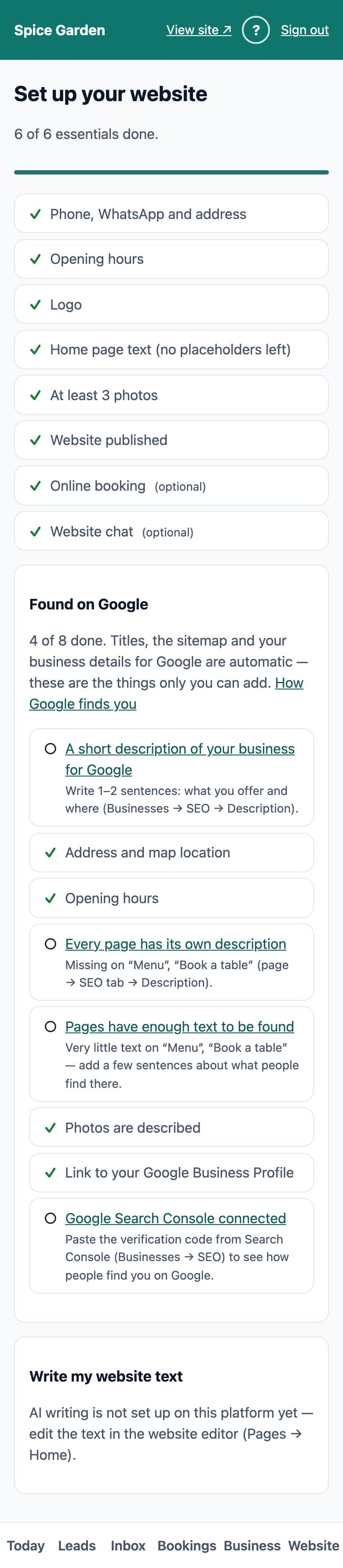
Good to know: The setup card on Today disappears once all 6 essential steps are done. In its place you then see "N tips to be found better on Google →" until the Found on Google list below is done too. A small link "Setup checklist (X/Y done) →" stays on Today, so you can always come back to the checklist. It counts every step, including the optional ones. You can also open the checklist at
https://<your-business>.vadodara.biz/app/setup.
The 6 essential steps
| Step | Where you fix it | Counts as done when |
|---|---|---|
| Phone, WhatsApp and address | Website editor → Businesses → your business → Contact tab | Phone, WhatsApp and address are all filled in |
| Opening hours | Owner app → Business → Opening hours | At least one day has an opening time and is not marked Closed |
| Logo | Website editor → Businesses → Brand tab → Logo | A logo is uploaded |
| Home page text (no placeholders left) | Write my website text below, or the website editor → Pages → Home | No section of the home page still contains "✏️ Replace this placeholder.", a sample price "₹—" or "Lorem ipsum" |
| At least 3 photos | Website editor → Media → Create New | There are at least 3 photos in Media. Only images count (JPEG, PNG, WebP, GIF or AVIF): your logo, your browser tab icon, PDFs and videos do not |
| Website published | Website editor → Pages → Home → Publish changes | Your home page is published and the platform team has set your business to Published |
A few tips:
- WhatsApp number: type it with the country code and digits only, for example 919876543210. That way the WhatsApp buttons on your site work.
- Placeholders: your new home page comes with sample sections (about us, menu or services, questions and answers). Many of them contain the text "✏️ Replace this placeholder." or sample prices "₹—". Replace or remove every one, including in menu items and answers. Write my website text (below) does this for you. See Page sections.
- Website published: you can publish your home page yourself. Making the whole site public is done by the platform team, so tell them when you are ready. Until then, visitors see "Our new website is coming soon." with your Call, WhatsApp and Directions buttons.
The optional steps
| Step | Where you fix it | Counts as done when |
|---|---|---|
| Lead alerts on your phone (Telegram) | Owner app → Business → Connect Telegram | Telegram is connected |
| Online booking | Website editor → Businesses → Booking tab → Accept online bookings | Online booking is switched on |
| Website chat | Website editor → Businesses → AI & chat tab → Show the chat button on the website | The chat button is switched on |
Optional steps do not count towards the "essentials done" number. The Telegram step only appears if your platform has Telegram switched on, so you may see only 2 optional steps. You can also get alerts by email or as phone notifications. See New-lead alerts. Before switching on booking, add your services: see Online bookings.
Found on Google
Below the steps, the Found on Google box lists 8 things that help Google show your business well, such as a short business description, your map location, a description for every page and a link to your Google Business Profile. It shows "X of 8 done". Each open item says what is missing and links to where you fix it.
These do not count towards the 6 essentials, so your website can go live without them. Work through them in the first weeks. See Getting found on Google for what each check means.
Let AI write your home page text
If your platform has AI writing switched on, the checklist has a Write my website text box at the bottom. It writes a first version of your home page from a few sentences you type: the main texts, your menu or services, and questions and answers.
- In the box, describe your business in a few sentences: what you offer, what you are known for, who comes to you. Write at least 20 characters. Name your main dishes or services, and their prices if you want them shown: the AI only uses what you tell it.
- Tap ✨ Write my website text. Wait a few seconds while it shows "Writing…".
- Read and edit the four texts it suggests: Headline, Line under the headline, About us and Google description. Below them you see the Menu or services and the Questions and answers it drafted, if your description had enough for them.
- Not happy? Change your description and tap ✨ Write again.
- Tap Use this (as a draft).
- You see "Saved as a draft of your home page. Open the website editor → Pages → Home to review and publish."
This puts the headline and line into the first big banner (the Hero section) of your home page, the about text into the first text section (or adds an "About us" section), and the Google description into the page's search description. The drafted menu or services and questions replace the sample ones in the starter sections. A sample section the AI had nothing for is left out, so no placeholder text is left to publish. Sections you already filled in yourself are not changed. It is all saved as a draft, so visitors do not see it yet.
If AI writing is not available, the box says "AI writing is not set up on this platform yet — edit the text in the website editor (Pages → Home)." If you see "This month's AI allowance is used up — write the text yourself in the website editor, or try again next month.", do just that. If you see "Could not write your website text this time — please try again, or write it yourself in the website editor.", tap ✨ Write my website text again.
Publish your website
- On a computer, open the website editor and go to Pages → Home.
- Check every section. Replace any remaining "✏️ Replace this placeholder." text.
- Click Publish changes.
- Open your website in another tab and refresh it to check.
- If the platform team has not set your site to Published yet, tell them you are ready to go live.
See Drafts, publishing, scheduling and undo for more.