
Two-way WhatsApp
Understand the WhatsApp buttons every website gets, and how two-way WhatsApp brings customer messages into your Inbox with optional AI replies.
WhatsApp works on two levels in vadodara.biz. Every business gets WhatsApp buttons that open a chat on your own phone. Businesses on the Pro plan can also have two-way WhatsApp, where customer messages arrive in the owner app's Inbox and the AI assistant can answer. This guide is for owners and takes about 5 minutes to read.
Level 1: WhatsApp buttons (every business)
As soon as your WhatsApp number is filled in (website editor → Businesses → your business → Contact → WhatsApp, with country code and digits only, for example 919876543210), your website offers WhatsApp in several places:
- The bottom bar on phones always has a WhatsApp button next to Call and Directions.
- A floating WhatsApp button on computers. Turn it off with Show floating WhatsApp button on desktop on the Contact tab (it is on by default).
- A Call to action section with the button action Chat on WhatsApp and an optional pre-filled message. See Page sections.
- WhatsApp buttons in the owner app: on each lead, on bookings, and Message on WhatsApp on a lead (with ✨ Suggest with AI if your platform has AI). See Leads, contacts and follow-ups.
All of these open WhatsApp on the customer's phone (or on yours, in the owner app). The conversation then happens in your normal WhatsApp or WhatsApp Business app, not in vadodara.biz. Taps on the website buttons are counted on your Today and Visitors screens.
Level 2: two-way WhatsApp in the Inbox
With two-way WhatsApp, messages that customers send to your business number also appear in the owner app, so your whole team can see and answer them and the AI can help.
What you need
- The Pro plan.
- The platform team sets it up for you. Ask them; you cannot switch it on yourself. There are two kinds of connection:
- WhatsApp Web connection (unofficial). It links your number the way WhatsApp Web on a computer does. It is only for low volume: a normal number of customer chats. Sending many messages at once can get the number blocked by WhatsApp.
- Official WhatsApp Cloud API from Meta. Meant for higher volume, but needs a Meta business account and their approval.
How it works once it is on
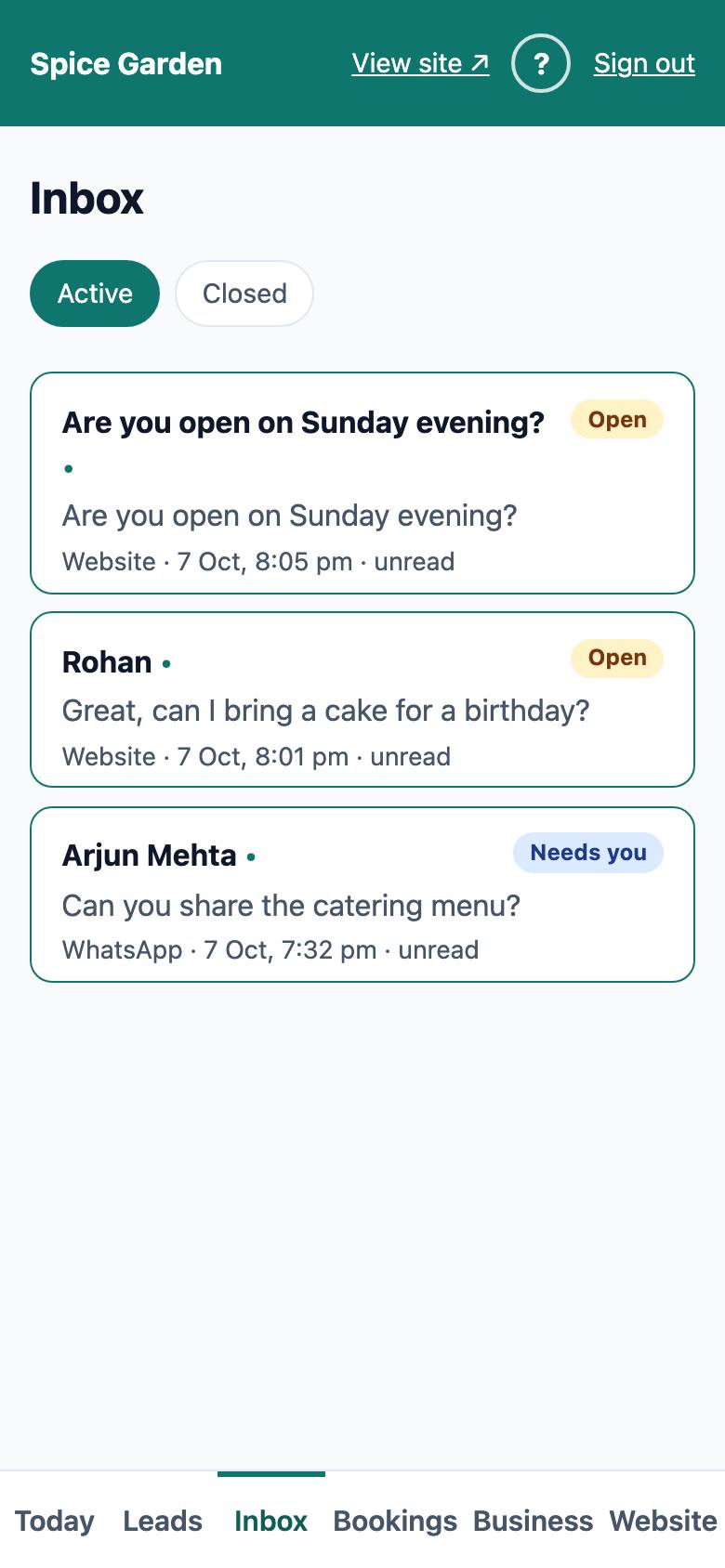
- Each customer's messages arrive in the Inbox, one conversation per phone number, marked "WhatsApp".
- The first message from a new number creates a contact and a lead with source "WhatsApp", and you get the new-lead alert.
- If the AI is not answering, phones with notifications turned on get a "Chat" alert for each waiting message.
- If the AI is switched on but cannot answer (it failed, or this month's AI allowance is used up), the message waits for you too, and you get an alert: "AI could not answer a chat" at most once a day, or "AI allowance used up" once a month. See Alerts when the AI cannot answer.
- Each WhatsApp chat in the Inbox says whether the AI is answering it, based on the WhatsApp switch below: "AI assistant is answering on WhatsApp" or "AI replies on WhatsApp are off — you reply".
- You reply from the Inbox and the reply is sent on WhatsApp from your business number. See Inbox for replying, pausing the AI and closing chats.
- A closed WhatsApp chat reopens by itself when the customer writes again.
Let the AI answer WhatsApp messages
The AI does not answer WhatsApp messages unless you switch it on:
- In the website editor, open Businesses and click your business.
- Open the WhatsApp gateway tab.
- Tick Let the AI assistant answer WhatsApp messages. When it is off, messages wait for you in the Inbox.
- Click Save.
This is the only setting on that tab you can change; the rest is for the platform team. The AI uses the same business information and Notes for the assistant as the website chat, and follows the same rules: short answers in the customer's language, only facts from your information. It only works if your platform has AI switched on and your monthly AI allowance is not used up. As with the website chat, replying yourself pauses the AI for that chat unless you tick Let the AI keep answering after this.
Delivery and the daily limit
Each message you or the AI send shows its delivery in the conversation:
- "sending…" — waiting in the queue. Messages go out a little apart from each other.
- "sent ✓" — handed to WhatsApp.
- "⚠ not delivered" — it could not be sent, even after retrying.
There is a daily limit on outgoing WhatsApp messages per business (200 a day unless the platform team set a different number). Messages over the limit are marked "⚠ not delivered". This limit protects your number from being blocked. If a message was not delivered, call the customer or send it from WhatsApp on your phone.