
Adding staff and managing access
Give staff their own sign-in, change someone's role, remove access, hand over ownership, and update your own name, email and password.
Each person who helps run your business should have their own account, so you can see who did what and remove access when someone leaves. This guide is for owners. Adding a person takes about 3 minutes in the website editor; a computer is easiest.
Add a staff member
- Open the website editor:
https://<your-business>.vadodara.biz/admin. - In the side menu, open Platform → Users.
- Click Create New.
- Type their Email. They will sign in with this.
- Type a starting password in New Password and again in Confirm Password. Use at least 8 characters.
- Type their Name.
- Under Tenants, click Add Tenant if there is no row yet.
- In the row, choose your business under Tenant.
- Under Roles, keep Staff, or choose Owner for a partner or manager. Once someone is an owner, you can no longer change or remove their account yourself (see Owners' accounts).
- Click Save.
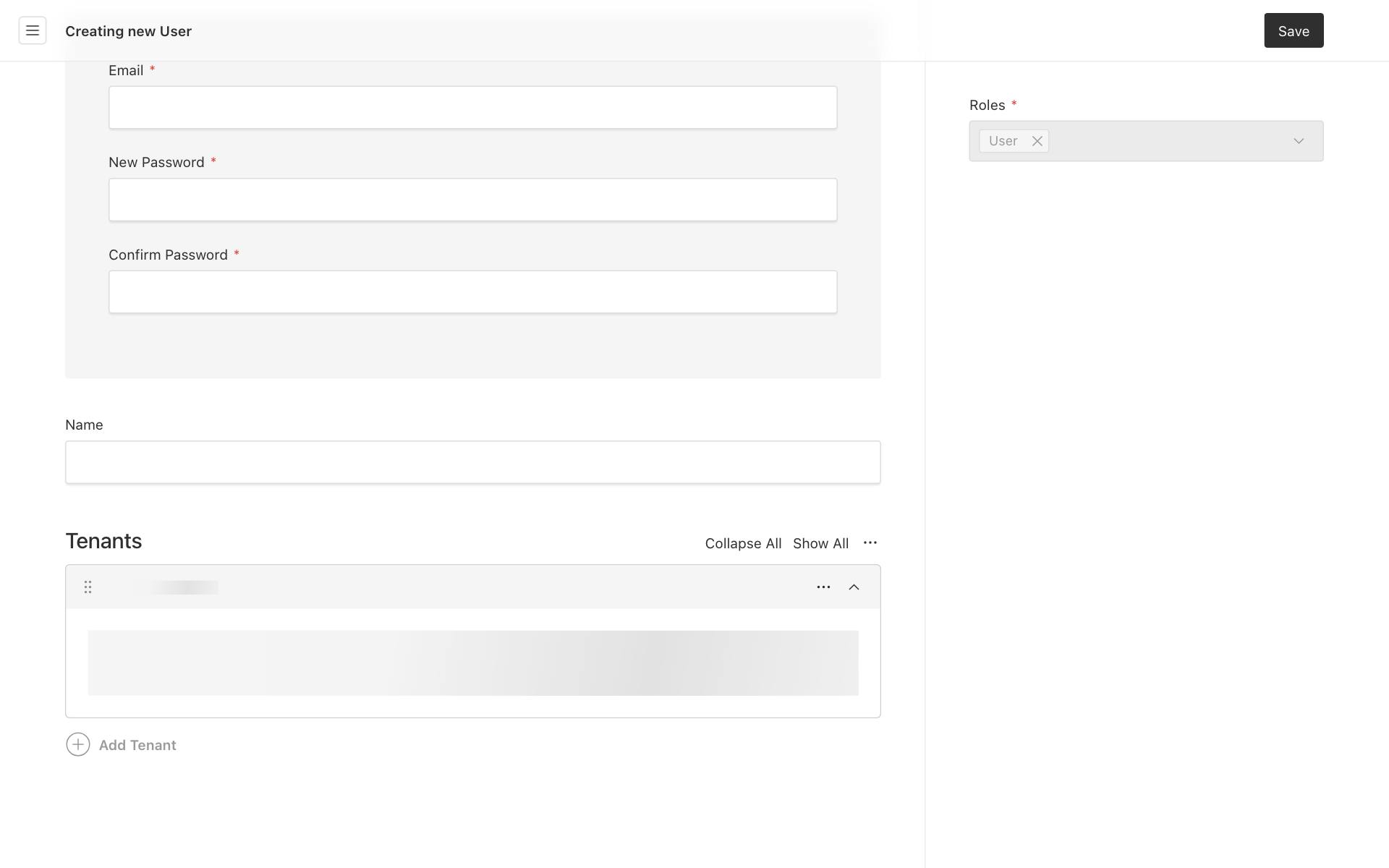
Leave the Roles box on the right as User. Only the platform team can change it.
The account is added to the vadodara.biz sign-in page straight away (at most a couple of minutes later). Then:
- Tell the person their email and the starting password, ideally in person or by phone, not in a group chat.
- They open
https://<your-business>.vadodara.biz/appand sign in. - They are asked to choose their own password straight away, because the one you typed is temporary.
Tip: Ask new staff to install the owner app on their phone and turn on notifications on the Today screen. See A day as staff.
What staff can and cannot do
Staff can edit pages and photos, work on leads and contacts, answer chats, and handle bookings. They cannot change business settings, services or "Staff & resources", cannot see invoices or the owner app's Business tab, cannot delete leads or bookings, and cannot add people. The full list is in Who does what.
Your plan's user limit
Each plan includes a number of people per business. Everyone with access counts, including you.
| Plan | People per business |
|---|---|
| Starter | 2 |
| Growth | 5 |
| Pro | 20 |
If you try to add one more than your plan allows, saving stops with a message like this:
"Your plan includes 2 users for Spice Garden. Ask the platform team to upgrade."
Remove someone who no longer needs access, or ask the platform team about a bigger plan. See Your plan and invoices.
Change someone's role
- Go to Platform → Users and click the person's email.
- In their Tenants row for your business, change Roles from Staff to Owner.
- Click Save.
You can make a staff member an owner, but not the other way round: an owner's account can only be changed by that owner or the platform team.
Owners' accounts
You can change and remove your own account and the accounts of your staff. You cannot change the name, email, password or role of another owner, remove their access or delete their account, even if they are an owner of the same business. Their page opens read-only for you, and saving or deleting is refused.
The same applies to a staff member who also works for another business on vadodara.biz: changing their account would affect the other business too. Ask the platform team to change it.
If a co-owner leaves, ask them to remove their own Tenants row for your business, or ask the platform team.
Reset someone's password
If a staff member forgot their password and cannot use Forgot password?:
- Open their account in Users.
- Click Change Password, type a new starting password twice, and click Save.
- Tell them the new password. They must choose their own at the next sign-in.
Remove access when someone leaves
There are two ways. Usually you want the first. Both work for your staff; for another owner, or staff who also work for another business, ask the platform team (see Owners' accounts).
Remove access to your business (the account stays):
- Open the person in Users.
- In their Tenants row for your business, click ⋯ and choose Remove.
- Click Save.
They can no longer see your business. If they sign in, they see a "no access" message. This frees their place in your plan's user limit.
Delete the account completely:
- Open the person in Users.
- Click ⋯ at the top and choose Delete, then confirm.
This deletes their sign-in too, so they can no longer sign in anywhere on vadodara.biz.
Important: You can only add or remove access for businesses you own. If you try anything else, you see "You can only manage access to businesses you own."
Hand over the business to a new owner
- Add the new owner as described above, with the role Owner. If they already have an account, add a Tenants row for your business to it, or change their row to Owner.
- Ask the new owner to sign in and check that they see the Business tab in the owner app.
- Then you remove your own Tenants row for the business: open your account (click your picture at the top right), click ⋯ on the row, choose Remove and click Save. The new owner cannot do this for you.
Do it in this order, so the business is never left without an owner. If you get stuck, the platform team can do it for you.
Change your own name, email or password
- In the website editor, click your picture at the top right. Your account opens. (You can also find yourself in Users.)
- Change your Name or Email, or click Change Password.
- Click Save.
Your sign-in is updated automatically. Change your email here, in the website editor, so your account and your sign-in stay in step. You can also change your password on your account page: https://auth.vadodara.biz/realms/vadodara-biz/account → Account security → Signing in → Update.