
AI features at a glance
Every AI feature in vadodara.biz in one place: what it does, where to find it, who can use it, how to switch it on or off, and your monthly allowance.
vadodara.biz has a few AI helpers that save you typing and answer common questions for you. This guide lists all of them in one place: what each one does, where it is, who can use it and how to switch it on or off. It is for owners, and takes about 5 minutes to read. The details of each feature are in the linked guides.
Important: Every AI feature only works if your platform has AI switched on. If it does not, everything still works without AI: chats wait for you in the Inbox, and you write texts yourself.
All AI features
| Feature | What it does | Where | Who can use it | On or off |
|---|---|---|---|---|
| Website chat assistant | Answers visitors' questions in the chat on your website | Website editor → Businesses → AI & chat | Visitors; owners set it up | Off until you show the chat button; AI answers are on by default once it is shown |
| WhatsApp replies | Answers customers' WhatsApp messages | Website editor → Businesses → WhatsApp gateway | Pro plan with two-way WhatsApp | Off until you switch it on |
| ✨ Suggest with AI | Drafts a reply in a chat, or a WhatsApp message to a lead, for you to edit | Owner app → Inbox → a chat, and Leads → a lead | Owners and staff | Always offered when the platform has AI |
| Write my website text | Writes a first headline, about text and Google description from a few sentences | Owner app → Set up your website | Owners | Always offered when the platform has AI |
| Weekly tips | Two short tips in your Monday summary email | Email "Your week at …" | Owners | Comes with the weekly email |
Website chat assistant
The assistant answers visitors in the Chat window on your website, in their language (English, Gujarati or Hindi).
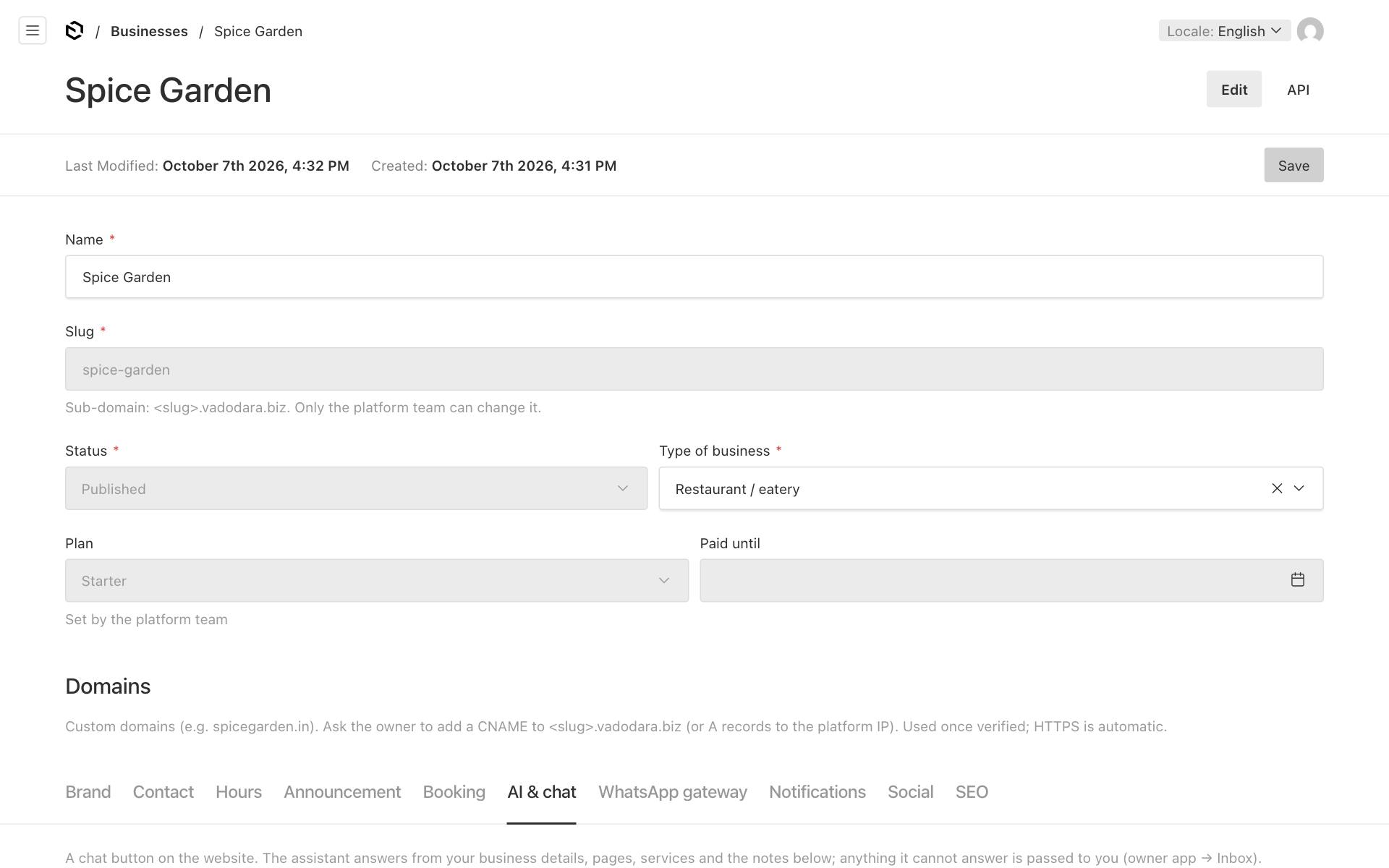
How it behaves:
- It answers only from your information: business details, opening hours, the text of your published pages, your bookable services, and the Notes for the assistant you write for it. It is told never to invent prices, dishes, offers or timings.
- If online booking is on, it can check free times for a service. It never books: it sends the visitor to your booking page.
- When it cannot help, or the visitor wants a person, it asks for a name and a phone number or email. Then it hands the chat over to you: a lead is created, you get a new-lead alert, and the chat shows Needs you in your Inbox.
- While the assistant is on, visitors see the line "Answers may come from an AI assistant and can be wrong." With it off, the line says the team answers in person.
To switch it on or off:
- In the website editor, open Businesses → your business → AI & chat.
- Tick Show the chat button on the website to show the chat.
- Tick or untick Let the AI assistant answer (otherwise visitors leave a message for you).
- Write facts for the assistant in Notes for the assistant: parking, delivery area, payment methods, rules. Up to 4,000 characters.
- Click Save.
You can also stop the AI in one chat only: open the chat in the owner app and tap Pause AI. Replying yourself pauses it too. Full guide: Inbox: website chat, WhatsApp and AI replies.
WhatsApp replies
With two-way WhatsApp (Pro plan, set up by the platform team), customers' WhatsApp messages arrive in your Inbox. The AI can answer them with the same information and rules as the website chat.
It is off until you tick Let the AI assistant answer WhatsApp messages on the WhatsApp gateway tab of your business. When it is off, messages wait for you. See Two-way WhatsApp.
Suggest with AI: reply drafts
In the owner app, ✨ Suggest with AI writes a draft for you. Nothing is sent until you send it.
- In a chat (Inbox → open a chat): it drafts your next reply from the conversation. Edit it, then tap Send reply.
- On a lead (Leads → open a lead → Message on WhatsApp): it drafts a follow-up message. Edit it, then tap Send on WhatsApp, which opens WhatsApp on your phone with the text ready.
Drafts are short, friendly and in the customer's language, and use only facts from your business information. Always read them before sending.
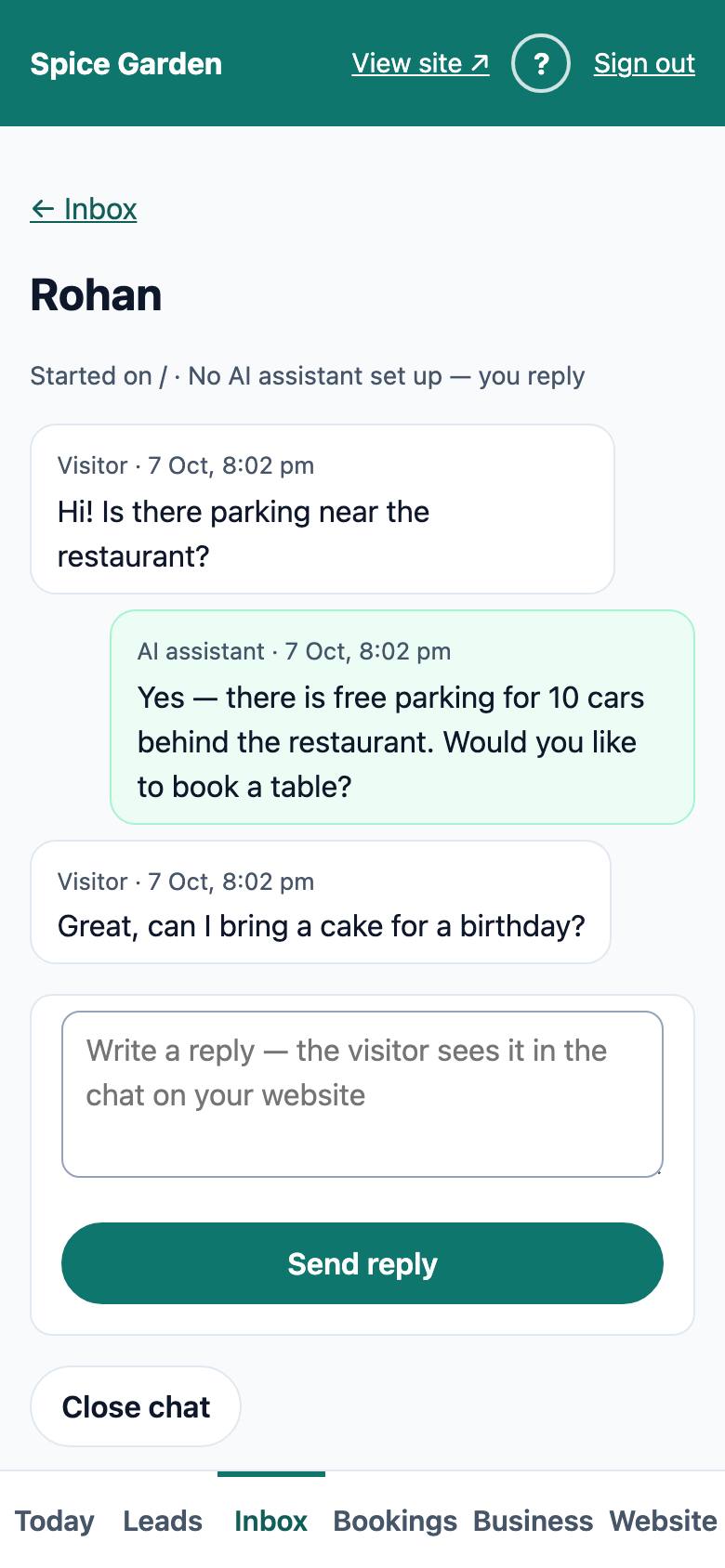
When the platform has no AI, the ✨ Suggest with AI button is not shown at all. See Leads, contacts and follow-ups.
Write my website text
At the bottom of the Set up your website checklist in the owner app, describe your business in a few sentences. The AI writes a headline, a line under it, an "About us" text and a Google description. Edit them, then tap Use this (as a draft). They are saved as a draft of your home page, so nothing goes live until you publish.
It uses only facts from your description and your business details. Only owners see the checklist.
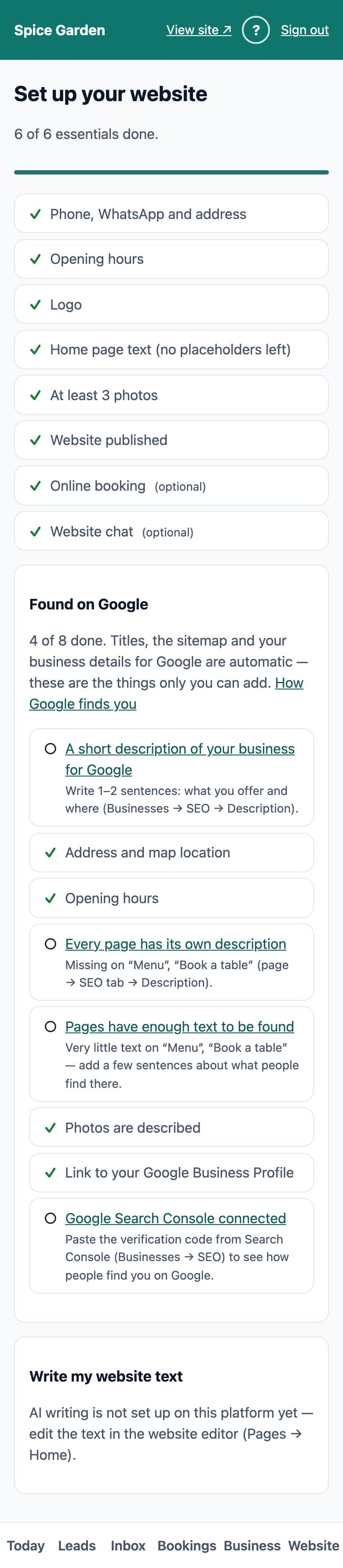
Full steps: Your first-day checklist.
Weekly tips
The Monday email "Your week at …" can end with two short, practical tips based on last week's numbers. They are only added when there was some activity (leads, bookings, calls or WhatsApp taps). To stop the whole email, untick Weekly summary email (Mondays) in the owner app under Business → New-lead alerts. See New-lead alerts: phone, Telegram and email.
Your monthly AI allowance
AI work is counted in tokens: small pieces of text, roughly a short word each. Each time the AI works, it counts the text it reads (your business information and the conversation) and the text it writes. So a website with a lot of text uses more per chat answer than a small one.
| Plan | AI allowance per month |
|---|---|
| Starter | 1,50,000 tokens |
| Growth | 5,00,000 tokens |
| Pro | 15,00,000 tokens |
Chat answers, WhatsApp replies, ✨ Suggest with AI, Write my website text and the weekly tips all use the same allowance. The platform team can set a different limit for your business.
To see how much you have used, open the owner app → Business and look at the plan card: "AI: … of … tokens used this month". The allowance starts again at midnight on the 1st of each month, India time.
When AI is off or used up
| Feature | What happens |
|---|---|
| Website chat | Visitors get one note: "Thanks for your message! The team will reply here as soon as they can…". You answer from the Inbox. If they type an Indian mobile number, a lead is created. |
| Messages wait for you in the Inbox, and phones with notifications on get an alert. | |
| Alerts | When the allowance runs out you get one "AI allowance used up" alert that month. If the AI fails to answer a chat, you get "AI could not answer a chat" (at most once a day). See Alerts when the AI cannot answer. |
| ✨ Suggest with AI | Shows "This month's AI allowance is used up." Write your own message. If the platform has no AI, the button is not shown. |
| Write my website text | Shows "This month's AI allowance is used up." If the platform has no AI, the box says "AI writing is not set up on this platform yet". |
| Weekly tips | The email is sent without tips. |
If you often run out before the month ends, ask the platform team about your plan. See Your plan and invoices.
Privacy and safety
- To write an answer, the AI service receives the chat messages and your business's public information. Your website's privacy notice (
/privacy) names that AI service when the chat assistant is on. - Never put anything private in Notes for the assistant: the assistant may repeat it to any visitor.
- The assistant never asks for payment details, passwords or ID numbers, and the chat tells visitors not to share them. Do not ask customers for them in chats either.
- The AI can be wrong. Check your Inbox regularly and correct anything important, such as prices or allergy questions.