
Leads, contacts and follow-ups
See every enquiry as a lead, call or WhatsApp back in one tap, track its stage and set follow-up reminders from your phone.
A lead is one person who asked you about something: a table for Saturday, a price for catering, a haircut. This guide is for owners and staff. Most of it happens in the owner app on your phone (https://<your-business>.vadodara.biz/app → Leads). A few extra fields live in the website editor on a computer. Reading it takes about 10 minutes.
Where leads come from
Every new lead is created for you automatically, and you get a new-lead alert (see New-lead alerts).
| How the customer reached you | Source shown on the lead |
|---|---|
| Sent the enquiry form on your website | Website form |
| Booked online | Booking (the lead starts in Qualified; an online call moves it to Discovery call) |
| Left their name and phone or email in the website chat | Chat |
| Sent a message on two-way WhatsApp (if your plan has it) | |
| You or your staff added it in the website editor | Added manually, or Phone call if you choose that |
Each lead belongs to a contact: the customer's name, phone and email. If the same phone number (or else the same email) writes again, the new lead is added to the existing contact instead of creating a second one. The same rule applies to contacts you add by hand (see Add a lead by hand).
Find a lead in the owner app
- Open the owner app and tap Leads at the bottom.
- Tap a filter chip at the top. Open (the default) shows every lead that is not Won or Lost. New, Contacted, Qualified, Won and Lost show one stage. Follow-up due shows open leads whose follow-up is due by the end of today (India time), including overdue ones, oldest first. This is the same list the "follow-ups due" number on Today counts.
- To find someone, type in Search name or phone and press Enter.
- The list shows 25 leads at a time. Use ← Newer and Older → at the bottom to page through.
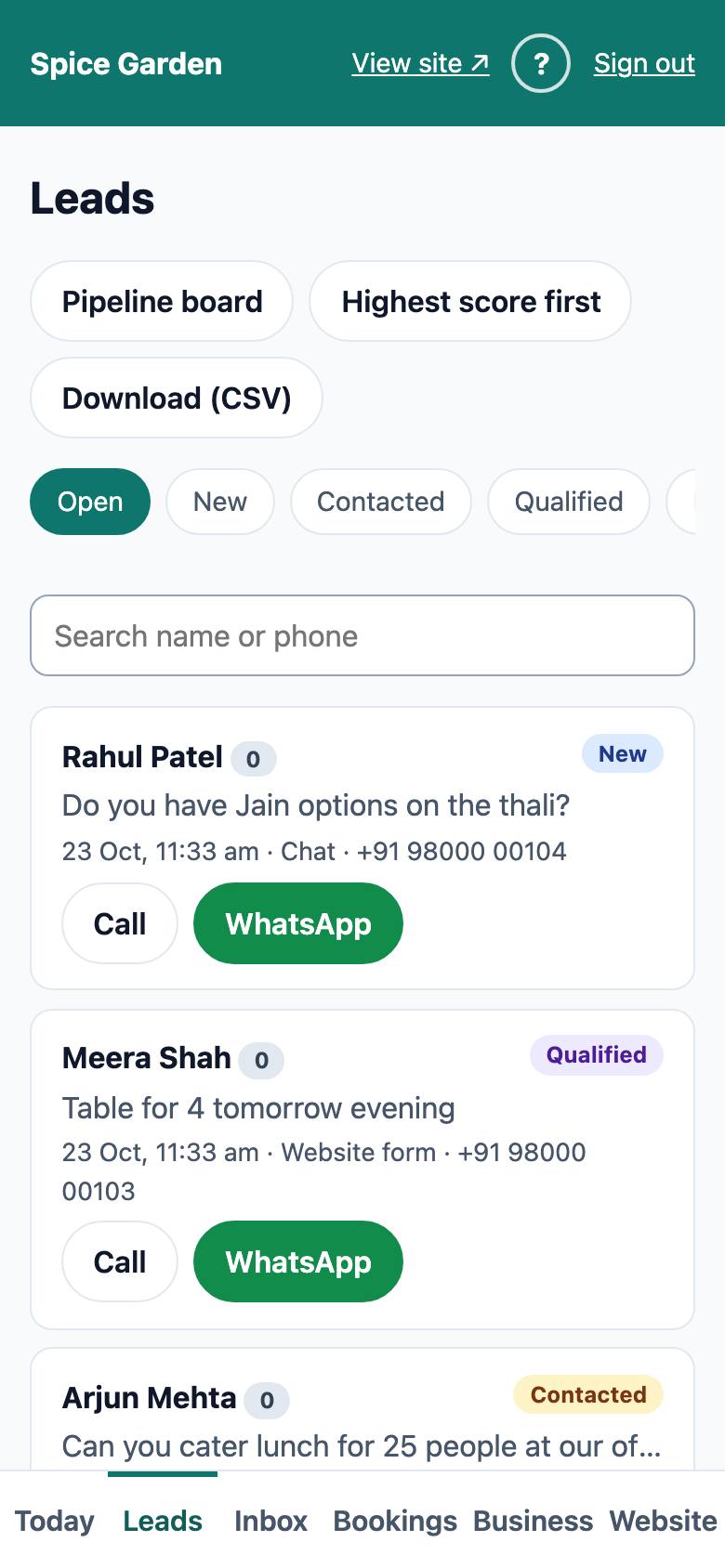
Each row shows the name, the stage, the message, when it came in, the source and the phone number. If the follow-up is due today or overdue you also see "follow up" with the date.
The buttons on each row:
- Call opens your phone's dialler with the number.
- WhatsApp opens WhatsApp on your phone with "Hi <name>, this is <your business>." already typed. Add your message and send.
- Email appears instead when the customer gave only an email address.
Tip: On the Today screen, tap "new leads" to jump straight to the New filter, or "follow-ups due" to see who you promised to call back.
Open a lead
Tap a lead's name to open it. At the top you see the stage, source and time, the page they wrote from ("from /menu") and, if your link was tagged, the campaign ("campaign: instagram / diwali"). Below are their phone and email, big Call and WhatsApp buttons, and their original message.
Leads from your website also show where the person was and what they used when they sent it, for example "Sent from: Vadodara, Gujarat, India · Chrome 131 on Android 14 · Phone" followed by their IP address. The place is worked out from the IP address (IP geolocation by DB-IP) and is approximate: often the nearest big city or the city of their mobile network. The IP address is deleted after 90 days. In the website editor the same details are in the lead's Where it came from box.

How they found you
If the lead came from your website, this box shows what that visitor did before getting in touch:
- The first line says where they came from (for example "From Instagram · diwali", "From Google" or "From Direct (typed, bookmark or app)"), whether they were on a phone, tablet or computer, how many pages they looked at and over how many minutes.
- Each line below is one step with its time (India time). Plain lines are pages they opened ("Home", "Menu"). Highlighted lines are actions: "Tapped WhatsApp", "Tapped Call", "Tapped Directions", "Opened the chat", "Sent the enquiry form" or "Booked".
This tells you what the customer was interested in before you call. For example, someone who read the Menu page twice probably wants to order. Leads you added by hand, and WhatsApp leads, have no website visit, so this box is not shown.
Message on WhatsApp
This box appears when the lead has a phone number.
- Type your message in the box. If your platform has AI switched on, you can tap ✨ Suggest with AI to get a draft, then edit it.
- Tap Send on WhatsApp. WhatsApp opens on your phone with the text ready. Press send there.
The message goes from your own WhatsApp, so the customer sees your number.
Ask for a Google review
Reviews are what most people look at on Google. After a happy visit or a finished job, ask for one in a tap:
- Open the lead and scroll to Ask for a Google review.
- Tap Ask for a review on WhatsApp. WhatsApp opens with a thank-you message and your review link, for example: "Hi Asha, thank you for choosing Spice Garden! If you were happy with us, a short Google review would help us a lot: …"
- Change the text if you like, and press send.
The button appears when your Google review link is set (website editor → Businesses → Social). Until then, the box tells you where to add it. See Business details.
Keep the stage up to date
The stage says how far each lead has got:
| Stage | Use it when |
|---|---|
| New | Nobody has replied yet |
| Contacted | You called or messaged them |
| Qualified | They are serious (a date, a number of people, a budget). Online bookings start here |
| Discovery call | A first call or meeting is booked or done. Booking an online call moves the lead here |
| Proposal | You sent a quote or proposal and are waiting for an answer |
| Won | They became a customer |
| Lost | It did not happen |
- Under Stage, choose the new stage.
- If you chose Lost, you can type a reason in If lost: why? (optional), for example "too far" or "price".
- Tap Save.
You can add or change the reason later. On a lead that is already Lost, type the reason in If lost: why? (optional) and tap Save. The box shows the reason saved before. The timeline then says "Lost reason: …". If you empty the box and save, it says "Lost reason removed".
Use only the stages that fit your business: a restaurant may never need Discovery call or Proposal. To see all your leads by stage at once and move them along, use the pipeline board.
The change is written on the lead's timeline ("New → Contacted") with your name. Every stage change is written there, also one made in the website editor or by a booking (then without a name). If the lead came from your website's enquiry form, the enquiry's Status follows the lead's stage (see The same leads in the website editor). Why it matters: the Open list and the "new leads" number on Today only stay useful if finished leads are marked Won or Lost. "Won in 7 days" on Today and the weekly summary email count your Won leads.
Set the next step and its date
- Under Next step, type what happens next if you like, for example "Send proposal" (optional).
- Pick the day in the date box (the follow-up date).
- Tap Set.
The follow-up is saved for 10:00 in the morning (India time) on that day. From the start of that day the lead counts in "follow-ups due" on the Today screen and shows under the Follow-up due chip on the Leads list. It stays there while it is overdue, until you change the date or mark the lead Won or Lost. To remove a follow-up, clear the date and tap Set. The next step and its date also show on the lead's card on the pipeline board.
Value, currency and who works on it
Under Deal on a lead:
- Type the Expected value (whole amount, for example 120000) and choose the currency: ₹ INR, $ USD or € EUR.
- Choose who works on it in Assigned to (the owners and staff of your business), or Nobody assigned.
- Tap Update deal.
The pipeline board adds up the values of each stage. A lead can also be assigned automatically by your routing rules.
Answers from the enquiry form, score and urgency
If your enquiry form asks extra questions (see Page sections), the lead shows the answers under the message: Company, Country, Topic and Their deadline. A lead marked urgent has a red Urgent badge.
Every lead also gets a lead score from 0 to 100, shown as a small number next to the name: red for 60 and more, yellow for 30 and more, grey below. The line "Lead score …" on the lead says why. How it works: Lead routing, score and auto-reply. On the Leads list, tap Highest score first to sort by it.
Download your leads as a spreadsheet
Owners can tap Download (CSV) at the top of the Leads list. The file has every lead of your business with its contact details, stage, value, score, assigned person, next step, the enquiry answers, the campaign it came from and where the person was (IP address, city, country, browser, device). Open it in Excel or Google Sheets. The download is recorded in the change log.
Add a note or a call to the timeline
- Under Add to timeline, write what happened, for example "Called — wants a table for 6 on Sunday".
- Choose Note or Call.
- Tap Add.
The timeline below lists everything about this lead, newest first: the customer's message, stage changes, bookings, notes and calls, each with the time and who added it. Timeline entries cannot be edited later, so everyone can trust the history.
The same leads in the website editor
On a computer, open the website editor (https://<your-business>.vadodara.biz/admin). The CRM group in the menu has:
- Leads: the same leads, with a few extra fields. Value is the expected value in ₹ (optional). Assigned to says which team member handles it. Follow-up date lets you pick an exact time. Why it was lost appears when the stage is Lost. You can fill it in or change it any time later and click Save. The Where it came from group (Page, Campaign source, Campaign medium, Campaign name, Website visit) is filled automatically and cannot be changed. The search box searches the title and message.
- Contacts: one record per customer, with Name, Phone (stored with country code, digits only), Email (stored in small letters) and Notes. In the sidebar, Source shows how the customer first reached you (Website form, WhatsApp, Phone call, Chat, Booking, Added manually or Imported) and Last activity when you last heard from them. Both are filled in automatically.
- Activities: every timeline entry of every lead. You can add one, but not edit it.
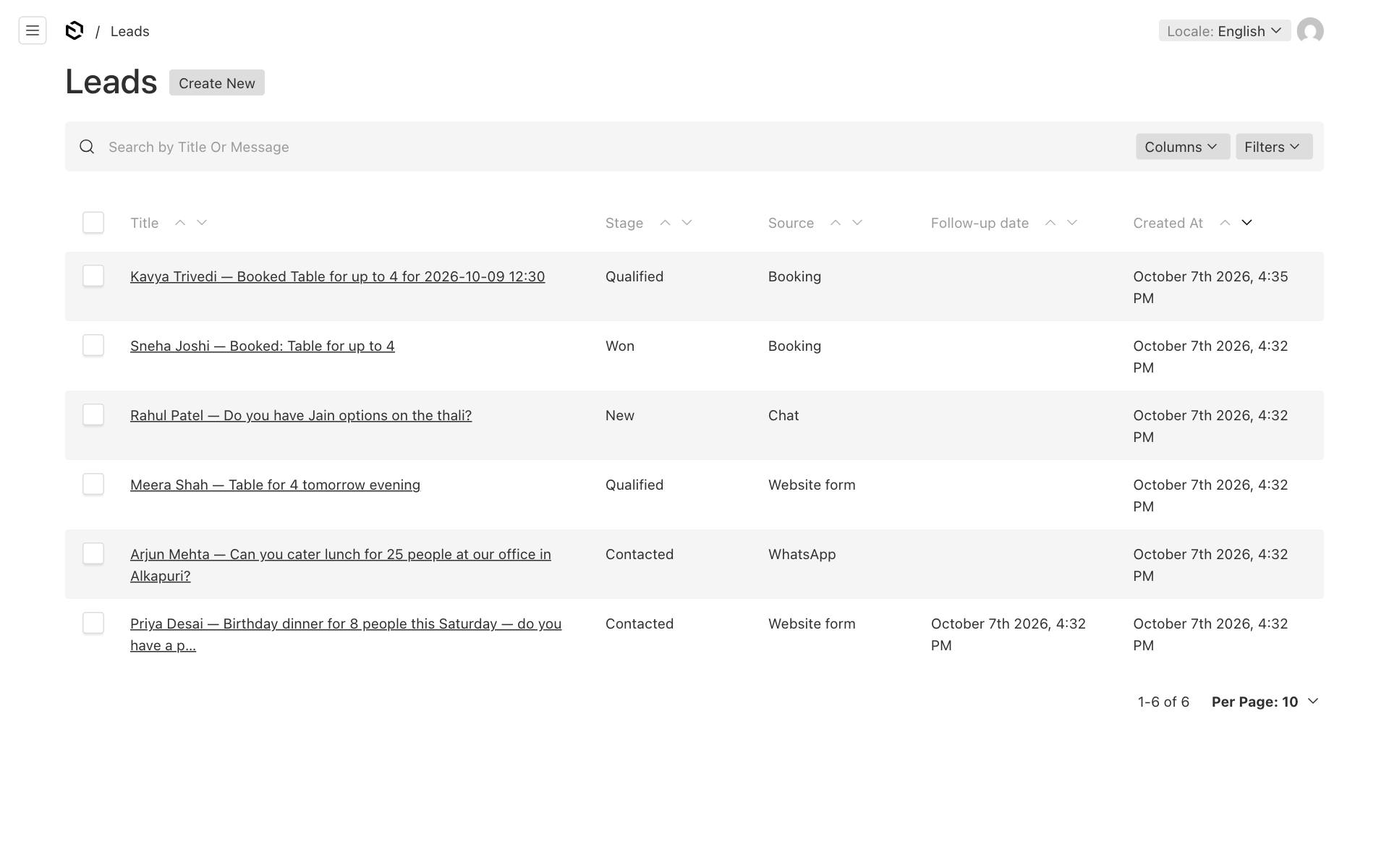
The Content group has Enquiries: the raw messages from your website's enquiry form, which cannot be changed. Each enquiry has a Status (New / Contacted / Closed) and a link to the lead it created. Work from the lead: when you change the lead's stage, in the owner app or the website editor, the enquiry's status follows it:
| Lead stage | Enquiry status |
|---|---|
| New | New |
| Contacted or Qualified | Contacted |
| Won or Lost | Closed |
You can still change an enquiry's Status by hand. It only changes again the next time the lead's stage changes.
Add a lead by hand (phone or walk-in customer)
When someone calls or walks in, add them so they are not forgotten.
- In the website editor, open CRM → Leads and click Create New.
- In Title, write who and what, for example "Asha — catering for 50".
- Set Source to Phone call or leave it as Added manually.
- Under Contact, search for the customer. If they are new, use the add button next to the field to create the contact with their name and phone.
- Add the Message, and a Follow-up date if you need one.
- Click Save.
Good to know: A customer can only be saved once. If you add (or edit) a contact with a phone number that another contact already has, or with no phone and an email that another contact already has, it is not saved. The message names the existing contact, for example: "Asha" already has the phone number +91 98765 43210. Use that contact instead, followed by its address in the editor. Pick that contact in the lead's Contact field instead. The number is compared however it was typed, so "098765 43210" and "+91 98765-43210" count as the same.
A lead added by hand also sends the new-lead alert, so the rest of the team sees it.
Who can delete
Owners and staff can view, add and change leads, contacts and enquiries. Only owners can delete leads, contacts, timeline entries and enquiries. Instead of deleting, mark a lead Lost: you keep the history and your numbers stay correct.