
Inbox: website chat, WhatsApp and AI replies
Turn on the chat button on your website, let the AI assistant answer common questions, and reply to visitors yourself from the owner app.
Your website can have a Chat button. Visitors type a question, an AI assistant can answer from your business information, and anything it cannot answer comes to you in the Inbox of the owner app. This guide is for owners (setup, about 10 minutes in the website editor) and for everyone who answers chats (owner app on the phone).
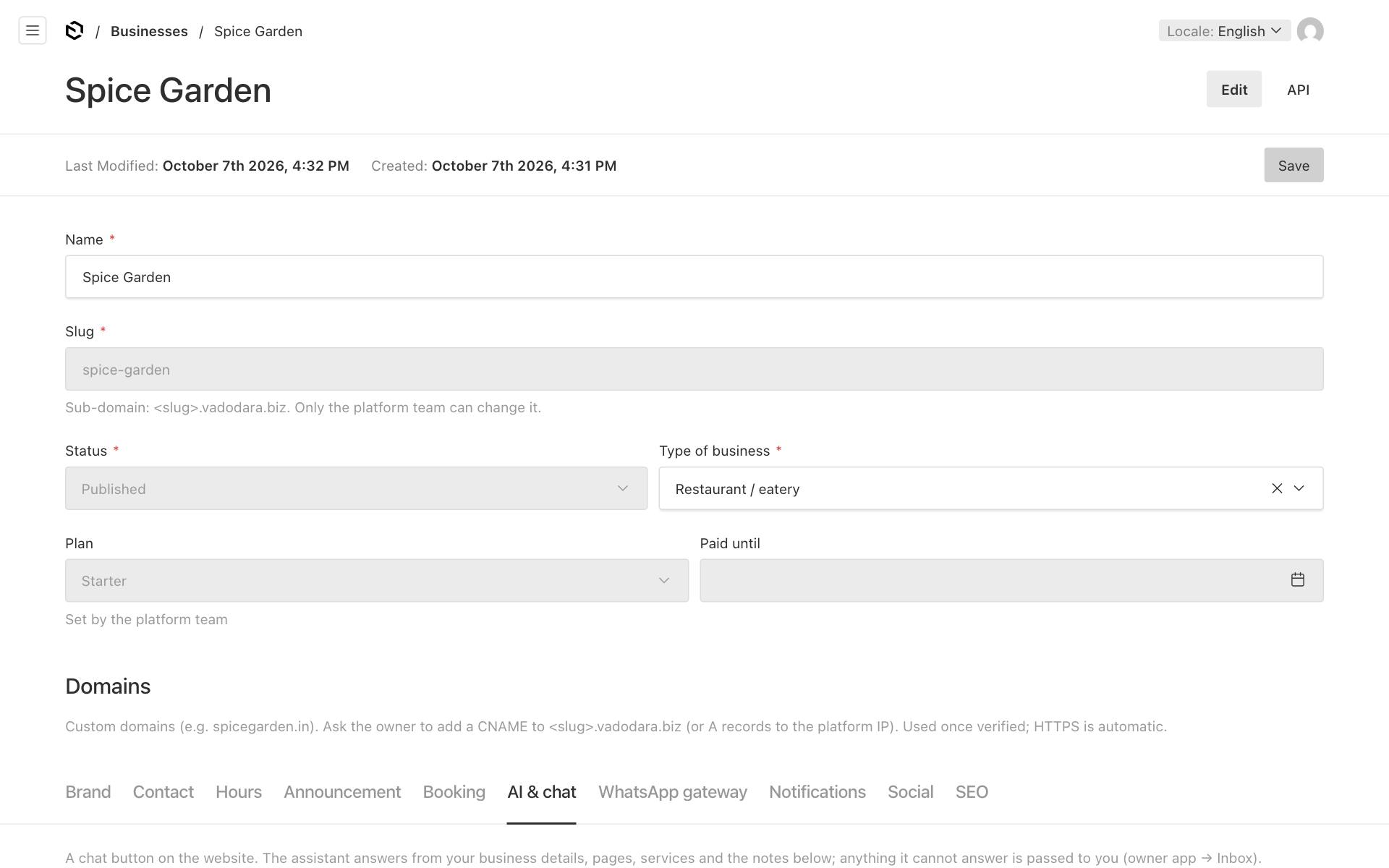
Turn on the website chat
- In the website editor, open Businesses and click your business.
- Click the AI & chat tab.
- Tick Show the chat button on the website.
- In Chat greeting, write the first message visitors see, for example "Namaste! Ask us about the menu, timings or table bookings."
- Leave Let the AI assistant answer (otherwise visitors leave a message for you) ticked if you want the AI to reply. Untick it if only people should answer.
- Fill in Notes for the assistant (see below).
- Click Save.
The AI only replies if your platform has AI switched on. If not, visitors can still chat and you answer them yourself.
Monthly AI allowance (tokens) shows the AI allowance for your business. Only the platform team can change it. Empty means the platform's normal allowance for your plan.
Write good notes for the assistant
The assistant already knows your business details, opening hours, contact details, the text of your pages, your bookable services and your booking rules. Use Notes for the assistant (up to 4,000 characters) for facts that are not on your website. Short, plain facts work best:
- "Free parking for 10 cars behind the restaurant. Street parking on Sundays is difficult."
- "We deliver within 5 km of Alkapuri through Swiggy and Zomato. No own delivery."
- "We accept UPI, cards and cash. No cheques."
- "Birthday cakes from outside are allowed. No outside food otherwise."
- "Jain food: all thalis can be made without onion and garlic. Tell the waiter."
- "Groups above 12: please call, we need one day's notice."
Do not put anything private in the notes, because the assistant may repeat it to any visitor.
How the AI assistant behaves
- It answers only from your information. If it does not know, it says so and offers to pass the question to your team. It should never invent prices, dishes, offers or timings.
- It keeps answers short (at most 3 sentences).
- It replies in the visitor's language: English, Gujarati or Hindi.
- If online booking is on, it can look up free times for a service. It never books itself. It points the visitor to your booking page.
- When the visitor wants a person, a call back, a quote or anything it cannot do, it asks for their name and a phone number or email. Once it has them, it hands the chat over to you: a lead is created (source "Chat"), you get a new-lead alert, and the chat is marked Needs you.
- If the AI is off, paused, or this month's allowance is used up, the visitor gets one note: "Thanks for your message! The team will reply here as soon as they can…" Phones with notifications turned on get an alert. If the visitor writes an Indian mobile number in a message, a lead is created for you automatically.
While the AI assistant answers, the visitor sees the line "Answers may come from an AI assistant and can be wrong." Check the Inbox regularly and correct anything that was wrong. With the assistant off, the line says instead that the team answers in person.
Your Inbox
The Inbox tab appears in the owner app when the website chat or two-way WhatsApp is switched on.
- Tap Inbox at the bottom.
- Active shows open chats (the default). Closed shows chats you closed.
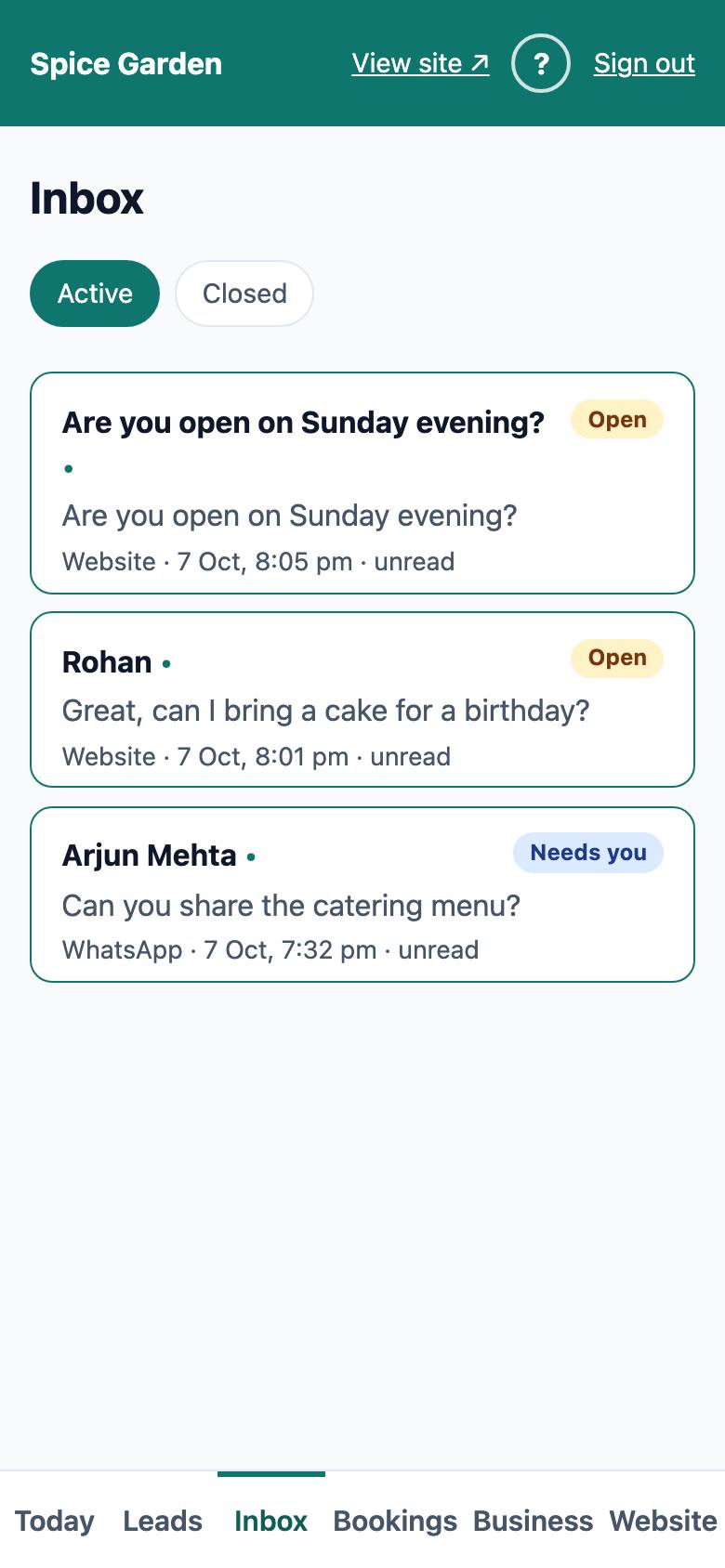
Each chat shows:
- The visitor's name once it is known, otherwise their first message.
- A status: Open (the chat is going on), Needs you (the AI handed it over, or the visitor left a phone number) or Closed.
- The last message, then "Website" or "WhatsApp", and the time. The last message is the latest one from the visitor, your team or the AI. The automatic "team will reply" note is never shown here.
- "AI paused" when a person has taken over, and "unread" when there is a new message nobody has opened.
Answer a chat
The list and an open chat update by themselves every few seconds while the app is on screen, so new chats and messages appear without refreshing.
Good to know: You reply in the owner app, not in the website editor. In the editor, Inbox — reply to chats in the side menu opens the Inbox, and each chat under CRM → Conversations has Reply to this chat in the Inbox →.
- Tap a chat to open it. Opening it marks it as read.
- Read the conversation. Each message says who wrote it: Visitor, AI assistant, You (anyone from your team) or Note (the automatic "we will reply" note).
- Type your answer in the reply box. For a website chat the visitor sees it in the chat on your website. For a WhatsApp chat it is sent on WhatsApp.
- If your platform has AI switched on, you can tap ✨ Suggest with AI for a draft and then edit it.
- Tap Send reply.
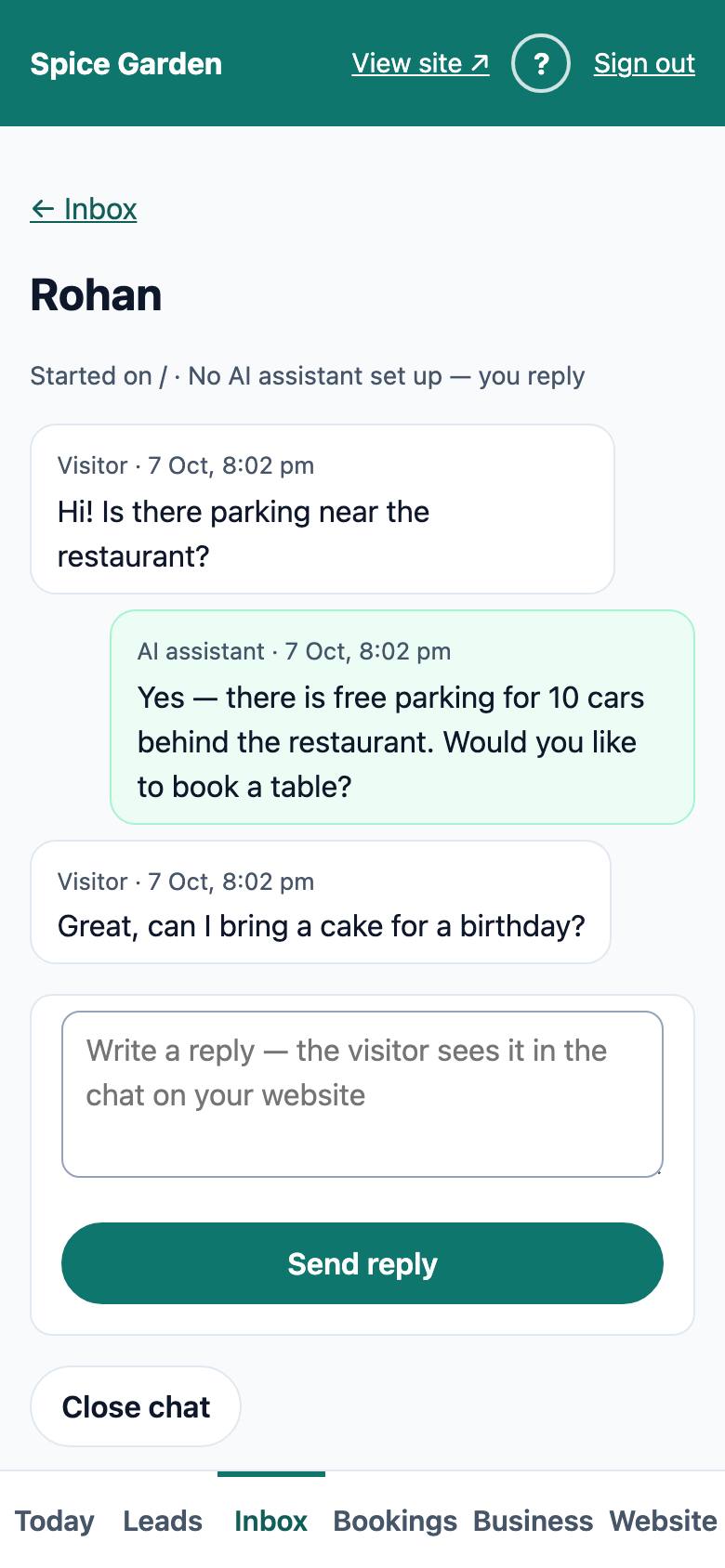
Important: When you reply, the AI stops answering this chat, so it does not talk over you. If you want the AI to carry on after your message, tick Let the AI keep answering after this before you tap Send reply.
The line under the name tells you who is answering this chat. Website chats and WhatsApp chats each follow their own switch: Let the AI assistant answer (otherwise visitors leave a message for you) on the AI & chat tab for the website, and Let the AI assistant answer WhatsApp messages on the WhatsApp gateway tab for WhatsApp.
| Line | Meaning |
|---|---|
| AI assistant is answering | Website chat: the AI replies. |
| AI assistant is answering on WhatsApp | WhatsApp chat: the AI replies. |
| AI assistant off | Website chat: the website switch is off, so you reply. |
| AI replies on WhatsApp are off — you reply | WhatsApp chat: the WhatsApp switch is off. |
| AI paused — you are replying | Someone on your team took over this chat (see Resume AI below). |
| AI allowance used up this month — you reply | The AI stops until next month (see The AI allowance). |
| No AI assistant set up — you reply | Your platform has no AI switched on. |
It also shows the page where the chat started, and Open lead when a lead was created for this visitor.
For WhatsApp chats each of your messages shows its delivery: "sending…", "sent ✓" or "⚠ not delivered".
Other buttons
- Pause AI stops the AI in this chat without sending anything. Resume AI lets it answer again.
- Close chat moves the chat to Closed when the conversation is finished. The reply box is hidden on closed chats. Reopen brings it back. A closed WhatsApp chat reopens by itself when the customer writes again.
Good to know: A visitor sees your reply while their chat window is open. If they come back later on the same phone and browser, the conversation is still there when they open Chat. If they may have left, call or WhatsApp them using Open lead.
The AI allowance
AI replies, ✨ Suggest with AI drafts and the tips in the weekly email use your business's monthly AI allowance. Owners can see how much is used in the owner app under Business → Plan ("AI: … of … tokens used this month"). The allowance starts again at midnight on the 1st of each month, India time.
When it is used up:
- The chat assistant stops answering on the website and on WhatsApp. Website visitors get the "team will reply" note, so you answer from the Inbox. Each chat says "AI allowance used up this month — you reply".
- You get one alert, "AI allowance used up", the first time it happens in a month (see below).
- ✨ Suggest with AI shows "This month's AI allowance is used up."
Alerts when the AI cannot answer
You are told when the AI stops answering, so customers are not left waiting:
- AI could not answer a chat: the AI failed to reply to a website chat or WhatsApp message (for example because the AI service was down). The chat waits for you in the Inbox. You get this alert at most once a day.
- AI allowance used up: this month's allowance has run out. You get this alert once a month.
Both arrive the same way as new-lead alerts: as a phone notification on every phone that turned them on, in your connected Telegram chat, and by email to the owners when Email me about every new lead is ticked. Tapping the notification opens the chat (or the Inbox). See New-lead alerts.
If you often run out, ask the platform team about your plan. For every AI feature and how each uses the allowance, see AI features at a glance.