
Photos and files
Upload photos and files to your website, write good alt text, choose the focal point, replace or delete a photo, and take better photos with your phone.
All the photos on your website (in the Hero, gallery, menu, logo and so on) are kept in one place, called Media. You upload a photo once and can use it in as many sections as you like. This guide is for owners and staff, in the website editor. Uploading one photo takes a minute.
See your photos
- Open the website editor at https://your-business.vadodara.biz/admin.
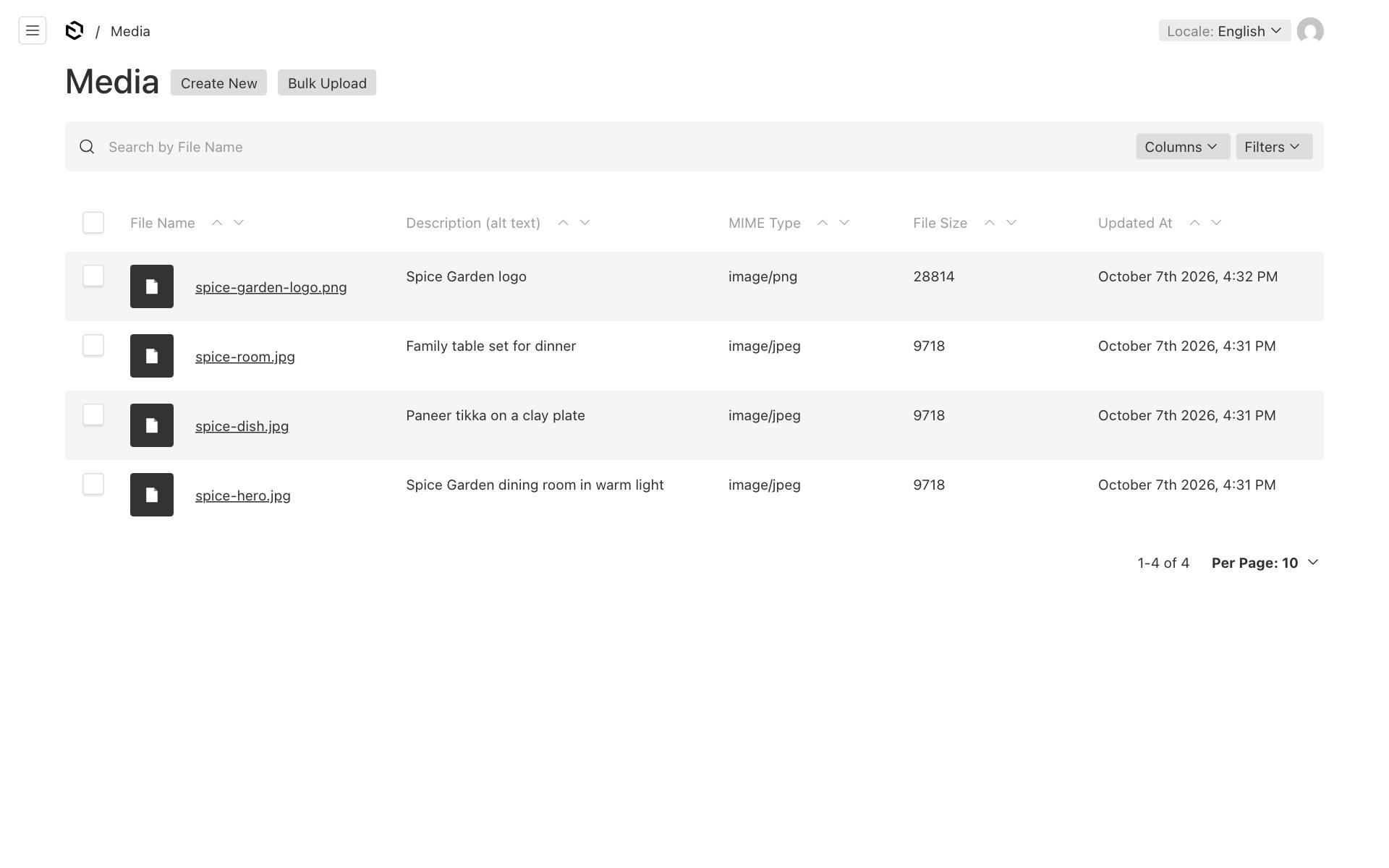
- Under Content, click Media.
The list shows each file's name, its Description (alt text), the file type, its size and when it last changed. Click a file name to open it.
Upload a photo
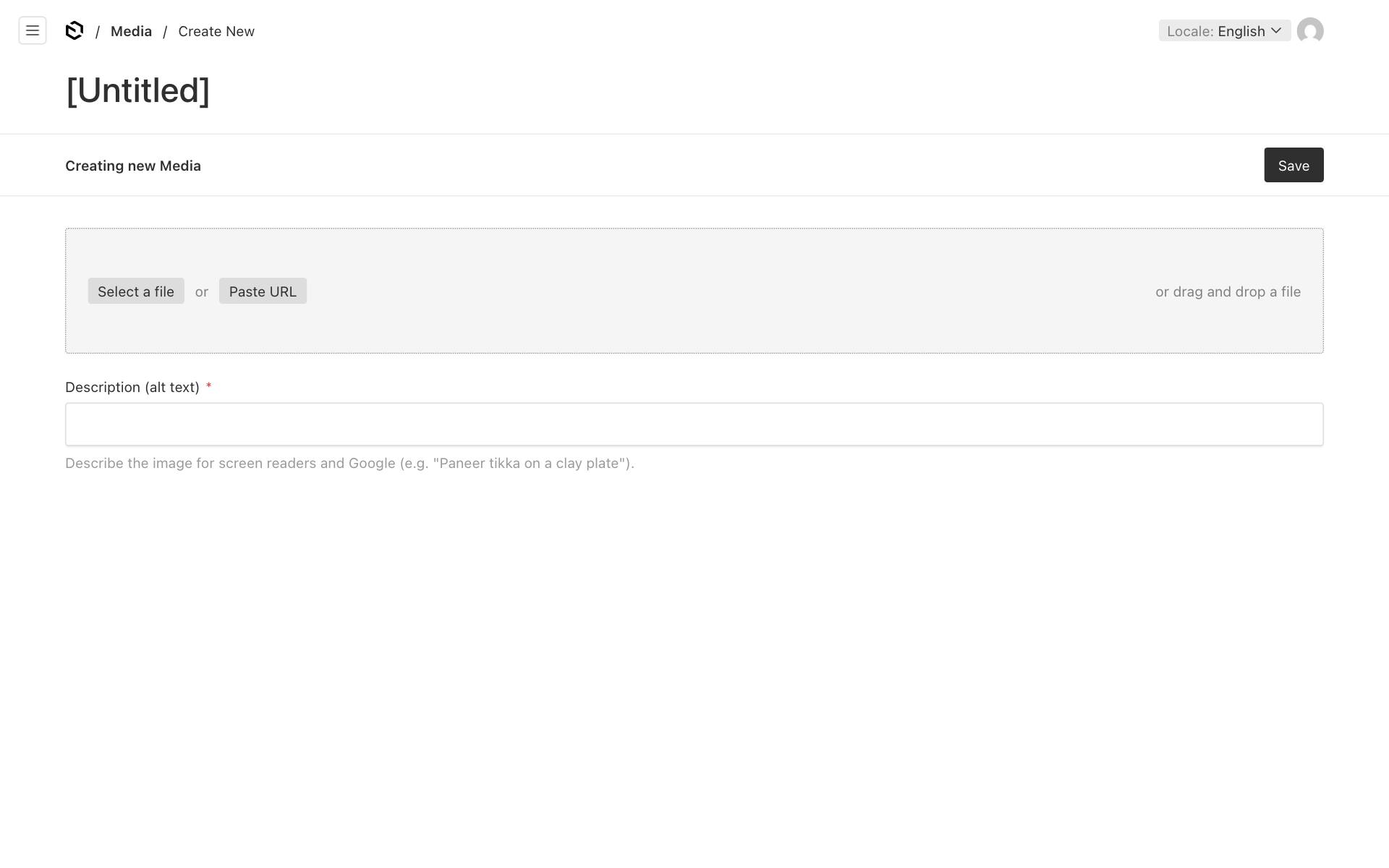
- In Media, click Create New.
- Click Select a file and choose the photo. You can also drag the photo onto the grey box, or click Paste URL to copy a photo from a web address.
- Fill in Description (alt text): a short description of the photo (see below). It is required.
- Click Save.
To upload many photos at once, click Bulk Upload in the Media list instead. You still need to fill in a description (alt text) for each photo.
Upload while editing a section
You do not have to go to Media first. Every image field in a section, for example a Hero's Image, has two buttons:
- Create New uploads a new photo right there, with the same steps as above.
- Choose from existing picks a photo you uploaded before.
Allowed files and sizes
| File type | Largest size |
|---|---|
| Photos: JPEG, PNG, WebP, GIF, AVIF | 10 MB |
| PDF documents | 10 MB |
| Videos: MP4, WebM | 50 MB |
SVG files are not accepted, for safety reasons. If your logo is an SVG, export it as a PNG first.
If a file is refused, you see "File type … is not allowed." or "File too large: max … MB".
Good to know: The At least 3 photos step of the owner app's setup checklist counts only photos (JPEG, PNG, WebP, GIF or AVIF). Your logo, your browser tab icon, PDFs and videos do not count. See Your first-day checklist.
Good to know: To show a video on your website, the easiest way is to put it on YouTube and use an Embed section. See Page sections: every type explained.
Write good alt text
Alt text (the Description (alt text) field) is a short description of what the photo shows. Two kinds of visitor rely on it:
- People who cannot see the photo. Screen readers used by blind visitors read the alt text aloud. It also shows when a photo fails to load on a slow connection.
- Google, which reads alt text to understand your photos. Good alt text helps you appear in Google Images and in local search.
Describe what is in the photo in a few plain words, as if you were telling a friend on the phone:
| Good | Not helpful |
|---|---|
Paneer tikka on a clay plate |
IMG_2045.jpg |
Family table set for dinner at Spice Garden |
photo |
Bridal mehendi on both hands |
best salon vadodara cheap salon salon near me |
Spice Garden logo |
(left empty) |
Do not stuff the alt text with search words. Describe the photo, and mention your business or area only where it fits naturally.
Set the focal point
When a photo has to be cut to a different shape, the focal point tells the website which part matters most, such as a face or the dish.
- Open the photo in Media.
- Click Edit Image.
- Click the most important part of the photo to set the focal point.
- Apply the change, then click Save.
The focal point is used for the share picture: the 1200×630 version shown when someone shares your page on WhatsApp or Facebook.
Sizes are made for you
When you upload a photo, the website automatically makes smaller copies:
- 400, 800 and 1600 pixels wide, for showing on your pages;
- 1200×630, for the share picture.
Visitors on phones get a small copy, so pages load fast even on mobile data. You only need to upload one good-quality photo.
Replace a photo
To swap a photo everywhere it is used, for example a new logo or a better dish photo:
- Open the photo in Media.
- Click the × next to the current file to remove it.
- Select the new file.
- Update the Description (alt text) if needed.
- Click Save.
Every section that uses this photo now shows the new one.
To change the photo in just one section, open that section and click Choose from existing or Create New in its image field.
Delete a photo
- Open the photo in Media.
- Click the ⋮ menu at the top right, then Delete.
- Confirm.
You can also tick several photos in the list and delete them together.
Deleting cannot be undone, and nothing warns you if the photo is in use. The photo simply disappears from every section, logo or gallery that used it. Before deleting, check that the photo is not in use, or put another photo in its place first.
Important: A Gallery needs at least one photo. If you delete all the photos a gallery used, choose new photos for it before you publish that page again.
Tips for phone photos
- Hold the phone sideways (landscape) for Hero photos. The Hero is wide, so an upright photo gets cut at the top and bottom.
- Use daylight. Shoot near a window or outdoors, and avoid the flash. Food looks best in soft daylight.
- Clean the lens. A quick wipe makes photos much sharper.
- Keep it simple. Clear the table, and show one dish or one thing per photo.
- About 2000 pixels wide is plenty. Most phone photos are bigger, which is fine as long as each file is under 10 MB.
- Save as JPEG. Many iPhones save HEIC photos, which the website does not accept. Change the iPhone camera setting to "Most Compatible" so it saves JPEG instead.
- Use only photos you own or have permission to use. Do not copy photos from Google or other websites.