
A day as staff: leads, chats and bookings
A simple daily routine for staff in the owner app: check Today, follow up leads, answer chats, handle bookings, and know what to pass to the owner.
This guide is for staff who answer customers for a business on vadodara.biz. It gives you a simple routine you can follow every day on your phone in the owner app. The first time takes about 15 minutes; after that, a full round takes 5 to 10 minutes, a few times a day.
What you can do as staff
- See and work on all leads: call, WhatsApp, change the stage, set follow-ups and add notes.
- Read and answer website chats and WhatsApp chats in the Inbox.
- See bookings and mark them Done, No-show or Cancel. In the website editor you can also add a booking for a phone call or walk-in.
- See visitor numbers.
- Edit pages and photos in the website editor.
What only the owner can do: change business details (hours, contact, announcement, brand), services and "Staff & resources", alerts and the plan; delete leads or bookings; add people. See Who does what.
Before you start: turn on notifications
Get a notification on your phone for every new lead and chat, so customers are never kept waiting.
- Add the owner app to your home screen (see The owner app). On iPhone this is needed for notifications.
- Open the app and go to Today.
- Scroll to the bottom, to Notifications.
- Tap Turn on, then allow notifications when your phone asks.
- It now says "On for this phone ✓".
If it says "Notifications are blocked for this site", allow them in your browser's site settings and try again. If you see no Notifications panel at all, your platform does not have phone notifications switched on yet.
1. Morning: check Today
Open the app. The Today screen tells you what needs attention:
- new leads: people who have not been answered yet;
- follow-ups due: people you promised to get back to by today;
- Today's bookings, if your business takes bookings;
- Latest leads, with Call and WhatsApp buttons.
2. Answer new leads and follow-ups
- Tap the new leads card, or open Leads and tap the New chip.
- For each lead, tap Call or WhatsApp. WhatsApp opens with a greeting ready to send: "Hi" plus their name, and your business name.
- Then tap Follow-up due in the chip row (swipe the chips sideways to find it) and do the same for each lead there.
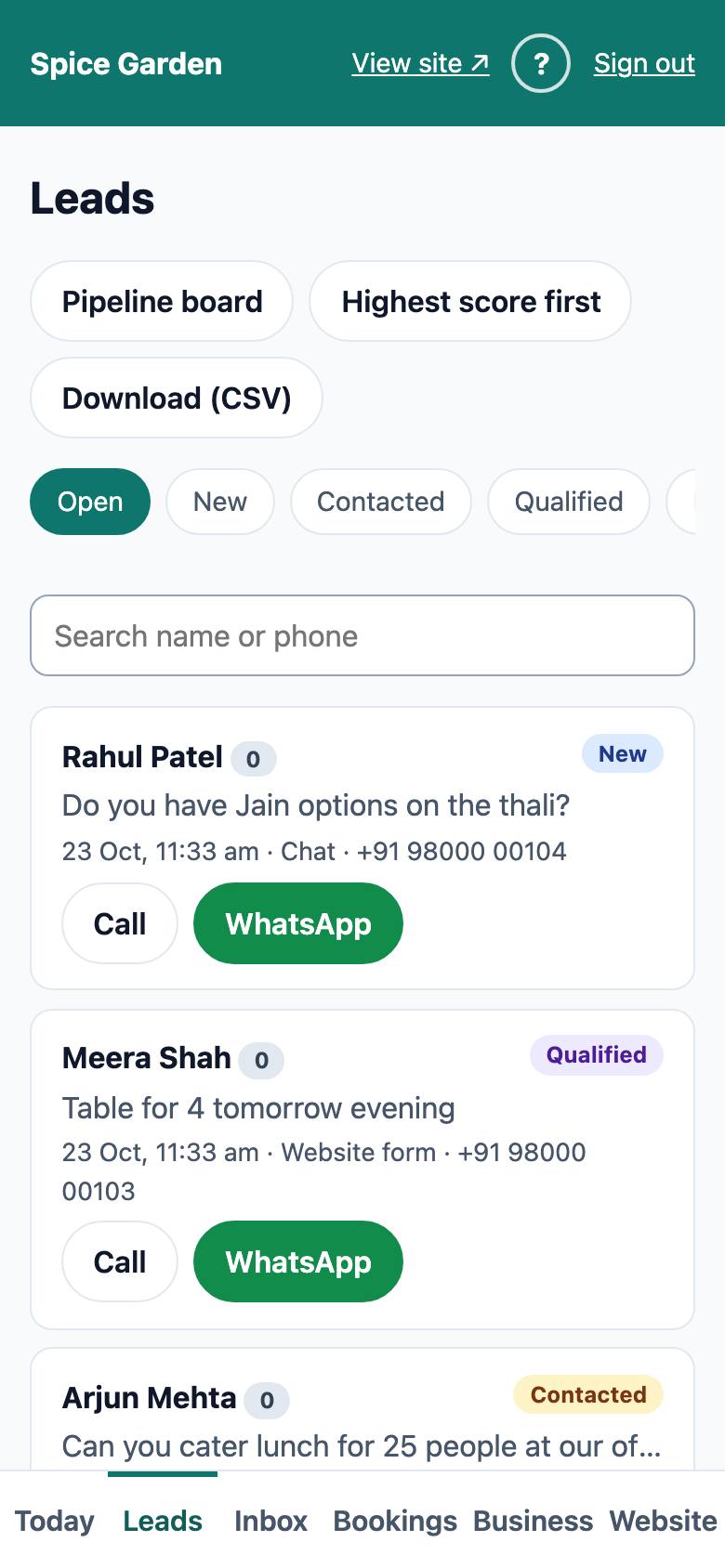
Tip: Use the search box ("Search name or phone") when a customer calls you back and you need their lead quickly.
3. Update the lead after every contact
Open the lead (tap its name). After each call or message:
- Under Stage, choose the new stage and tap Save:
- Contacted: you have spoken or written to them;
- Qualified: they are seriously interested, for example asked for a quote or booked;
- Won: they bought or came in;
- Lost: it did not work out. Add a reason in "If lost: why? (optional)".
- Under Add to timeline, write what happened, choose Note or Call, and tap Add. For example: "Called, wants a table for 8 on Saturday, will confirm by Friday."
- Under Follow up on, pick the date you will contact them next and tap Set.
This keeps everyone on the same page. The owner sees the same timeline, with your name on each entry. See Leads, contacts and follow-ups.
4. Check the Inbox
If your business has website chat or two-way WhatsApp, open Inbox.
- Look for chats marked Needs you or unread first.
- Open a chat, read it, and type your reply.
- Tap Send reply. Website visitors see it in the chat on your website; WhatsApp replies are sent on WhatsApp.
- When the conversation is finished, tap Close chat.
When you reply, the AI assistant pauses for that chat, so you and the AI do not answer at the same time. See Inbox.
5. Handle today's bookings
If your business takes bookings, open Bookings. It shows today; use ← → to see other days and Back to today to return.
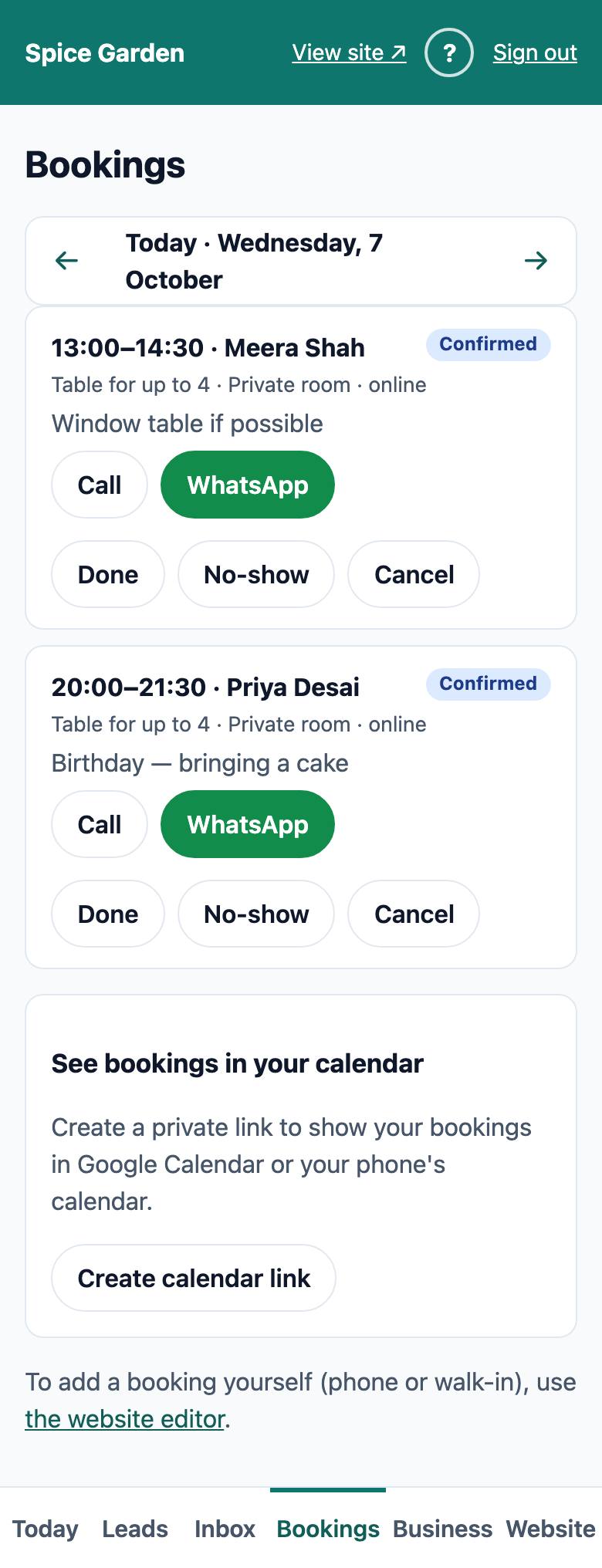
For each booking after its time:
- tap Done when the customer came;
- tap No-show when they did not come;
- tap Cancel only when the business has to cancel. The app asks first; tap Yes, cancel booking. The customer is told by email if they gave one; if not, call or WhatsApp them.
To add a booking for a phone call or walk-in, use the website editor (Bookings → Bookings → Create New). See Online bookings.
6. Before you finish for the day
- Open Leads → Open and check that every lead you worked on has the right stage.
- Make sure each open lead has a follow-up date.
- Check the Inbox once more for anything waiting.
When to ask the owner
Pass these to the owner instead of handling them yourself:
- a customer asks for a discount, refund or special price you are not sure about;
- a complaint, or an angry customer;
- a large order or an event booking;
- the opening hours, contact details, announcement or bookable services are wrong (only the owner can change business details and services);
- a lead or booking should be deleted;
- a customer asks to see or delete their personal data (see Your customers' data and privacy);
- a new colleague needs an account, or someone has left;
- anything about the plan, invoices or the AI assistant's settings.
Add a timeline note on the lead so the owner has the full story.