
Logo, favicon, colours and fonts
Give your website your own look by choosing a style preset, brand colours, fonts, a logo and a favicon, and learn where each one appears.
Your brand settings decide how the whole website looks: the colours of buttons and coloured sections, the fonts of headings and text, the logo in the header and the small icon in the browser tab. You set them once and every page follows them. This guide is for owners. It takes about 10 minutes in the website editor on a computer.
Open the Brand tab
- Open the website editor at https://your-business.vadodara.biz/admin.
- Under Platform, click Businesses, then click your business.
- Click the Brand tab, below the top fields.
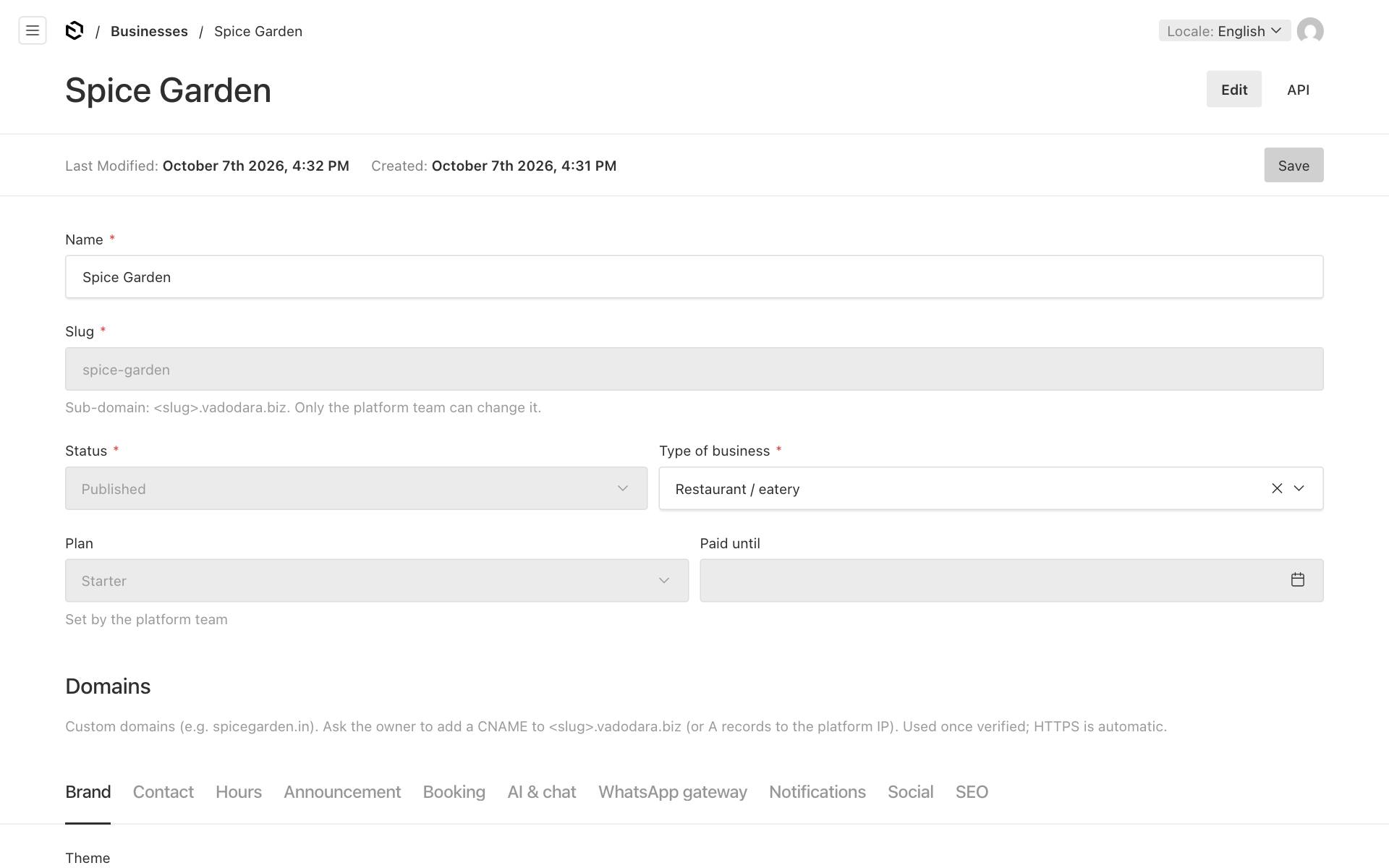
Make your changes as described below, then click Save at the top right. Your website shows the new look within a few seconds.
Choose a theme
A Theme is a ready-made style with matching colours and fonts. It is the quickest way to a good look.
| Theme | Look |
|---|---|
| Classic | Dark and neutral, with the Inter font |
| Warm (eateries) | Deep orange-brown with amber, and elegant serif headings |
| Fresh (clinics, salons) | Teal, a soft green background and rounder corners |
| Bold | Near-black with a strong pink-red, Montserrat headings and sharp corners |
| Night (dark, for evening places) | A dark page with burnt-orange and amber, light orange headings, Montserrat. Form fields are dark too |
| Festive (Diwali gold and maroon) | Maroon with gold, a warm cream background and Playfair Display headings |
| Elegant (boutiques, jewellers) | Charcoal with gold, Cormorant Garamond headings, Lato text and sharp corners |
| Playful (tutors, kids' classes) | Purple with sunny yellow, Poppins headings, Nunito text and very round corners |
| Medical (clinics, calm blue) | Calm blue with sky blue, a pale blue background and Open Sans text |
| Professional (consultancies, B2B) | Deep navy with teal, Montserrat headings and Source Sans 3 text. It also turns on the Professional section style (see below) |
| Eatery bold (v1), Bakery artisan (v1), Platform blue (v1) | Looks kept for websites that moved over from the old vadodara.biz |
New businesses already have a theme that suits their type of business. You only need to change it if you want a different style. Switching the theme restyles every page and section at once; your text, photos and sections stay as they are, so you can try a few.
Choose the Professional look
The Section style setting changes how much design your sections get. It suits consultancies, firms and other businesses that sell to other businesses, and want a polished, corporate website.
- Standard is the look every website has had so far.
- Professional (richer sections, for consultancies and B2B) adds:
- a stronger Hero: a brand-colour shade over the photo so the text is easy to read, bigger headings, and a soft coloured background for the Text beside image and Centered styles;
- a short accent-colour bar above each section heading, and more space between sections;
- Services cards with a soft shadow that lift and get an accent-colour top edge when a visitor points at them, and numbered circles in the Simple list layout;
- accent-colour tick marks for bullet lists in Text sections;
- a Call to action band in a deep brand-colour gradient with a white button;
- FAQ questions in separate boxes with an arrow that turns when opened;
- a frosted header that stays at the top, and a dark footer in your brand colour.
Leave Section style empty to follow the theme: the Professional (consultancies, B2B) theme uses the Professional style, every other theme uses Standard. So you can also keep your own theme, for example Fresh, and choose Professional in Section style, or use the Professional theme with Standard sections.
To switch it on:
- Open the Brand tab (see above).
- Either choose Professional (consultancies, B2B) in Theme, or choose Professional (richer sections, for consultancies and B2B) in Section style.
- Click Save.
Your brand colours, fonts and sections stay as they are. The Professional style uses your Brand colour and Accent colour, so it still looks like your business.
Tip: The Professional style goes well with the Numbers (stats), Logos (clients, badges) and Quote (testimonial) sections. See Page sections: every type explained.
For visitors who have asked their phone or computer for less motion, the lifts and animations are switched off.
Set your brand colours
There are two colours. Any colour you leave empty comes from the theme.
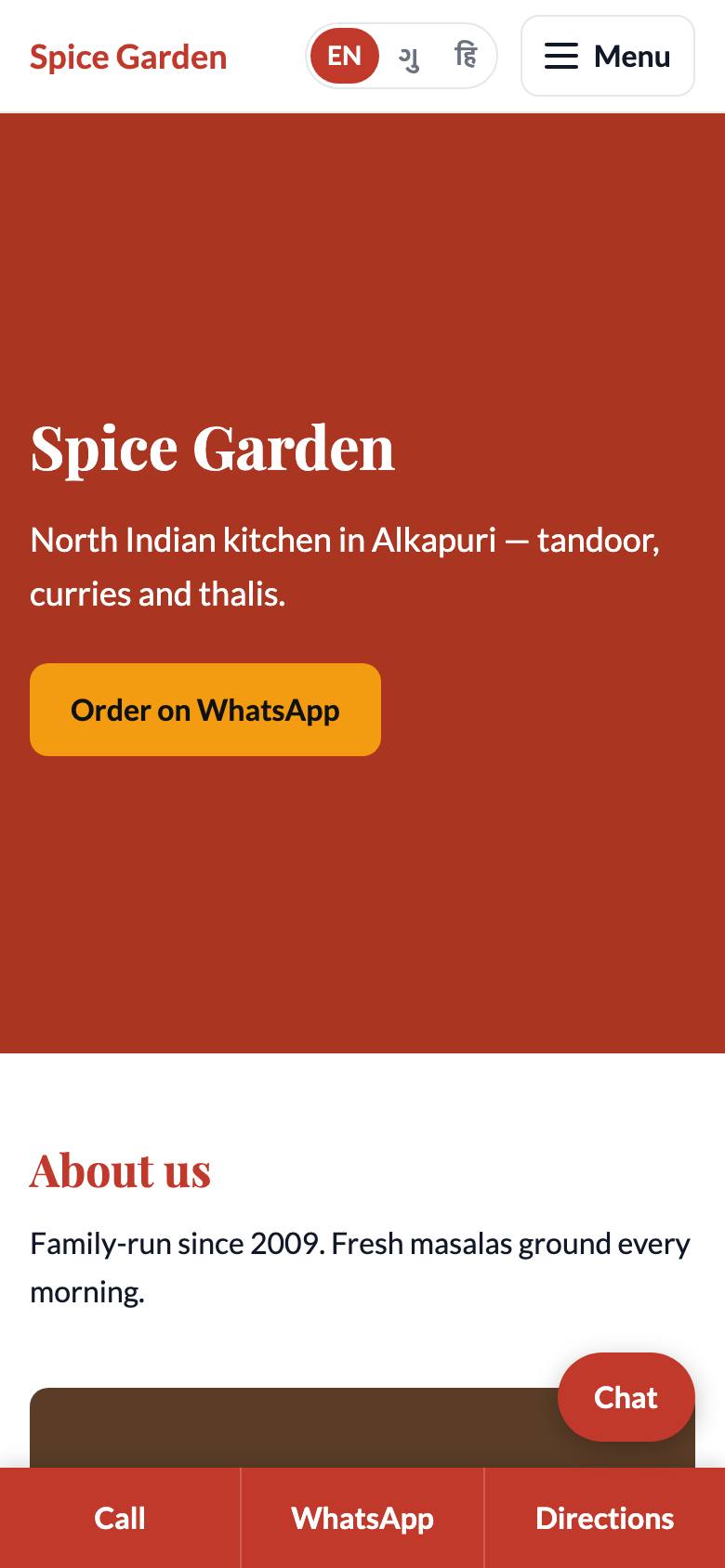
- Brand colour is your main colour. It is used for coloured sections, headings and the bottom bar on phones.
- Accent colour is a second colour for highlights such as buttons and badges.
To set them:
- Find your colour code. Each colour has a hex code: a
#followed by 6 letters or digits, for example#c0392b(a deep red). - Type the code into Brand colour.
- Type the second code into Accent colour.
- Click Save.
To find a hex code:
- If a designer made your logo, ask them for the hex codes of your brand colours.
- Search Google for "colour picker". A picker appears at the top of the results. Choose a colour, then copy the code that starts with
#.
Only hex codes work. A word such as red, or another format such as rgb(…), shows the error "Use a hex colour like #c0392b".
Tip: Choose a fairly dark primary colour. White text sits on it in the hero and in the phone bar, and a dark colour keeps that text easy to read. A bright accent colour works well for buttons.
Choose fonts
- Heading font is used for big titles. You can choose Inter, Poppins, Playfair Display, Cormorant Garamond, Merriweather, Lora, Montserrat or Raleway.
- Text font is used for normal text. You can choose Inter, Lato, Open Sans, Nunito, Source Sans 3 or Roboto.
Leave a font empty to use the theme's font. Serif fonts (Playfair Display, Cormorant Garamond, Merriweather, Lora) feel classic and suit restaurants and bakeries. Clean fonts (Inter, Poppins, Montserrat) feel modern.
Add your logo
- Next to Logo, click Create New to upload a file, or Choose from existing to pick one you uploaded before.
- If you are uploading, describe the image in Description (alt text), for example
Spice Garden logo, and save it. - Click Save on the business page.
A good logo file is:
- PNG, JPG or WebP, up to 10 MB. SVG files are not accepted, so if your logo is an SVG, export it as a PNG first.
- Square or nearly square. The logo is shown small, about 48 pixels high, next to your business name.
- A PNG with a transparent background, ideally. It blends with the header instead of showing a white box.
Add a favicon
The favicon is the tiny picture in the browser tab and in bookmarks.
- Next to Browser tab icon (favicon), click Create New or Choose from existing.
- Use a square image, at least 64×64 pixels. A simple version of your logo, such as just your initials, works best at this tiny size.
- Click Save.
Where each one appears
| Setting | Where visitors see it |
|---|---|
| Colours and fonts | Every page: headings, buttons, coloured sections and the phone bar |
| Logo | The header of every page, next to your business name. It is also given to Google as your business logo |
| Browser tab icon (favicon) | The browser tab and bookmarks |
| Logo as share picture | Pages shared on WhatsApp, Facebook and similar apps, when no better picture exists (see below) |
Which picture is shown when someone shares a page
When someone shares a link to a page, the preview picture is chosen in this order:
- The page's own Meta Image from its SEO tab. See Getting found on Google.
- If there is none, the image of the first Hero section on the page.
- If there is none, your Logo.
Section backgrounds
Each section on a page also has its own Appearance settings. Its Background can be Page background, Soft (surface), Brand colour, Accent colour or Custom colour (any hex code). The text colour adjusts itself so it stays readable.
Alternating backgrounds, such as plain, then soft, then plain, help visitors see where one section ends and the next begins. See Page sections: every type explained.