
Online bookings
Let customers book appointments or tables on your website, see each day's bookings on your phone and show them in your own calendar.
With online booking, customers pick a service, a day and a free time on your website, and the booking is confirmed at once. This guide is for owners (setup takes about 20 minutes in the website editor on a computer) and for everyone who handles bookings day to day in the owner app.
Do the setup in this order: services, then staff and resources, then the Booking settings, then a Booking section on a page.
1. Add your services
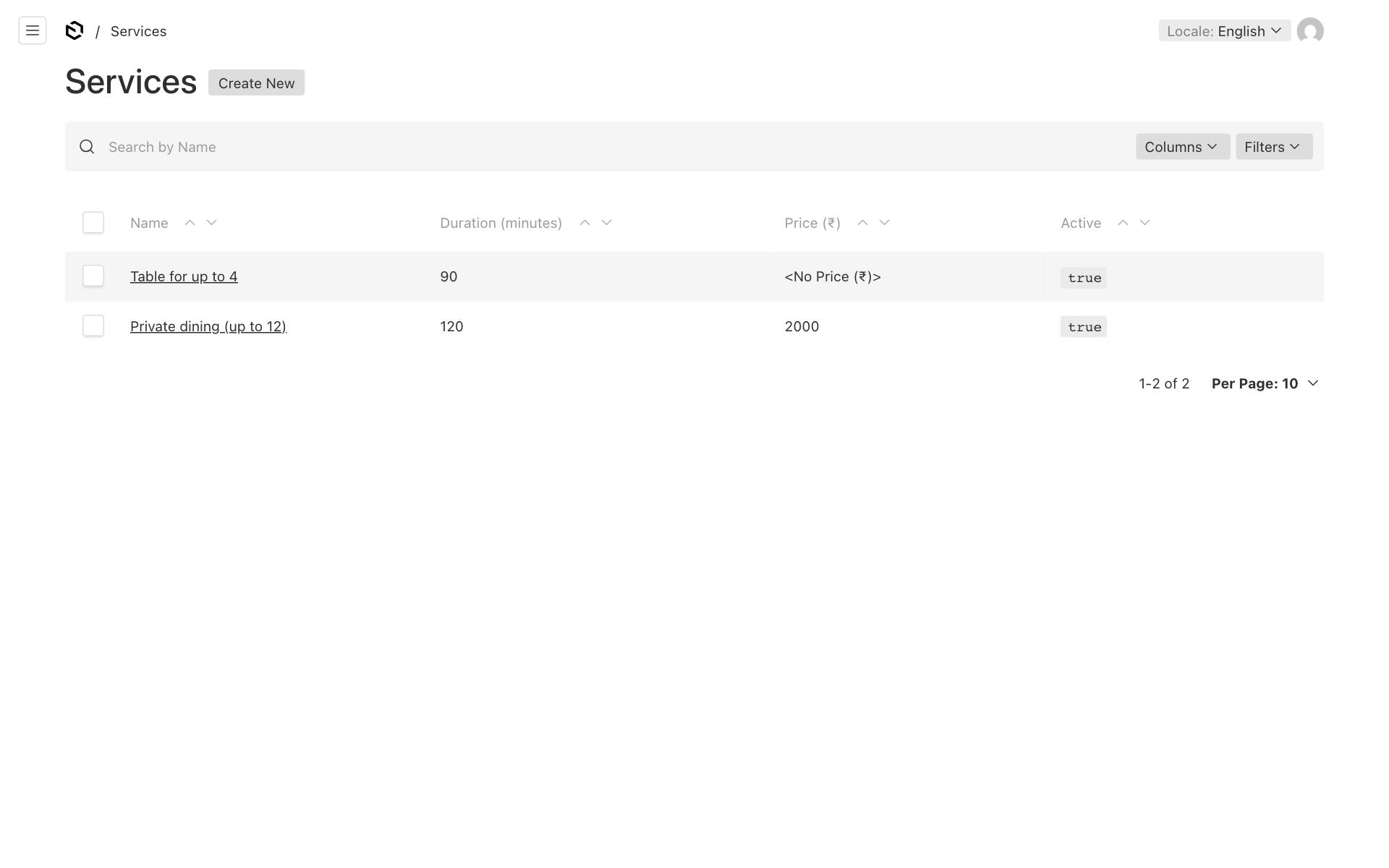
A service is something customers can book, for example "Haircut — 30 min" or "Table for up to 4 — 90 min". Only owners can add or change services.
- In the website editor, open Bookings → Services and click Create New.
- Enter the Name customers will see.
- Add a short Description (optional, up to 300 characters).
- Enter Duration (minutes): how long it takes (5 to 480).
- Enter a Price (₹) if you want it shown (optional). Tick Price is "from" if the price can go up, so customers see "from ₹2,000".
- In the sidebar, keep Active ticked. Untick it later to stop new bookings for this service without deleting it.
- Set Position to sort the list: lower numbers come first.
- Click Save. Repeat for each service.
2. Add staff and resources
A resource is whoever or whatever is booked: a stylist, a doctor, a table, a room. Each one can have only one booking at a time. Only owners can add or change them.
- Open Bookings → Staff & resources and click Create New.
- Enter the Name, for example "Table 1" or "Dr. Shah".
- Under Services, pick what this person or resource does. Leave it empty if they can do all services.
- Under Hours, add their own working hours only if they differ from your business opening hours. Leave it empty to use the business hours. For a break, add the same day twice (for example Monday
10:00–13:00and Monday16:00–20:00). - Under Time off, click Add Leave for holidays or leave, with From, To and an optional Note. Each row then shows its dates.
- Keep Active ticked in the sidebar.
- Click Save.
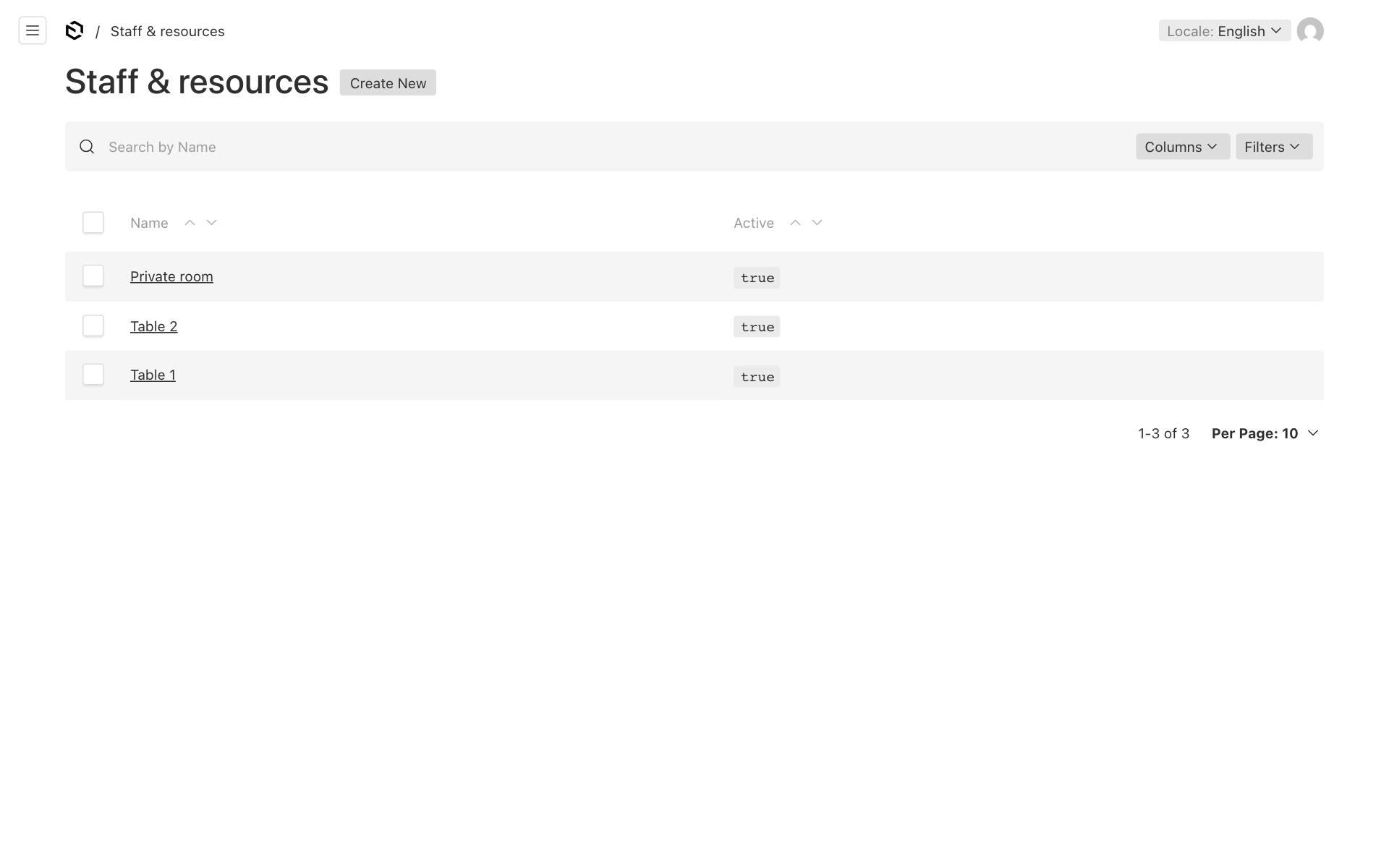
Tip: Customers do not choose a person or table. The first free resource that can do the service is given the booking. If a big room should only be used for big groups, pick only the matching service under Services.
3. Switch on booking and choose the rules
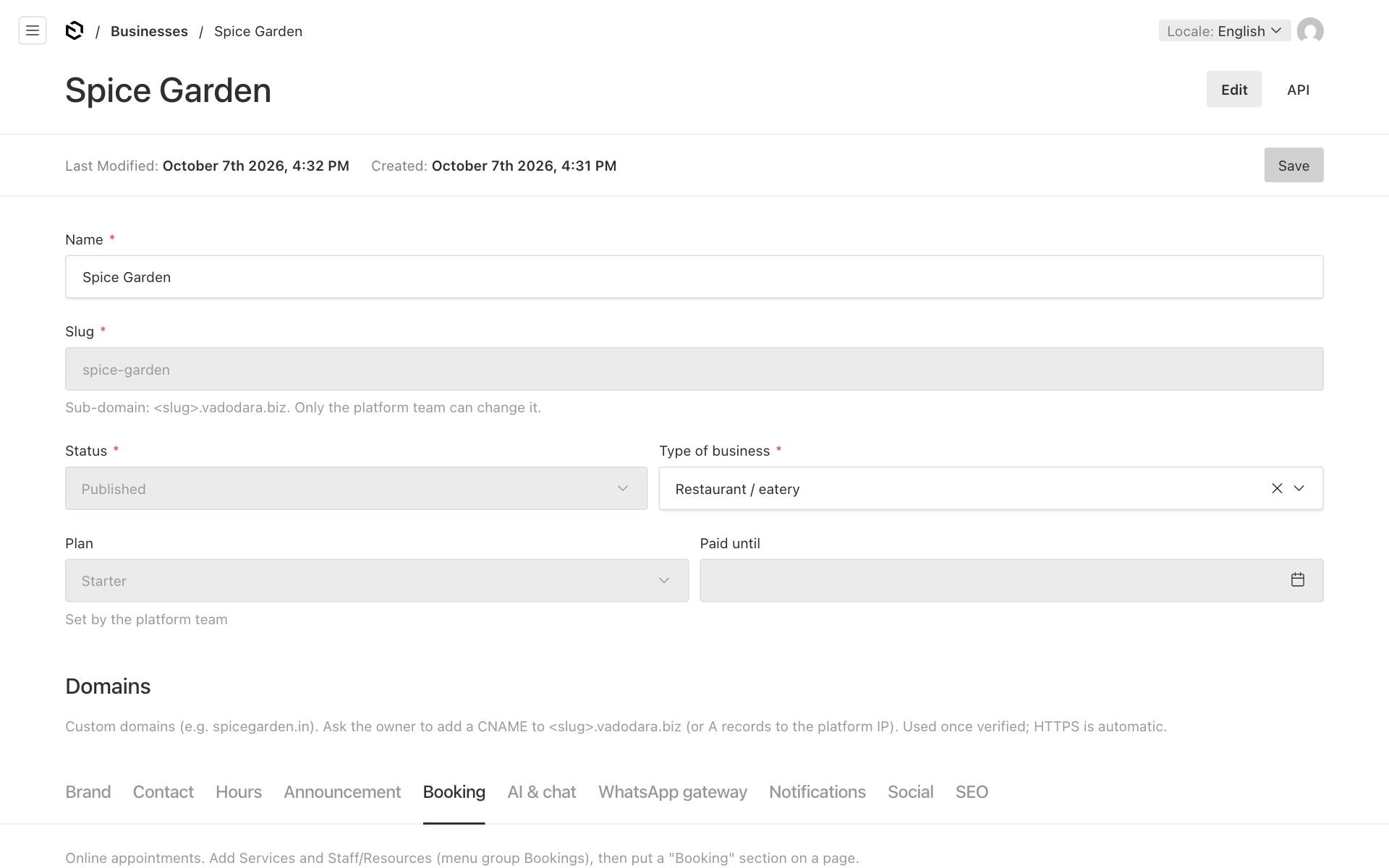
- Open Businesses, click your business and open the Booking tab.
- Tick Accept online bookings.
- Set the rules (the help text under each box says what it is):
- Minimum notice (minutes) — how soon a customer can book. Default 120: nobody can book a time less than 2 hours away.
- Book up to (days ahead) — how far ahead customers can book. Default 30, at most 180.
- Time slot step (minutes) — start times are offered every so many minutes. Default 15 (10:00, 10:15, 10:30…).
- Break between bookings (minutes) — free time kept after each appointment, for cleaning or travel. Default 0.
- Online cancelling until (hours before) — customers can cancel online until this many hours before the appointment. Default 4.
- Instructions for customers — shown on the confirmation and in emails, for example "Please arrive 10 minutes early" (up to 500 characters).
- Closed dates — click Add Date for each holiday when nobody can book. Each row then shows its date.
- Click Save.
4. Put a Booking section on a page
Add a Booking section to a page, for example a page called "Book a table". In the section you can limit it to some services; leave Services empty to offer all active services. The section stays hidden until booking is switched on and at least one service is active. See Page sections for how to add a section, and remember to publish the page.
How free times are worked out
The website only offers a time when a suitable resource is free for the whole service. It takes into account:
- your opening hours, or the resource's own hours. If you close for lunch, no appointment runs into the break;
- the resource's time off and your closed dates;
- bookings already made, plus the gap between appointments;
- the minimum notice and how far ahead customers may book.
Double booking is impossible: the system refuses a second booking for the same resource at an overlapping time, even if two people press the button at the same moment. The slower customer sees "That time was just taken — please pick another."
What a booking creates
When a customer books on your website:
- the customer is added to Contacts (or matched by phone);
- a lead is created with source "Booking", already in the Qualified stage, with "Booking confirmed" on its timeline (for an online call, see below);
- you get the new-lead alert.
The customer gets emails only if they typed an email address and your platform has email sending switched on:
- a confirmation straight away, with a link to view or cancel;
- a reminder about 24 hours before (skipped if the booking is less than about a day away);
- a cancellation email if the booking is cancelled, by them or by you.
If the customer replies to one of these emails, the reply goes to your business's email address (the Email field on your business's Contact tab), so fill it in. Without it, replies go to the platform's sender address, which nobody reads.
Online calls (video or phone) in the customer's time zone
For consultations with customers in other countries, mark a service as an online call:
- In the website editor, open Bookings → Services and the service, for example "Discovery call".
- Tick Online call (video or phone).
- If you like, paste your Zoom, Google Meet or Teams link in Call link (optional). It must start with https://.
- Click Save.
What changes for that service:
- On your website the service shows "Online call", and a visitor whose computer or phone is set to another time zone sees the free times in their own time, with the note "Times are shown in your time zone". The days are still your days in India, so a late-evening time abroad can show the day before.
- Your opening hours and the owner app stay in India time. In the owner app's Bookings list the booking also shows "their time", for example "their time 9:30 am (Berlin)".
- The confirmation and reminder emails show both: "Tuesday 4 November, 2:00 pm India time (9:30 am your time, Berlin)", plus the call link. The address of your business is left out.
- If the customer already sent an enquiry (same phone or email) in the last 90 days and that lead is still open, the booking is added to that lead instead of starting a new one, and the lead moves to Discovery call (a lead that is already further, such as Proposal, stays where it is).
Bookings in the owner app
The Bookings tab appears when Accept online bookings is on. Owners and staff can use it.
- Tap Bookings at the bottom. You see today's bookings, earliest first.
- Use ← and → to move a day back or forward. Back to today takes you home.
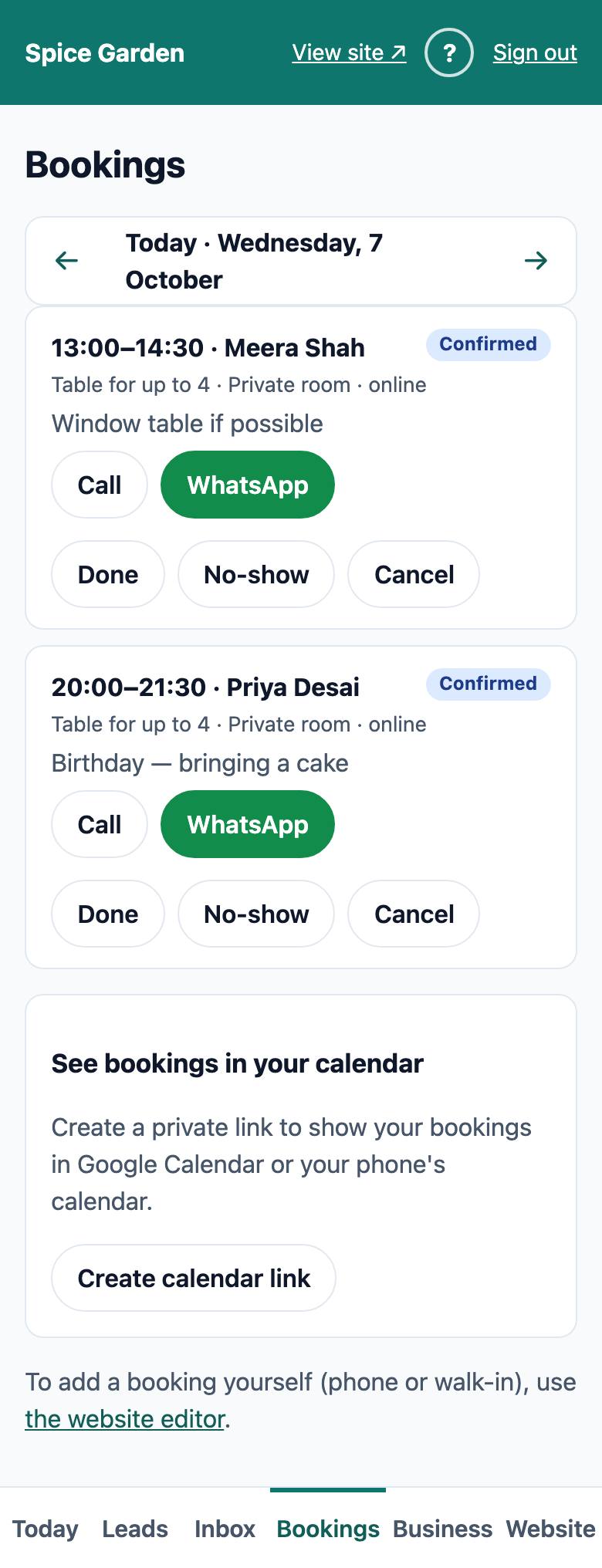
Each booking shows the time, the customer, its status, the service, the resource, "online" if it was booked on the website, and the customer's note. Call and WhatsApp contact the customer.
For confirmed bookings:
- Done — the customer came. Status becomes Completed.
- No-show — the customer did not come.
- Cancel — cancels the booking and frees the time. The reason is saved as "Cancelled by the business" and the customer gets a cancellation email (if they gave an email).
Done and No-show act at once. Cancel asks first, because the customer is told:
- Tap Cancel. A box "Cancel this booking?" opens. It says that the customer gets an email saying the booking is cancelled, or, if they gave no email, that they are not told automatically and you should call or WhatsApp them.
- Tap Yes, cancel booking to cancel, or Keep booking to leave it as it is.
Add a phone or walk-in booking
Bookings you take yourself are added in the website editor. The link at the bottom of the Bookings screen opens it.
- In the website editor, open Bookings → Bookings and click Create New.
- Pick Starts (in 15-minute steps). Ends is filled in from the service's duration.
- Choose the Service and the Staff / resource.
- Enter Customer name, and Phone, Email and Notes if you have them.
- Click Save.
The same no-double-booking rule applies. If that resource is already booked at that time, saving stops with a message like "That time is already booked for Asha. Pick another time." Choose another time or another resource and click Save again. The same happens if you move an existing booking onto a taken time, or change a cancelled booking back to Confirmed after its time was given to someone else. A booking added here does not create a lead or an alert. If you enter the customer's email, they get the confirmation and reminder emails, without a cancel link.
See bookings in your own calendar
Owners can show all bookings in Google Calendar or a phone calendar. The feed includes bookings from the last 30 days up to 180 days ahead, with the customer's phone, email and notes.
- In the owner app, open Bookings and scroll to See bookings in your calendar.
- Tap Create calendar link. A private link appears in the box.
- Copy the link.
Google Calendar (on a computer):
- Open Google Calendar.
- Next to Other calendars, click +.
- Choose From URL, paste the link and add the calendar.
iPhone:
- Open Settings → Calendar (on newer iPhones: Settings → Apps → Calendar).
- Tap Accounts (or Calendar Accounts) → Add Account → Other.
- Tap Add Subscribed Calendar, paste the link and tap Next, then Save.
The calendar updates by itself every few hours (Google and Apple decide how often). It is read-only: change bookings in the owner app or the website editor, not in the calendar.
Important: Anyone with this link can see your bookings and customers' phone numbers. Keep it private. If it was shared by mistake, tap Make a new link (old one stops). A box "Make a new calendar link?" asks you to confirm: tap Yes, make a new link, or Keep the old link to change nothing. The old link stops working at once, so add the new link to your calendars again.