
Page sections: every type explained
Add, arrange and fill in page sections such as Hero, Menu, Gallery, Offers, FAQ, Contact & map, Enquiry form, Booking, Numbers, Logos and Quote, with tips for each.
Every page is built from sections stacked from top to bottom: a big welcome picture, an "About us" text, your menu, photos, a contact form and so on. This guide explains how to add and arrange sections, then describes each of the 17 section types. It is for owners and staff working in the website editor, which is easiest to use on a computer. Read the first part once, then jump to the section types you need.
Add a section
- Open the page: Content → Pages → click the page.
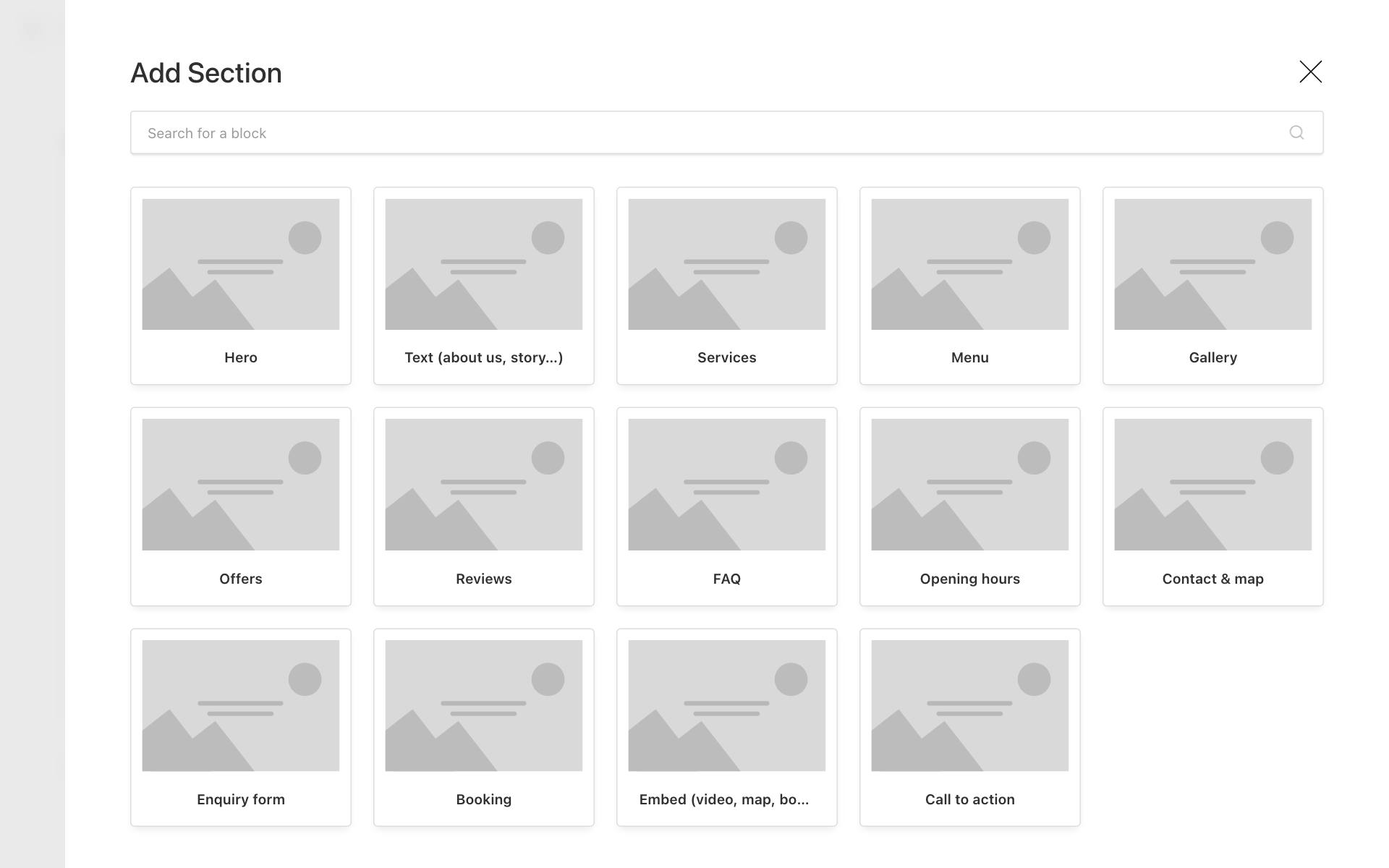
- Scroll below the existing sections and click Add Section.
- Pick a section type. To find one quickly, type in Search for a block.
- The new section is added at the bottom of the page and opens so you can fill it in.
Fields marked with a red * are required. Your changes save automatically as a private draft. Visitors see nothing until you click Publish changes. See Drafts, publishing, scheduling and undo.
Good to know: In the list, each section shows its number, its type (for example Hero or Menu) and its heading or first words, for example "Hero — Fresh pizzas in Alkapuri". So you can find a section without opening it. Rows inside a section, such as dishes, services or questions, show their name the same way.
Open, close and arrange sections
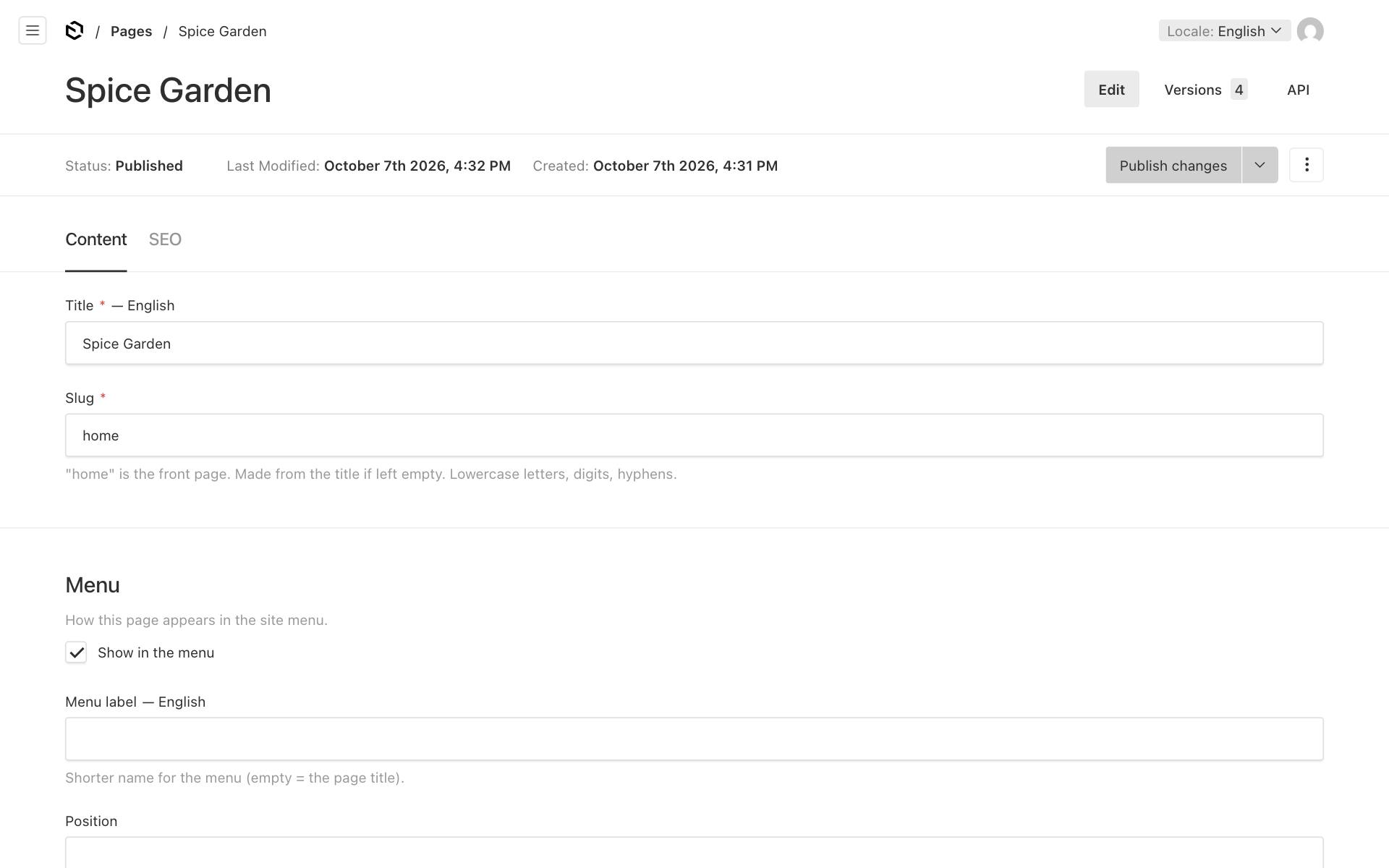
- Open or close one section: click its row, or the arrow at its right end.
- Open or close all sections: click Show All or Collapse All above the list.
- Move a section: drag it by the dotted handle ⠿ on its left. Or open its ⋯ menu and click Move Up or Move Down.
- Other actions are also in a section's ⋯ menu:
- Add Below adds a new section right under this one.
- Duplicate makes a copy of the section.
- Copy Row and Paste Row copy a section to another place or another page.
- Remove deletes the section from this page.
Tip: If you remove a section by mistake, you can go back to an earlier version of the page. See Drafts, publishing, scheduling and undo.
The section types
| Section (as named in Add Section) | Use it for |
|---|---|
| Hero | The big welcome at the top of a page |
| Text (about us, story…) | Paragraphs of text, with an optional photo |
| Services | A list of what you offer, with prices |
| Menu | A food menu with categories and dishes |
| Gallery | A grid of photos |
| Offers | Discounts and deals that hide themselves when they end |
| Reviews | Kind words from customers |
| FAQ | Questions and answers |
| Opening hours | Your weekly timings, with an "Open now" badge |
| Contact & map | Address, call, WhatsApp, directions and a map |
| Enquiry form | A form that sends you a message and creates a lead |
| Booking | Online appointment booking |
| Embed (video, map, booking, form) | A YouTube video, Google map, Calendly page, Google Form or Instagram post |
| Call to action | A band with one big button |
| Numbers (stats) | Two to four big numbers, such as "25+ years of experience" |
| Logos (clients, badges) | A row of client logos, certificates or memberships |
| Quote (testimonial) | One large quote from a client, with their name, role and company |
Hero
The large banner at the top of a page, with your main message and one button. Its fields:
- Style: choose one of three layouts.
- Full-width image behind text: a photo fills the band and the text sits on it.
- Text beside image: text on one side, photo on the other.
- Centered text, no image.
- Small line above the heading: optional, a few words shown small above the heading, for example
North Indian kitchen. - Heading *: your main line, for example
Spice Garden. - Subheading: one or two sentences, for example
North Indian kitchen in Alkapuri — tandoor, curries and thalis. - Image: the photo. Use a wide, landscape photo.
- Picture (only for Text beside image): Fill the space (edges may be cropped) (the default) or Show the whole picture (don't crop). See Show the whole picture.
- Button text: the words on the button.
- Button link: where the button goes. The link must start with one of these:
/for a page on your site, such as/menu;https://, for examplehttps://wa.me/91…with your number to open WhatsApp;tel:for a phone call, such astel:+919876543210;mailto:for an email.
The button only shows when both Button text and Button link are filled in.
Tips:
- Put a Hero first on every page.
- The image of the first Hero on a page is used as the preview picture when someone shares the page, unless the page has its own share image.
- The Full-width image behind text style always shows its photo, so its Appearance background is not used.
Text (about us, story…)
Normal paragraphs: your story, your team, how you work. Its fields:
- Heading: for example
About us. - Text *: the text. Use the toolbar for bold, lists and links.
- Image: an optional photo next to the text.
- Image position: Image right or Image left.
- Picture (shown once an image is chosen): Fill the space (edges may be cropped) (the default) or Show the whole picture (don't crop).
Show the whole picture (don't crop)
By default a picture next to text fills a fixed shape (a little wider than tall), so the edges of a tall photo, a logo or a certificate can be cut off. Choose Picture → Show the whole picture (don't crop) to show all of it in its own shape instead: nothing is cut off, very tall pictures are made smaller so they fit on the screen, and there is no coloured box or shadow around it, so a logo with a transparent background looks clean. It works the same in the Classic and Professional styles.
Services
A list of what you offer, with prices and durations. It suits a salon, clinic or tutor. Its fields:
- Title.
- Intro: a short line under the title.
- Layout: Cards (boxes with photos) or Simple list (a compact list without photos).
- Services: click Add Service for each service. At least one service is needed. Each service has:
- Name *;
- Description;
- Price, for example
₹500 onwards; - Duration, for example
45 min; - Image.
- Picture (only for Cards): one setting for all cards. Fill the space (edges may be cropped) (the default) or Show the whole picture (don't crop), which fits each whole picture inside its card, for example for logos or diagrams. The cards stay the same size.
Good to know: This section only displays your services. It is not connected to online booking. Bookable services are set up separately: see Online bookings.
Menu
A food menu with categories and dishes. Its fields:
- Title.
- Note: shown under the menu, for example
Prices include GST. Jain options on request. - Categories: click Add Category and type the category's Name *, for example
Starters. - Dishes: inside a category, click Add Dish for each dish. Each dish has:
- Name *;
- Price, for example
₹250; - Description;
- Diet: Veg, Non-veg, Egg, Vegan or Jain;
- Popular / chef’s pick;
- Image.
What visitors see:
- With two or more categories, visitors get quick links to jump to each category.
- Diet appears as a small coloured mark next to the dish name: green for veg, vegan and Jain, yellow for egg, and red for non-veg.
- Ticking Popular / chef’s pick shows a "Popular" badge.
Tip: with many dishes, keep categories closed while you work (Collapse All) so the page stays easy to scroll.
Gallery
A grid of photos: your space, your food, your work. Its fields:
- Title.
- Images *: choose 1 to 48 photos.
- Photos per row: 2 per row (desktop), 3 per row (desktop) or 4 per row (desktop). Phones show fewer per row.
Tapping a photo opens a larger version in a new browser tab.
Offers
Discounts and deals that disappear by themselves when they end. Its fields:
- Title, for example
This month's offers. - Offers: add one row per offer. Each offer has:
- Title *;
- Description;
- Discount, for example
20% off; - Code, for example
DIWALI20; - Valid until;
- Image.
Visitors see each offer as a card, with "Use code …" and "Valid until …" when those are filled in. After the Valid until date, the offer is hidden automatically, so you do not need to remember to remove it. The offer is shown for the whole of that day and hidden at midnight, India time. When all offers have ended, the whole section is hidden.
Reviews
Quotes from happy customers. Its fields:
- Title.
- Reviews: one row per review. Each review has:
- Name *;
- Rating: 1 to 5 stars (it starts at 5);
- Date;
- Text *;
- Source: Google, Zomato, Swiggy, Justdial or Customer.
- Link to more reviews: a link to all your reviews, for example your Google Business Profile. Visitors see it as "Read more reviews →".
Good to know: These reviews are shown to visitors, but they are deliberately not sent to Google as star ratings. Google ignores star ratings that a business publishes about itself and may treat them as spam. Ask customers to review you on your Google Business Profile instead.
Only use real reviews, and copy them word for word.
FAQ
Questions and answers that visitors can tap to open. Its fields:
- Title, for example
Good to know. - Questions: click Add Question for each one, then fill in Question * and Answer *.
Your FAQ is also given to Google in a special format, which can help your answers appear in search results.
The best questions are the ones customers ask you on the phone: parking, home delivery, UPI payment, a kids' menu, or whether they need an appointment.
Opening hours
Shows your weekly opening hours with a live badge: "Open now", or when you open next, for example "Closed · opens at 4:00 PM" during a lunch break. A day with a break shows both times. Its fields:
- Title, for example
Opening hours. - Note, for example
Kitchen closes 30 minutes earlier.
You do not type the hours here. They come from your business details, so you change them once for the whole site. See Business details, opening hours and announcements. If no hours are set, this section is hidden.
Contact & map
Everything a customer needs to reach you, in one place. Its fields:
- Title, for example
Visit us. - Show map and Show opening hours: both are on to start with.
- Google Maps embed link: optional, and only shown while Show map is on.
Visitors see your address, your opening hours with the open-now badge, a map, and these buttons: Call (with your number), WhatsApp, Get directions and Email. All of this comes from your business details.
The map comes from the first of these that is set:
- The Google Maps embed link. In Google Maps, open your business, click Share → Embed a map, and copy only the link inside
src="…". It starts withhttps://www.google.com/maps/embed?. - Your Latitude and Longitude from the business details.
If neither is set, no map is shown.
Enquiry form
A short form that visitors use to send you a message. Every message becomes a lead in your leads list and triggers your new-lead alert. Its fields:
- Heading: starts as
Send us a message. - Subheading: for example
Parties, catering, feedback — we reply within a day. - Button text: starts as
Send. - Ask for phone number: on to start with. Turn it off if you only want email addresses.
- Message after sending: what visitors see after sending. It starts as
Thank you! We will get back to you soon.
Visitors fill in their name, phone, email and message. They must give a phone number or an email so you can reply. See Leads, contacts and follow-ups.
Extra questions (optional), for business enquiries. Open this part of the section to switch on any of them. All answers are optional for the visitor and are saved on the lead:
- Ask what it is about (topic): a list to choose from. Write the question in Topic question (starts as
What do you need help with?) and add one row per choice under Topics to choose from, for exampleFDA inspection readinessorCatering. Use the same words in your lead routing rules. - Ask for the company name.
- Ask for the country: a country list, filled in for the visitor from where they are (worked out from their internet address). They can change it.
- Show an "urgent" tick box: write its text in Text next to the tick box, for example
We have an FDA Form 483 / Warning Letter response deadline. Urgent leads get a red Urgent badge, a higher score and an alert straight away. - Ask for a deadline date: a date box; its question starts as
Deadline (optional).
Booking
Lets visitors pick a service, a day and a time, and book online. Its fields:
- Heading: starts as
Book an appointment. - Subheading.
- Services: the services to offer here. Leave it empty to offer all active services.
- Button text: starts as
Confirm booking.
Important: This section shows nothing until two things are true. Online booking must be switched on (Businesses → your business → Booking → Accept online bookings), and you must have at least one active bookable service. See Online bookings.
Embed (video, map, booking, form)
Shows content from another website inside your page. For safety, only these providers are allowed:
| What to embed | Paste a link like |
|---|---|
| YouTube video | https://youtu.be/… or https://www.youtube.com/watch?v=… |
| Google Maps | The src link from Google Maps → Share → Embed a map |
| Calendly booking | https://calendly.com/your-name/30min |
| Google Form | https://docs.google.com/forms/d/e/…/viewform |
| Instagram post | https://www.instagram.com/p/…/ |
To set it up:
- Fill in Title.
- Choose What to embed *.
- Paste the Link *.
If the link does not match what you chose to embed, you see "This link is not a valid link for the chosen provider". Videos play in YouTube's privacy-friendly mode.
Call to action
A band with a heading, a sentence and one big button. Use it to push one clear action, such as "Book your Diwali table". Its fields:
- Heading * and Text.
- Button text, for example
Book a table. - What the button does:
- Chat on WhatsApp opens WhatsApp with your number. Use WhatsApp message to pre-fill the message, for example
Hi, I'd like to book a table for 4. - Call phones your business number.
- Directions opens Google Maps directions to your shop.
- Link goes to the address in Button link. It must be a page, such as
/menu, or start withhttps://.
- Chat on WhatsApp opens WhatsApp with your number. Use WhatsApp message to pre-fill the message, for example
The button only shows when Button text is filled in and the action has what it needs, for example a WhatsApp number in your business details. Taps on the button are counted in your visitor numbers.
Numbers (stats)
Two to four big numbers, each with a short label, in a row. Numbers make experience easy to see at a glance, for example 25+ years, 10 phases covered or 98% on-time delivery. Its fields:
- Title, for example
Spice Garden in numbers. - Intro: a short line under the title.
- Numbers: two to four rows. Click Add Number for each one. Each row has:
- Number *: short, at most 12 characters, for example
25+,98%,₹2 Cror24/7. It is shown very large. A longer number shows the error "Keep it short". - Label *: the words under the number, for example
years of experience.
- Number *: short, at most 12 characters, for example
On a phone the numbers sit two per row; on a computer they sit in one row.
Tip: Use real, checkable numbers. "15 years" or "2,000 happy diners" is more convincing than "best in town".
Logos (clients, badges)
A row of logos: your clients, certificates, memberships or awards. The logos are grey until a visitor points at them, then they show in colour. Its fields:
- Title, for example
Trusted byorOur certifications. - Logos: click Add Logo for each one. Each logo has:
- Image *: the logo, from your photos. A PNG with a transparent background looks best. Every photo has a Description (alt text), so screen readers can always name the logo.
- Name: the company or certificate name, for example
FSSAI registered. Screen readers read this instead of the photo's description. It can be translated. - Link: optional. A page on your site (starting with
/) or a web address starting withhttps://. It opens when the logo is clicked.
- Colours: Grey, in colour on hover (the default) or Always in colour.
Good to know: Only show the logos of clients who have agreed to it, and certificates you really hold.
Quote (testimonial)
One large, highlighted quote from a client, with who said it. Use it for your best testimonial, for example between your services and your contact section. Its fields:
- Quote *: their words, without quotation marks. Two or three sentences read best. The big quotation mark is added for you.
- Name *, for example
Priya Shah. - Role, for example
Owner. It can be translated. - Company, for example
Spice Garden. - Photo: optional, a square portrait. Without a photo, the person's initials are shown in a circle.
Under the quote visitors see the name, then the role and company, for example "Owner, Spice Garden".
For several short reviews with stars, use the Reviews section instead.
Appearance: background, anchor and menu label
At the bottom of every section is an Appearance group with three settings.
Background sets the colour behind the section: Page background, Soft (surface), Brand colour, Accent colour or Custom colour.
- If you choose Custom colour, type a hex code such as
#2d1b69in Custom colour. - The text colour is chosen automatically so it stays readable.
- Your brand colours are set on the Brand tab: see Logo, favicon, colours and fonts.
Anchor is an optional short name for the section, such as menu, made of lowercase letters, digits and hyphens. It lets you link straight to the section:
- On your home page, the section's address is
https://your-business.vadodara.biz/#menu. A button links to it with/#menu. - On another page, add the anchor after the page address, for example
/offers#diwali.
This is handy for a "See the menu" button in your Hero.
Add a section to the site menu (home page only)
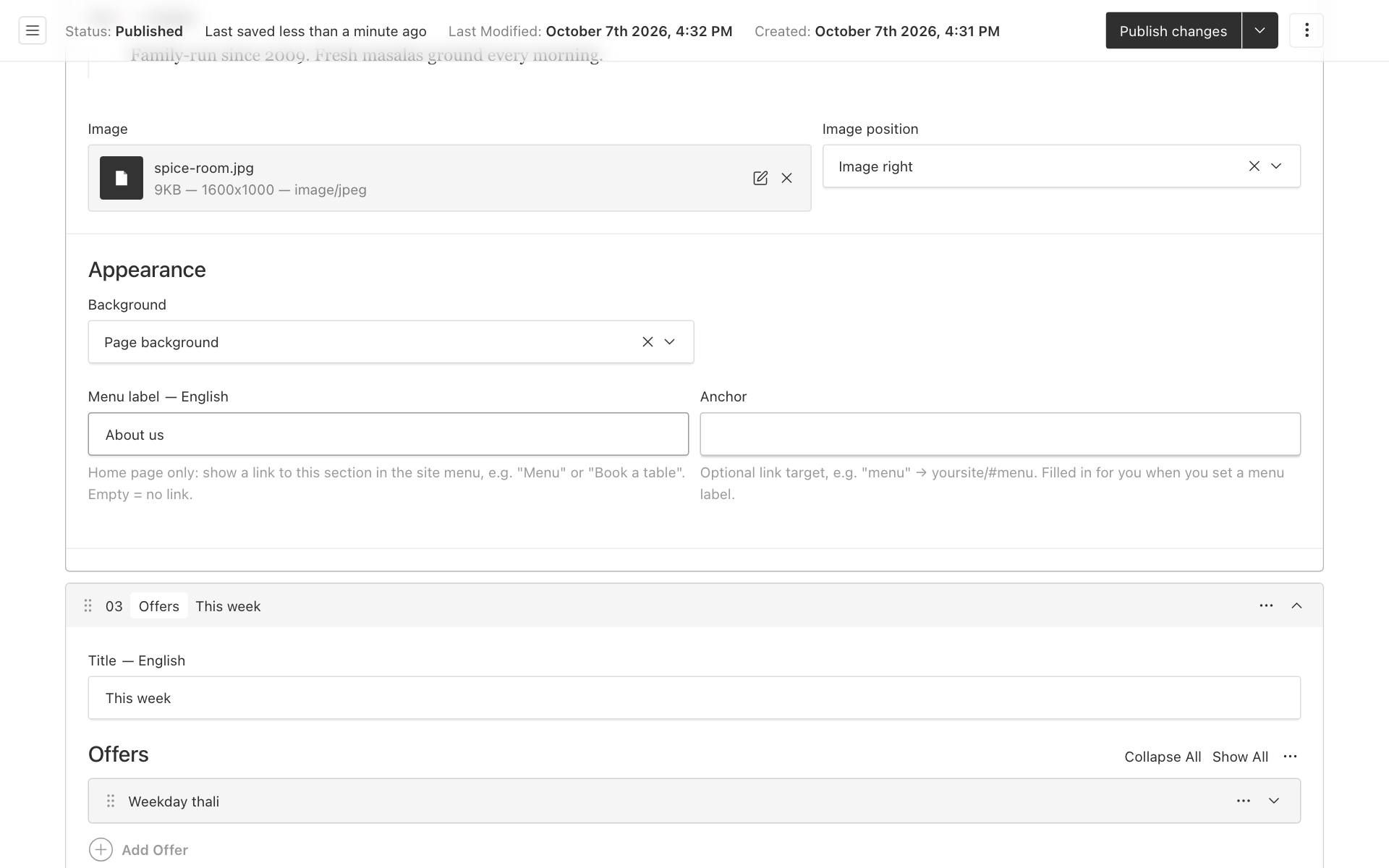
Menu label puts a link to this section in the menu at the top of your site. Visitors tap it and jump straight to the section. This is the easiest way to give a one-page website a menu.
- Open your home page and open the section, for example your Menu or Gallery section.
- Scroll to Appearance.
- Type a short Menu label, for example
Our menu,GalleryorBook a table. - Leave Anchor empty if you like. When the page is saved, an anchor is made from the label for you, for example
book-a-tablefrom "Book a table". You can also type your own. - Click Publish changes.
Good to know:
- The link appears in the menu right after Home. Section links follow the order of the sections on the page.
- Only sections on the home page can add menu links. A menu label on a section of another page does nothing.
- Leave Menu label empty and the section has no menu link.
- The menu label can be translated: switch the editor to Gujarati or Hindi and type the label in that language. If you leave it empty there, the English label is shown.
- Type the label in English first. The automatic anchor uses only English letters and digits, so a label typed only in Gujarati or Hindi gets a random anchor such as
section-k3x9a. It still works, but it looks odd in the address. - The menu holds at most 12 links in total, including Home and your pages.
See Adding and managing pages for the rest of the menu.