
Adding and managing pages
Create new pages, choose their web address, decide what is in your site menu and in which order, and rename, copy or delete pages.
Your website is a set of pages, such as Home, Menu or Book a table. Each page is built from sections (see Page sections: every type explained). This guide shows owners and staff how to add, rename and remove pages, and how to control the menu at the top of your site. It takes about 10 minutes in the website editor, which is easiest to use on a computer.
See all your pages
- Open the website editor at https://your-business.vadodara.biz/admin.
- Under Content, click Pages.
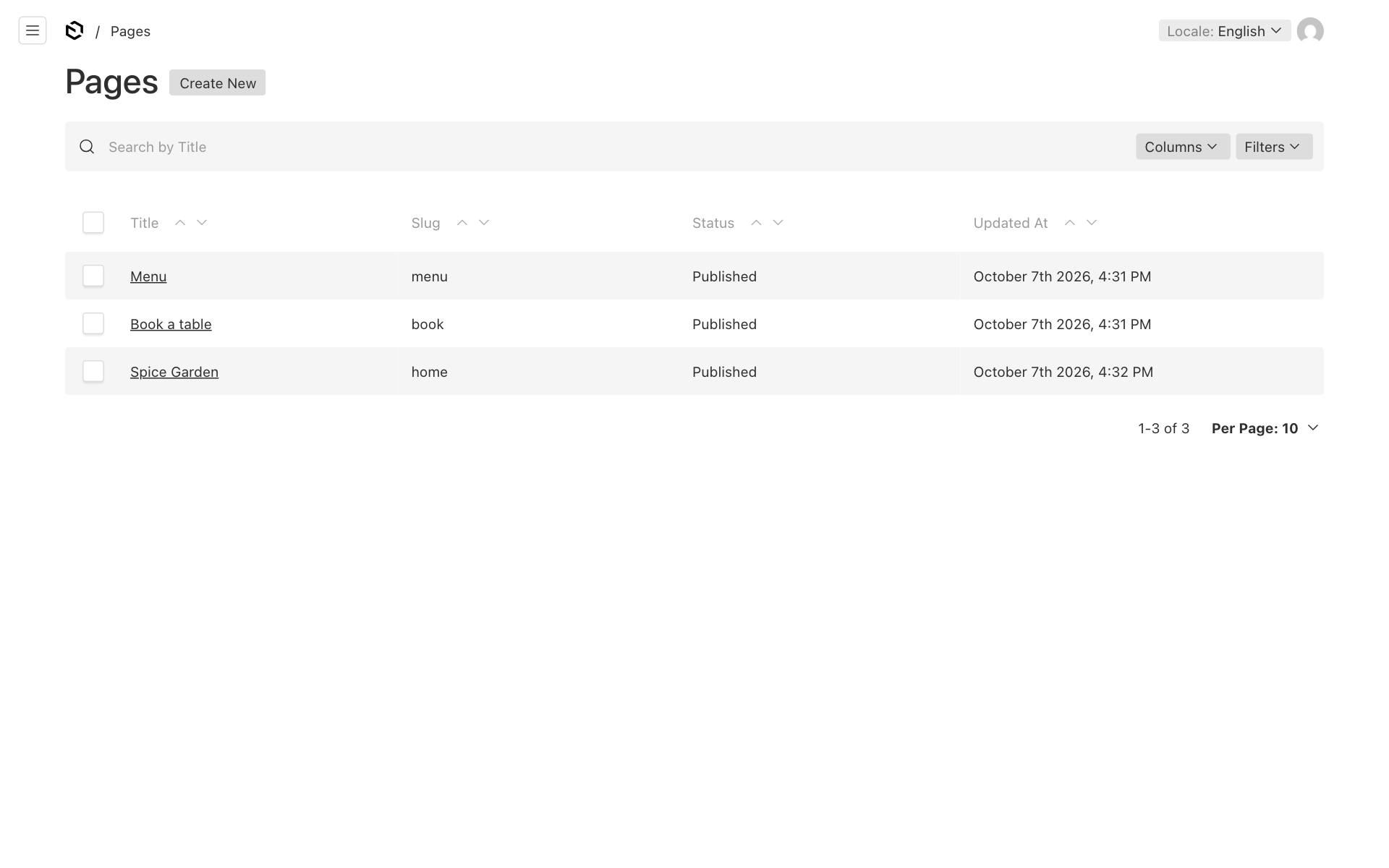
The list shows each page's Title, its Slug (the last part of its web address), its Status and when it was last changed. Click a title to open the page.
How page addresses work
The Slug decides the address of a page:
| Slug | Address |
|---|---|
home |
https://your-business.vadodara.biz/ (the front page) |
menu |
https://your-business.vadodara.biz/menu |
book |
https://your-business.vadodara.biz/book |
The page with the slug home is always your front page. Your business has exactly one front page, which was created for you when your business was set up.
The Gujarati and Hindi versions of a page live at addresses such as /gu/menu and /hi/menu. See Gujarati and Hindi pages.
Add a new page
- In Pages, click Create New.
- Type the Title, for example
Our menu. The title is also the page's name in the menu at the top of your site, unless you give it a shorter Menu label (see below). - The Slug (address) is made from the title for you, for example
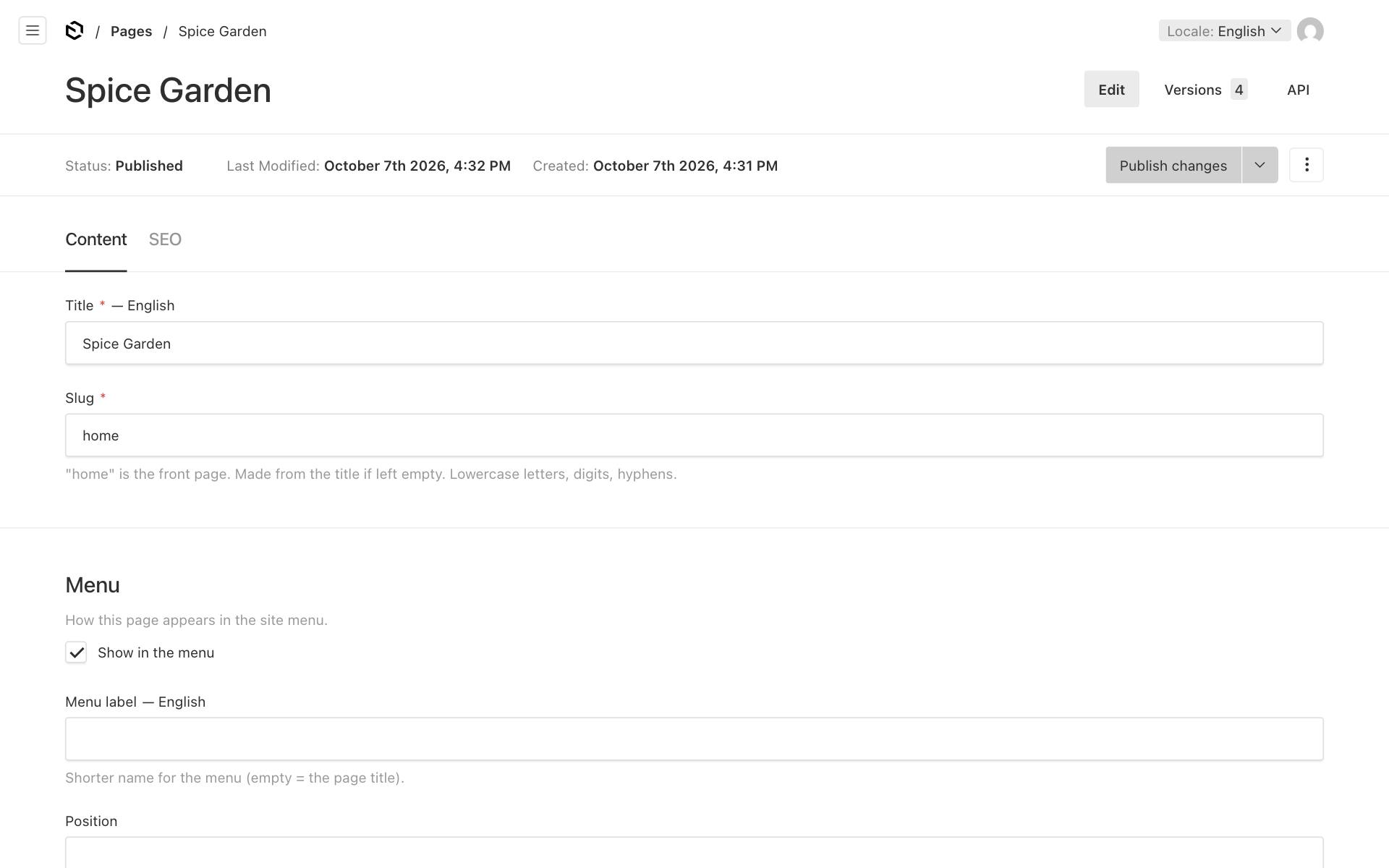
our-menu. While the title is still empty it shows a temporary address such asnew-page-…— that changes as soon as you type a title. If you prefer a shorter address, type your own slug, for examplemenu. - Click Add Section and add the sections you want. See Page sections: every type explained.
- Your work is saved as a private draft automatically. When the page is ready, click Publish changes. See Drafts, publishing, scheduling and undo.
Rules for the slug:
- Use only lowercase letters, digits and hyphens, for example
party-ordersormenu-2026. Spaces, capitals and other symbols are not allowed. - Each page of your business needs its own slug.
- Some words are used by the system and are refused:
admin,api,app,privacy,terms,booking,en,gu,hi,sitemapandrobots. If you see "is used by the system — pick another", choose a different word. For example, usebookorappointmentsinstead ofbooking.
Good to know: If another page already has the address made from your title, the new page gets
-2at the end (for exampleour-menu-2). A slug you type yourself is kept exactly — if another page already uses it, the editor shows an error and you pick a different one.
How the menu works
The menu at the top of your website is made for you from your published pages. You decide for each page whether it is in the menu, what it is called there and where it goes.
What visitors see:
- Home always comes first.
- Next come links to sections of your home page, if you gave any of them a menu label (see below).
- Then your other published pages: those with a Position number first, lowest number first, then the rest in the order they were created, oldest first.
- The menu shows at most 12 links.
- The menu appears only when there are at least two links. A site with just a home page and no section links has no menu.
- The page the visitor is on is highlighted.
- The same links are also listed at the bottom of every page, in the footer.
Drafts are never in the menu. A page appears there once it is published.
Change how a page appears in the menu
- Open the page in the editor.
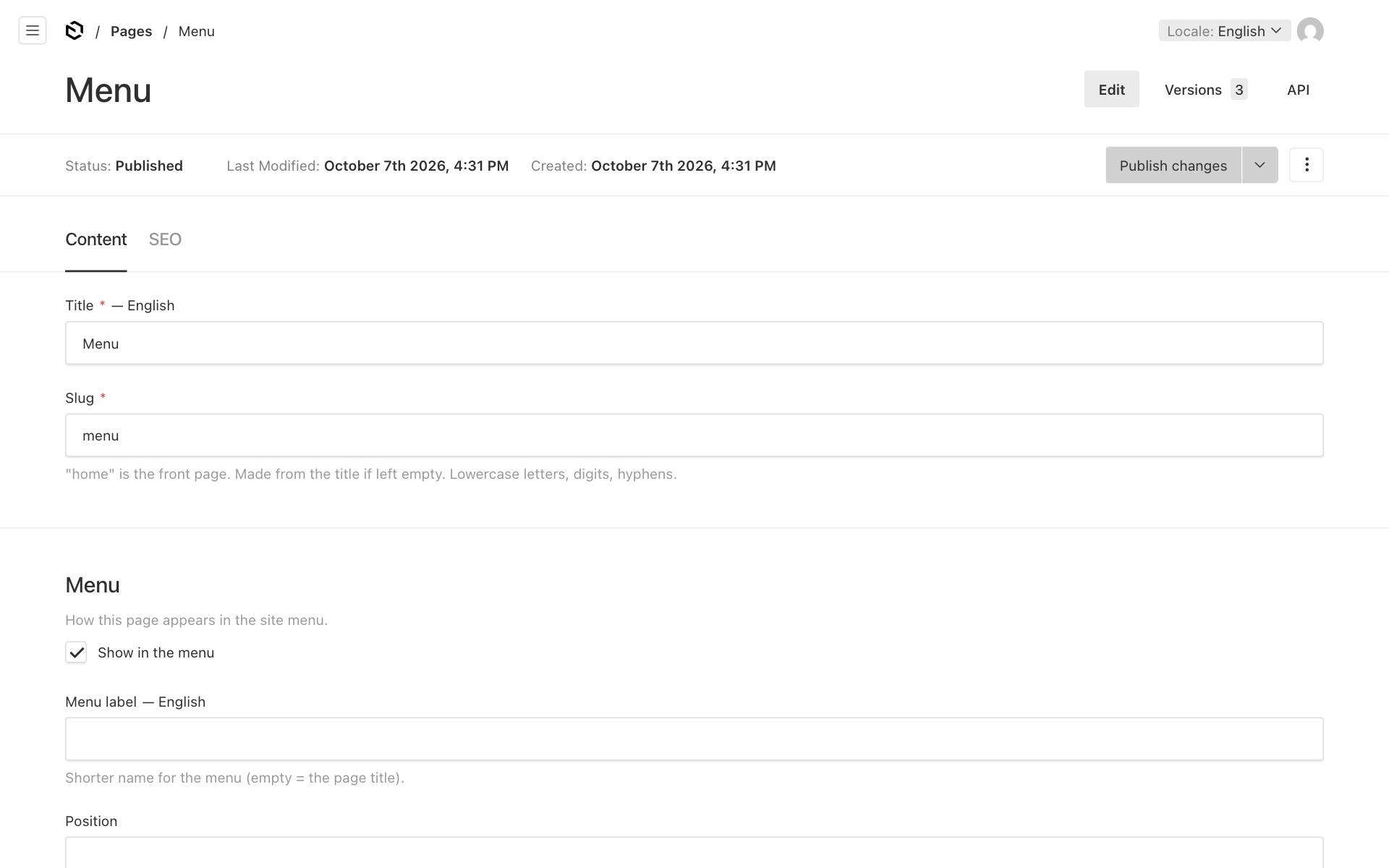
- Find the Menu box near the Slug. It says "How this page appears in the site menu."
- Change what you need:
- Show in the menu: ticked for every new page. Untick it to leave the page out of the menu. The page stays published and its address keeps working, so you can still link to it from a button or share it, for example a "Thank you" or "Careers" page.
- Menu label: a shorter name for the menu, for example
Menufor a page calledOur full menu and prices. Leave it empty to use the page Title. The menu label can be different in each language. - Position: a number that sets the order. Lower comes first, for example
1for Menu,2for Gallery and3for Contact. Pages without a number come after the numbered ones, oldest first.
- Click Publish changes.
Tip: Number your pages in steps of 10 (
10,20,30). Then you can put a new page in between later, for example15, without renumbering the others.
The home page is always first, whatever its Position or Show in the menu. It is called "Home" in the menu (or the Gujarati or Hindi word for it on those pages). If you give the home page a Menu label, that name is used instead.
Links to sections of your home page
Many small businesses have one long home page. You can still give visitors a menu: give any section on your home page a Menu label, such as Our menu, Gallery or Book a table. The menu then gets a link that jumps straight to that section. These links come right after Home, in the same order as the sections on the page.
You set this in the section's Appearance settings. See Page sections: every type explained, part "Appearance".
Menu labels on sections of other pages are ignored. Only the home page can add section links to the menu.
The menu on phones
On a computer the menu sits in the header next to your logo. On phones and other narrow screens it folds into a ☰ Menu button at the top right. Visitors tap it to open the list of links, and tap a link to go there. The button shows the word for "Menu" in the language of the page.
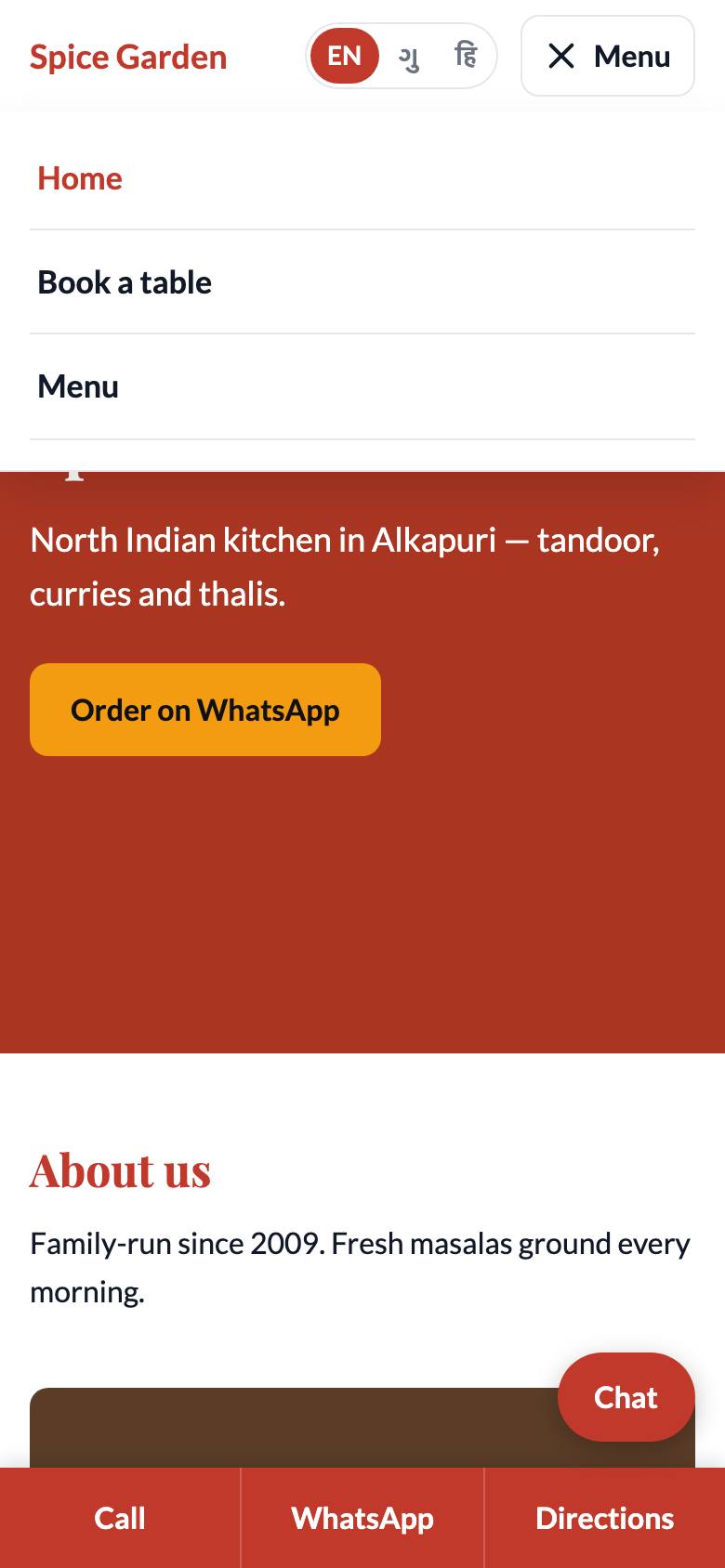
If a page is translated, the language switcher (EN · ગુ · हि) appears next to the menu button. See Gujarati and Hindi pages.
Rename a page or change its address
These are two different jobs:
- Rename the page: change the Title, then click Publish changes. The menu shows the new name (unless the page has its own Menu label) and the address stays the same. This is safe.
- Change the address: change the Slug, then click Publish changes. The page moves to the new address and the menu updates itself. However, old links stop working. Anyone using the old address sees "not found", including people who saved it, Google results, and links you shared on WhatsApp or Instagram.
Important: Change a slug only when you really need to. Never change the slug of your front page away from
home.
Copy a page
The quickest way: open the page, click the ⋮ menu at the top right and click Duplicate. The copy opens as a new draft with the same sections and its own address (for example menu-2). Change its Title and Slug, edit what is different, then publish.
You can also copy just the sections into another page:
- Create the new page as described above.
- Open the original page. Click the ⋯ next to Show All, above the list of sections, and click Copy Field. This copies all the sections.
- Open the new page. Click the same ⋯ and click Paste Field.
- Change what is different, then publish.
To copy a single section, use Copy Row in that section's own ⋯ menu. Then, on the other page, use Paste Row in a section's ⋯ menu. The pasted section replaces the one you pasted onto, so add an empty section first if you need to.
Delete a page
- Open the page.
- Click the ⋮ menu at the top right, then Delete.
- Confirm.
Deleting cannot be undone, and the page's address stops working. If you might want the page back later, unpublish it instead. It then disappears from your website and the menu but stays in your editor as a draft.