
Gujarati and Hindi pages
Translate your pages into Gujarati and Hindi, publish each language, and let visitors switch language with the EN · ગુ · हि buttons.
Your website can show its text in three languages: English, ગુજરાતી (Gujarati) and हिन्दी (Hindi). You write the English version first, then translate page by page. As soon as a page is translated, visitors see a language switcher on it. This guide is for owners and staff, in the website editor. Translating one page takes 15 to 30 minutes.
Switch the language you are editing
- Open a page in the website editor.
- At the top right, click Locale: English.
- Choose ગુજરાતી (gu) or हिन्दी (hi).
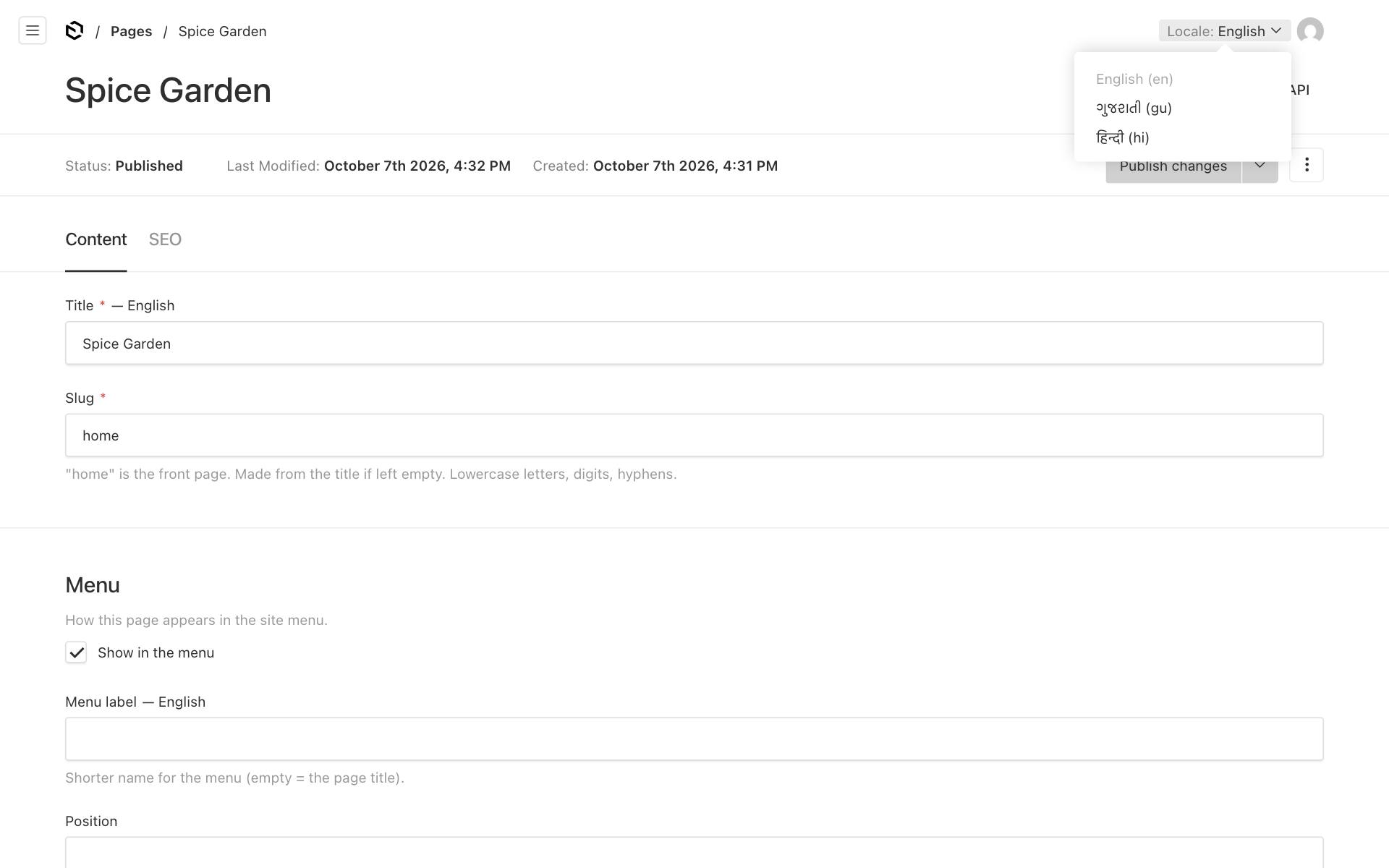
The page reloads in that language. Each field that can be translated shows the language after its name, for example Title — ગુજરાતી. Type the translation into those fields. As usual, your work is saved as a draft automatically.
To go back to English, choose English (en) in the same menu.
What is translated and what is shared
Only the words are translated. Everything else is shared by all three languages, so you set it once.
| Per language (translate these) | Shared by all languages (set once) |
|---|---|
| Page Title | Page Slug (address) |
| Headings, subheadings and text in sections | Which sections the page has, and their order |
| Dish, service, offer and FAQ texts | Photos and images |
| Button labels and the WhatsApp pre-filled message | Prices, durations, discounts and offer codes |
| Review texts | Reviewer names, ratings and dates |
| SEO title, description and Meta Image | Links (button addresses, map and embed links) |
| Business SEO description (Businesses → your business → SEO) | Diet tags, colours and layouts |
| The announcement bar's Message (see below) | The announcement's Link and Show until date |
| The page's Menu label and a section's Menu label | Show in the menu, Position, and a section's Background and Anchor |
Important: Sections are shared. If you add, move or remove a section while editing Gujarati, the English and Hindi pages change too. Arrange the sections in English, then only fill in the words in the other languages.
Your business name and address are not translated: they look the same in every language. Page names in the menu use each page's Menu label or Title in that language.
Words that are translated automatically
The fixed words of your website, which you cannot edit, appear in Gujarati on /gu pages and in Hindi on /hi pages. You do not need to do anything. For example:
| English | ગુજરાતી | हिन्दी |
|---|---|---|
| Call | કૉલ કરો | कॉल करें |
| Directions | રસ્તો જુઓ | रास्ता देखें |
| Open now / Closed now | હમણાં ખુલ્લું / હમણાં બંધ | अभी खुला / अभी बंद |
| ☰ Menu | મેનુ | मेनू |
| Home | મુખ્ય પૃષ્ઠ | होम |
This covers:
- the header and footer: ☰ Menu, "Home", "Privacy", "Terms", "Website by", "Google reviews", and a hidden "Skip to content" link for keyboard users;
- the Call, WhatsApp and Directions buttons at the bottom of phones, the WhatsApp button's label and its pre-filled first message;
- the Contact section's buttons, "Opening hours" and the day names; the Opening hours section's day names, "Closed" and "Open now" / "Closed now";
- the Enquiry form: labels, "(optional)", the privacy line, "Sending…", and the messages when something is missing or wrong;
- the Booking section: the steps, "Today" and "Tomorrow", dates, "min", the form, the messages, and the "Booked!" screen;
- the website chat: the Chat button, "Type a message…", Send, the notice under the chat, and the greeting when you have not written your own;
- Menu diet tags (Veg, Jain…) and "Popular"; "Use code" and "Valid until" in Offers; "Read more reviews" in Reviews;
- the "Page not found" page.
Times and prices keep their digits, for example 9:00 AM and ₹250.
A few section texts start with an English default, such as the Enquiry form's Button text "Send" and Message after sending, and the Booking section's Heading "Book an appointment" and Button text "Confirm booking". While they still have that default text, your Gujarati and Hindi pages show the translated words. Once you change the text, your own words are shown; translate them in each language like any other text.
These pages stay in English: the privacy notice and terms, a customer's private booking page (view or cancel), and the help centre.
The announcement bar
You can translate the bar at the top of your pages (see Announcement: a bar at the top of every page):
- Write the announcement in English first, on the Announcement tab of your business, or in the owner app under Business.
- In the website editor, open Businesses → your business → Announcement.
- At the top right, switch Locale to ગુજરાતી (gu) (or हिन्दी (hi)).
- Type the Message in that language and click Save.
- Without a translation, the Gujarati and Hindi pages show the English text.
- The Link and Show until date are shared by all languages.
- The English text switches the bar on and off. When you empty it, the bar disappears in every language. When you write a new English announcement, update or empty the translations too, or Gujarati and Hindi visitors still see the old one.
When a page counts as translated
A page counts as translated into Gujarati or Hindi when its Title has a text in that language and the page is published. That one field decides three things:
- the language switcher on that page shows that language;
- Google is told about that language version (see below);
- the page is listed in that language in your sitemap.
Any other field you leave empty in Gujarati or Hindi shows the English text instead. A page without a Gujarati title still opens at its /gu address, but it looks like the English page, and it gets no ગુ button.
Important: Fill in the Gujarati title only when the rest of the page is translated too. Otherwise visitors who tap ગુ see a Gujarati title over English text.
Translate a page fully
- Arrange the page in English first and publish it.
- Switch the Locale at the top right to ગુજરાતી (gu) (or हिन्दी (hi)).
- Type the Title in that language.
- Go through every section and type the translation of each text. Fields marked with a red * must have a text in this language too, for example a Hero's Heading or a dish's Name. If a word stays the same, such as your business name or "Paneer Tikka", type it again in the field.
- Do the same on the SEO tab: title and description.
- Click Publish changes, or click the arrow next to it and choose Publish in ગુજરાતી (see below).
If a required field is still empty in this language, the editor does not publish and marks the field. Fill it in and publish again. Until then your work is kept as a draft.
Publish a language
When you click Publish changes, all languages are published together.
To publish only the language you are working on:
- Click the arrow next to Publish changes.
- Choose Publish in ગુજરાતી (or Publish in हिन्दी).
Changes in the other languages stay in the draft. See Drafts, publishing, scheduling and undo.
The addresses of each language
| Language | Front page | Another page |
|---|---|---|
| English | https://your-business.vadodara.biz/ |
https://your-business.vadodara.biz/menu |
| ગુજરાતી | https://your-business.vadodara.biz/gu |
https://your-business.vadodara.biz/gu/menu |
| हिन्दी | https://your-business.vadodara.biz/hi |
https://your-business.vadodara.biz/hi/menu |
Links inside the Gujarati site stay in Gujarati. For example, the menu links and the logo take visitors to other /gu/… pages.
The language switcher
On every page that is translated, a small switcher appears in the header, next to the menu: EN · ગુ · हि. The language you are reading is highlighted. Visitors tap another language to open the same page in that language.
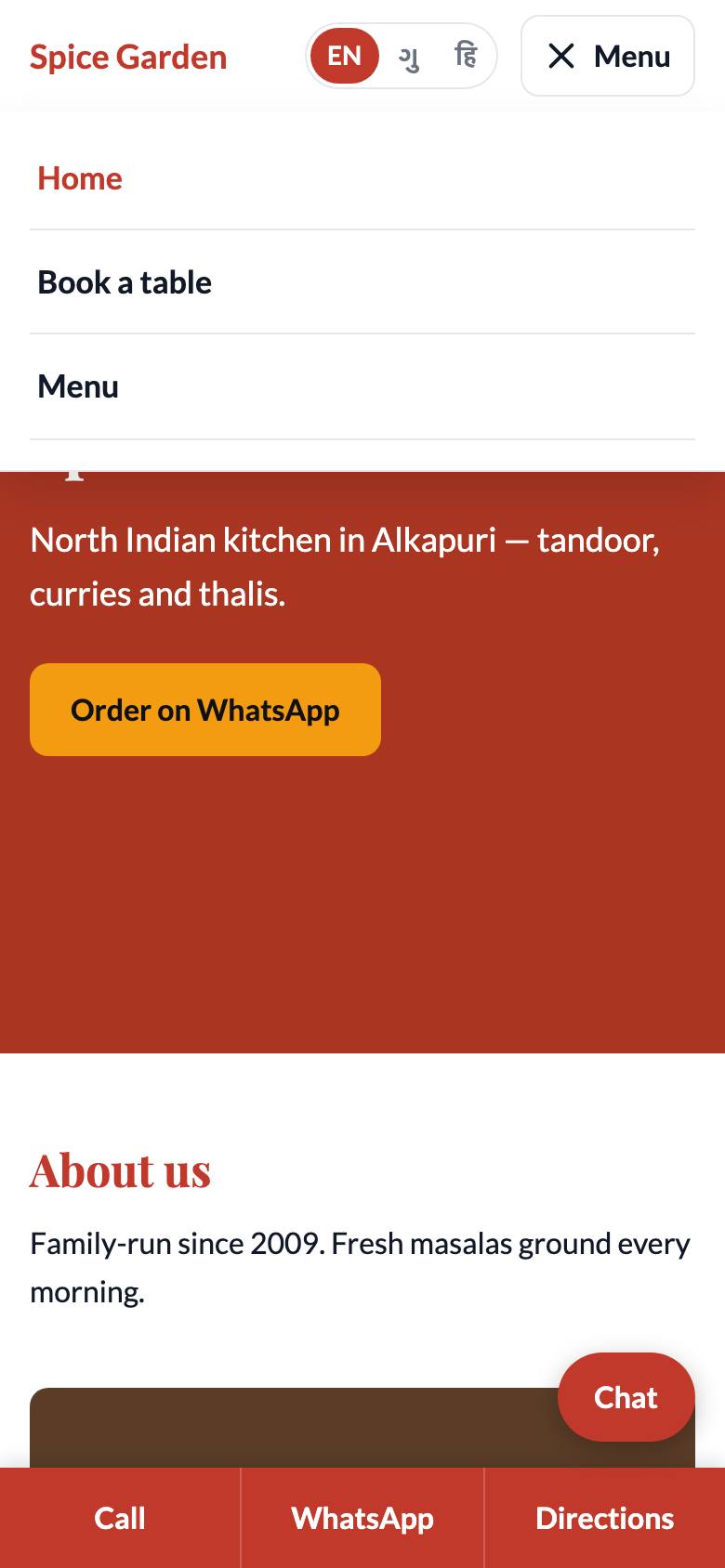
- It only lists the languages this page is translated into. If your Menu page has Gujarati but not Hindi, it shows EN · ગુ.
- On a page with no translation it is not shown at all.
- It is not shown on pages such as the privacy notice or a customer's booking page.
Visitors who arrive on your English address still see English first. To send Gujarati-speaking customers straight to Gujarati, share the /gu link:
- Instagram and Facebook: put the Gujarati link in your bio or posts, for example
https://your-business.vadodara.biz/gu. - WhatsApp: send
/guor/hilinks to customers who prefer those languages. You can also use them in your WhatsApp Business profile and quick replies. - Printed material: a QR code on your menu card or poster can point to the Gujarati page.
What Google sees
Google is only told about the languages you really translated:
- Translated pages are listed in your sitemap in each of their languages. Each version tells Google about the others, so over time Google can show the Gujarati page to people who search in Gujarati.
- Untranslated pages are listed in English only. Their
/guand/hicopies tell Google that the English page is the main one. This stops Google from showing an "English page with a Gujarati address" in results.
You do not need to do anything for this. It updates by itself when you publish. See Getting found on Google.
The chat assistant speaks their language
If you use the website chat with the AI assistant, it replies in the language the visitor writes in: English, Gujarati or Hindi. This works on every page, whatever language the page is in. See Inbox: website chat, WhatsApp and AI replies.
Tips for good translations
- Write the way your customers speak. Everyday Gujarati is better than formal textbook language.
- Keep dish names people know, such as "Paneer Tikka", and add a Gujarati description if it helps.
- Translate the SEO tab too, so Google shows a Gujarati title and description. See Getting found on Google.
- After publishing, open the
/gupage on your phone and read it once from top to bottom.