
Drafts, publishing, scheduling and undo
Learn how drafts save automatically, how to publish changes now or at a set time, publish one language, unpublish a page and restore an older version.
When you edit a page, nothing changes on your website until you publish. This guide explains drafts, publishing, scheduling and how to undo mistakes. It is for owners and staff, takes about 5 minutes to read, and applies to pages in the website editor.
Business details (contact, hours, brand) work differently: they go live as soon as you click Save.
Drafts save themselves
While you edit a page, your work is saved automatically every few seconds as a draft. You do not need to press a save button. Next to the status you see "Last saved … ago".
A draft is private. Visitors keep seeing the last published version until you publish. You can close the browser and carry on later, and your draft will still be there.
Read the Status line
The Status at the top of every page shows one of three states:
| Status | Meaning |
|---|---|
| Draft | This page has never been published. Visitors cannot see it. |
| Published | What you see in the editor is exactly what visitors see. |
| Changed | The page is live, but your draft has changes that are not published yet. |
Publish your changes
- Check your changes in the editor.
- Click Publish changes at the top right.
- The message "Updated successfully." appears and the status becomes Published.
Your website updates within a few seconds.
Publish changes is grey when there is nothing new to publish.
Important: The editor has no preview. After publishing, open your website in a new browser tab and check the page, on your phone too. Use your address, for example https://your-business.vadodara.biz, or tap View site in the owner app. If something looks wrong, fix it in the editor and publish again.
More publish options: the arrow
Click the small arrow next to Publish changes to see two more options.
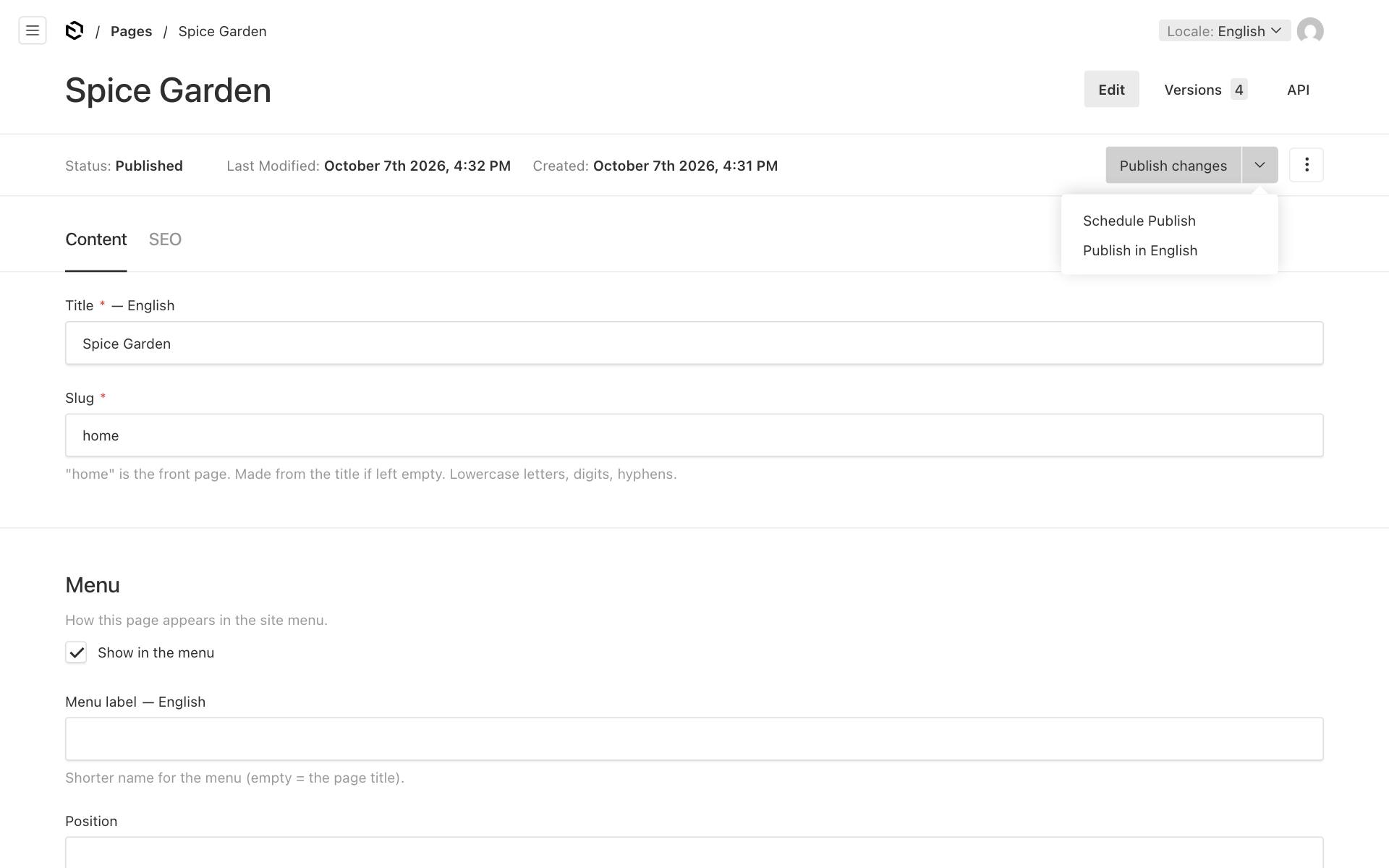
Schedule Publish
Use this to publish changes at a set time. For example, a Diwali offer can appear on the morning of Diwali.
- Make your changes. They stay in the draft.
- Click the arrow, then Schedule Publish.
- Choose the Type: Publish, or Unpublish to take the page offline at that time.
- Pick the date and the Time.
- Click Save. You see "Scheduled successfully."
The change happens within about a minute of the time you chose. The same window lists your Upcoming Events, and you can delete one there if you no longer want it.
Tip: After scheduling, do not keep editing the same page unless you want those edits to go live too. The scheduled publish publishes whatever is in the draft at that moment.
Publish in one language
The second option is Publish in English. When you are editing Gujarati or Hindi, it reads Publish in ગુજરાતી or Publish in हिन्दी instead.
It publishes only the changes in that language and leaves the other languages on your website as they are. The plain Publish changes button publishes all languages. See Gujarati and Hindi pages.
Undo changes you have not published
When the status is Changed, a Revert to published link appears next to it.
- Click Revert to published.
- Confirm.
Your draft is thrown away and the editor shows the live version again.
Take a page offline (unpublish)
- Open the page.
- Click the ⋮ menu at the top right, then Unpublish.
- Confirm.
The page disappears from your website and from the menu, and its address shows "not found". It stays in the editor as a draft, so you can publish it again at any time.
Go back to an older version
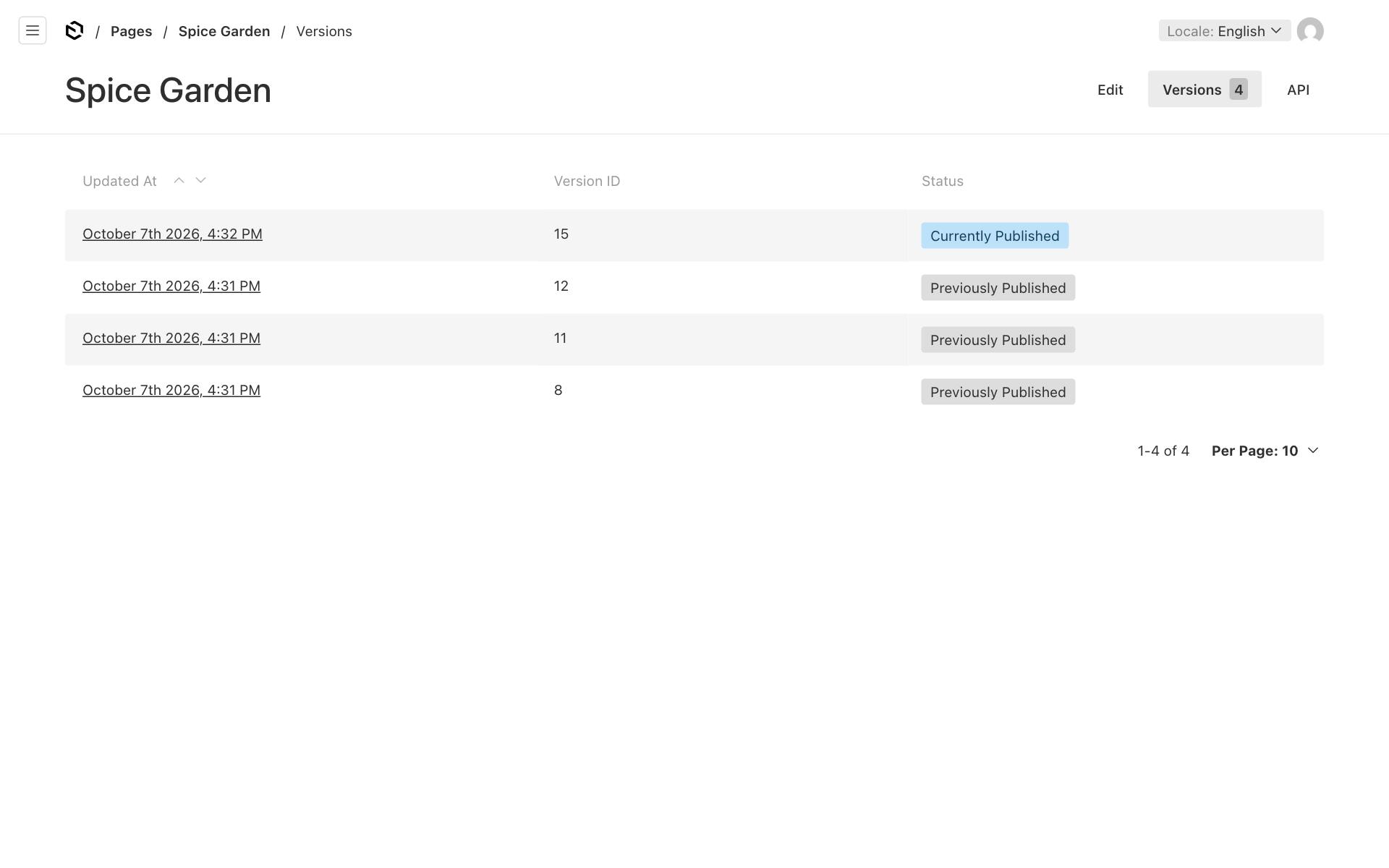
The editor keeps the last 25 versions of each page. This includes both published versions and autosaved drafts.
- Open the page and click Versions at the top. The number next to it shows how many versions are kept.
- The list shows the date and status of each version: Currently Published, Previously Published, or Autosave and Draft.
- Click a date to open that version. The editor shows how it differs from the current version.
- Click Restore this version to bring it back. To bring it back as a draft first, so you can check it before it goes live, choose Restore as draft instead.
When published pages are still not visible
Visitors only see the "coming soon" page while your business is in Draft (coming soon) status, even if your pages are published. Only the platform team can publish the business, so ask them once your home page is ready. See Business details, opening hours and announcements.