
Business details, opening hours and announcements
Keep your phone, WhatsApp, address, map location, opening hours, announcement bar and social links correct on your website and on Google.
Your business details are the facts that appear all over your website: the phone and WhatsApp buttons, the address and map, the opening hours, the bar at the top of every page and the links in the footer. You enter them once and every page uses them. This guide is for owners. Staff can look at these details but cannot change them. Allow 15 minutes the first time. Use the website editor on a computer, or the owner app on your phone for quick jobs.
Open your business details
- Open the website editor at https://your-business.vadodara.biz/admin and sign in.
- In the menu, under Platform, click Businesses.
- Click your business name, for example Spice Garden.
- At the top you see Name, Slug, Status, Type of business, Plan and Paid until. Below them is a row of tabs: Brand, Contact, Hours, Announcement, Booking, AI & chat, WhatsApp gateway, Notifications, Social and SEO.
- After any change, click Save at the top right.
Your website updates within a few seconds. Business details have no draft: the change is live as soon as you save.
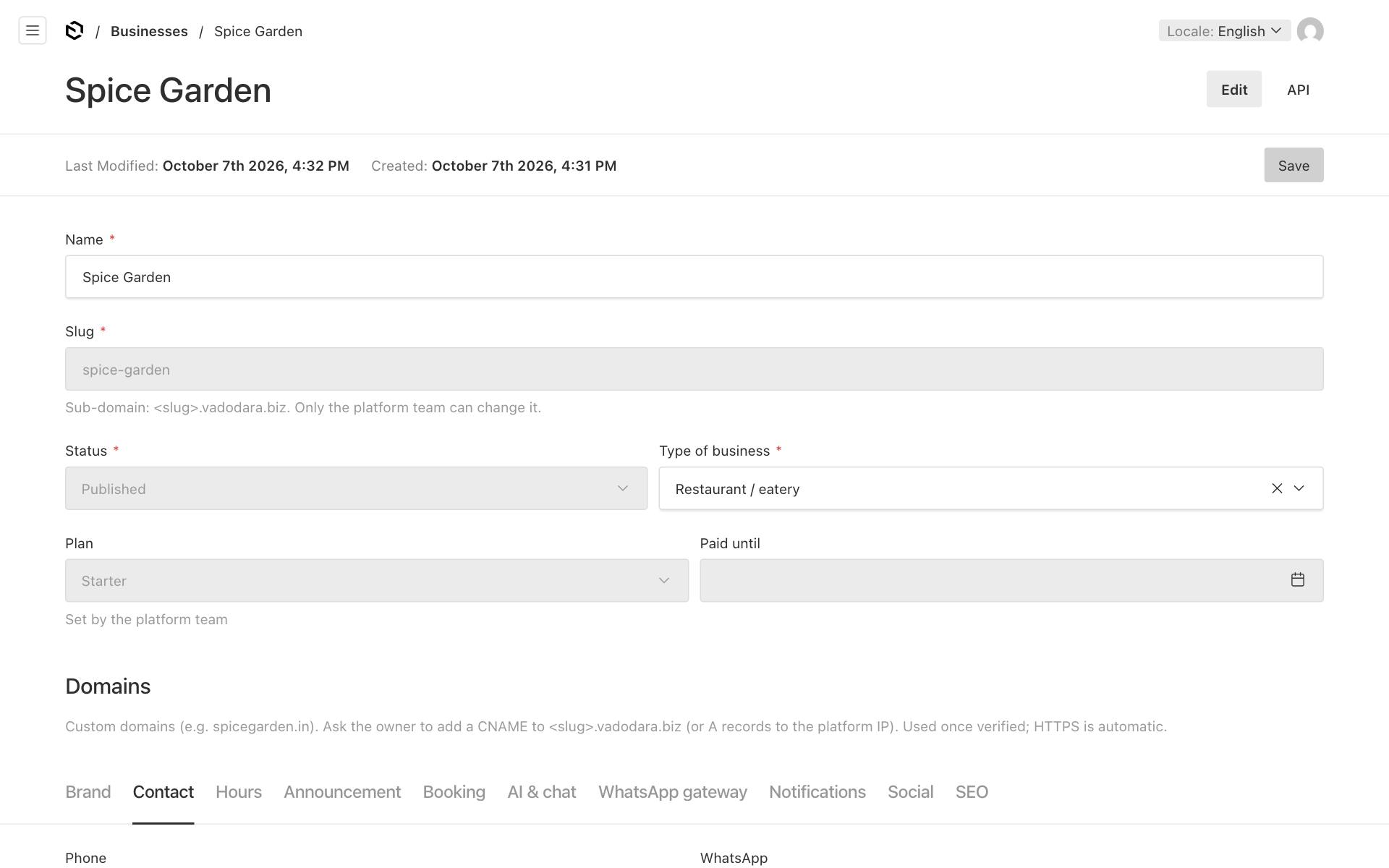
Good to know: You can change Name and Type of business yourself. The type of business tells Google what kind of business you are (for example a restaurant or a clinic), so pick the closest one.
Contact: phone, WhatsApp, email and address
Click the Contact tab and fill in the fields:
- Phone: the number customers should call, for example
+91 98765 43210. It is used for the Call buttons and shown in the footer. - WhatsApp: your WhatsApp number with country code, digits only, for example
919876543210. Do not use+, spaces or a leading 0. Every WhatsApp button on your site uses this number. - Email: shown in the footer so customers can write to you.
- Show floating WhatsApp button on desktop: this is on by default. It adds a round WhatsApp button in the corner of the screen on computers.
- Address: your street address, for example
12 Race Course Road, Alkapuri. - City (it starts as Vadodara) and PIN code.
- Latitude and Longitude: your exact spot on the map (see below).
- Click Save.
On phones there is no floating button. Instead, the bar at the bottom of the screen shows Call, WhatsApp and Directions buttons whenever those details are filled in.
Get the latitude and longitude from Google Maps
Latitude and longitude are two numbers that pin your shop on the map. They make the map and the Directions button accurate.
- Open Google Maps on a computer and find your shop's entrance.
- Right-click exactly on that spot.
- The first line of the menu shows two numbers, for example
22.31234, 73.18123. Click them to copy. - Paste the first number into Latitude and the second into Longitude.
On a phone, press and hold on your shop to drop a pin. The two numbers appear at the top of the screen.
Tip: If you leave Latitude and Longitude empty, the Directions button uses your address instead. A Contact & map section then shows a map only if you paste a Google map link into it. Exact numbers work better.
Hours: your opening times
Click the Hours tab. Your hours are shown on the website with a live "open now" badge, and they are given to Google.
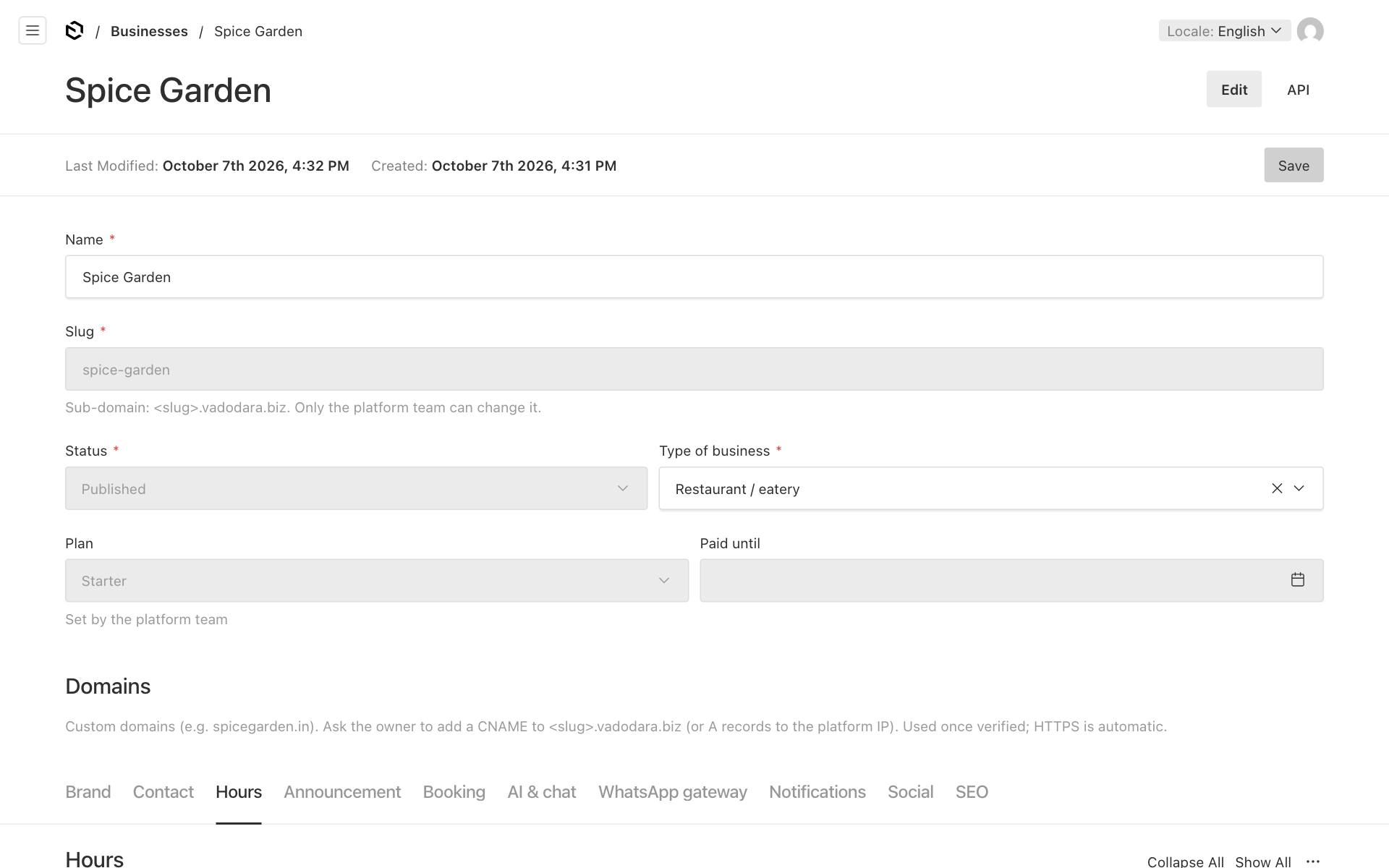
- Click Add Opening time to add a row.
- Choose the Day, for example Monday.
- Type Open and Close in 24-hour time,
HH:MM. For example, type09:30and22:00, not9:30 pm. - If you are closed all day, tick Closed instead.
- Add a row for each day you are open.
- Click Save.
Closed for lunch? Add the day twice
Many clinics and shops close in the afternoon, for example from 13:00 to 16:00. Add one row for the morning and another row for the same day for the evening:
| Day | Open | Close |
|---|---|---|
| Monday | 10:00 |
13:00 |
| Monday | 16:00 |
20:00 |
The website then shows "10:00 AM – 1:00 PM" and "4:00 PM – 8:00 PM" for Monday. During the break the badge says, for example, "Closed · opens at 4:00 PM", and Google is given both times. A day can have up to 3 rows. The times of one day must not overlap; if they do, you see "The times for Monday overlap" when you save.
Some rules worth knowing:
- Days not listed are closed. If you have no Sunday row, the website shows Sunday as closed.
- Closed wins. If any row for a day has Closed ticked, the whole day is shown as closed.
- Closing after midnight works. For a restaurant open from 18:00 to 01:00, type
18:00and01:00. The "open now" badge stays correct after midnight. - Times are India time. The badge shows "Open now", or when you open next, for example "Closed · opens tomorrow 10:00 AM".
Holiday closures: whole days you are closed
For Diwali, a wedding in the family or a renovation, add a holiday closure instead of changing your weekly hours.
- On the Hours tab, under Holiday closures, click Add Closure.
- Pick From (the first closed day) and, for more than one day, To (optional) (the last closed day).
- Type a short Note if you like, for example
Diwali. - Click Save.
Then everything follows by itself, in India time:
- Your website lists the closure under your opening hours ("Closed: 1 Nov – 3 Nov (Diwali)") from 60 days before it starts until it ends.
- The badge says "Closed · opens Wednesday 10:00 AM (Diwali)" during the closure, and names the date when you open again more than a week later.
- Google is told you are closed on those days.
- Online booking offers no times on those days.
- The AI chat assistant knows about it.
After the last day, your normal weekly hours apply again. You can delete old closures, or leave them: they no longer show.
Announcement: a bar at the top of every page
Use the Announcement tab for short news, such as a holiday, an offer or new timings.
- Message: up to 140 characters, for example
Closed on Monday for Diwali — open again Tuesday. - Link (optional): a page on your site such as
/menu, or a full address starting withhttps://. The whole bar then becomes a link. - Show until (optional): the bar hides itself after this date, so you do not have to remember to remove it. It stays up for the whole of that day and disappears at midnight, India time.
- Click Save.
To remove the bar straight away, empty Message and click Save.
Good to know: You can translate the announcement for your Gujarati and Hindi pages: in the website editor, switch Locale at the top right to ગુજરાતી (gu) or हिन्दी (hi) and type the Message in that language. Without a translation, those pages show the English text. The English text switches the bar on and off: when it is empty, no language shows the bar. See Gujarati and Hindi pages.
Social: Instagram, Facebook and Google
Click the Social tab and paste the full web address of each profile, starting with https://.
| Field | Where it appears |
|---|---|
| Footer link "Instagram", and told to Google | |
| Footer link "Facebook", and told to Google | |
| YouTube | Told to Google only (no footer link) |
| Told to Google only (no footer link) | |
| Google Business Profile URL | Footer link "Google reviews", and told to Google |
| Google review link | Footer link "Review us on Google", and the Ask for a review button on a lead in the owner app. Get it from your Google Business Profile: Ask for reviews → copy the link (it looks like https://g.page/r/…/review) |
"Told to Google" means the link goes into hidden business information on your home page. This helps Google connect your website with your profiles.
SEO: your description for Google and the vadodara.biz listing
Click the SEO tab.
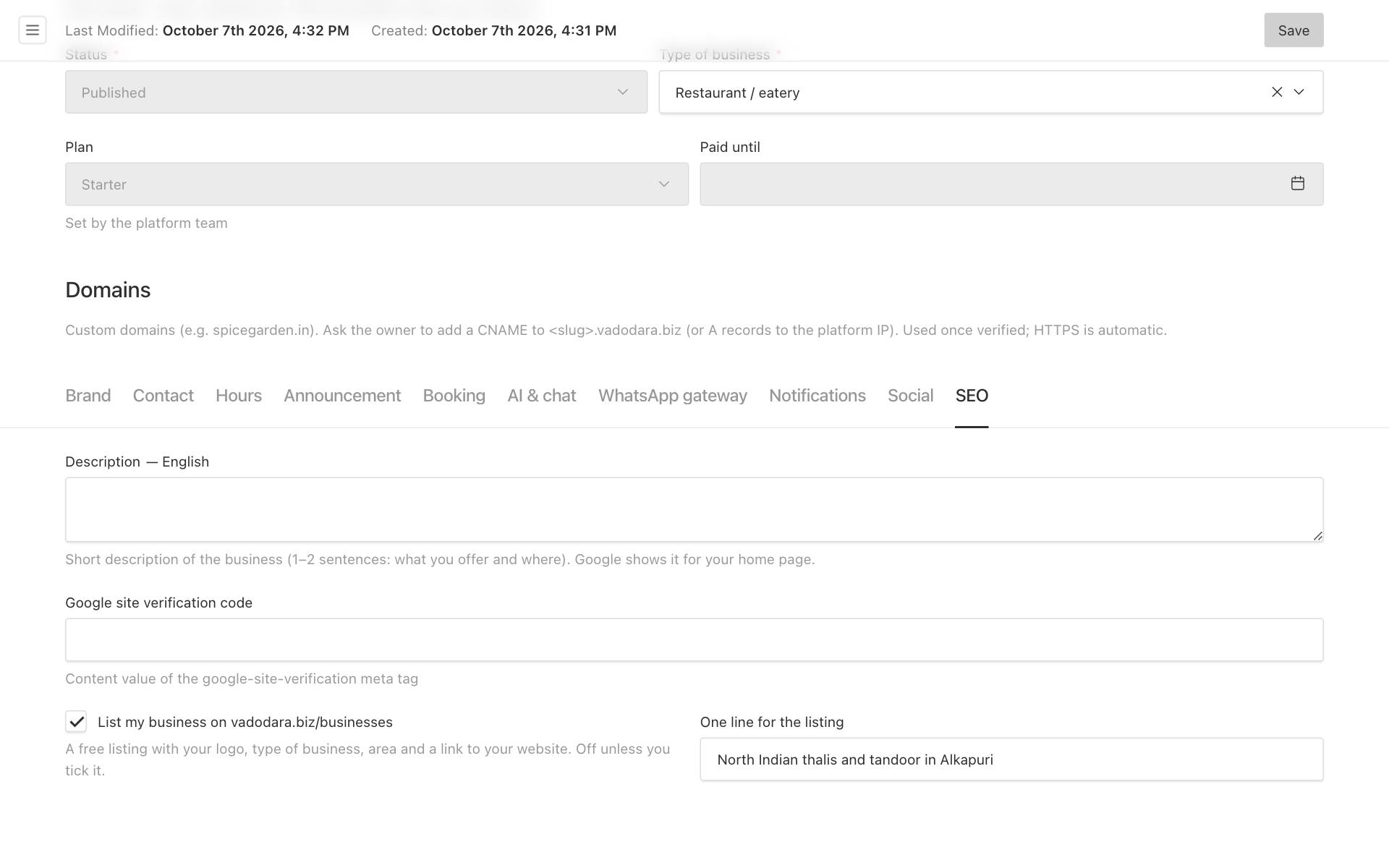
- Description: one or two sentences, up to 300 characters, about what you offer and where. Google shows it under your home page, unless the home page has an SEO description of its own. You can write it in each language: switch Locale at the top right.
- Google site verification code: the code from Google Search Console. See Getting found on Google.
- List my business on vadodara.biz/businesses: tick this to show your business, with your logo, type of business, city and a link, on the list of businesses at https://vadodara.biz/businesses. It is off unless you tick it.
- One line for the listing (appears once you tick the box): up to 120 characters, for example
North Indian thalis and tandoor in Alkapuri. - Click Save.
More about the listing: Listing your business on vadodara.biz.
The other tabs
Each of these tabs has its own guide:
- Brand (logo, favicon, colours and fonts): Logo, favicon, colours and fonts.
- Booking (online appointments): Online bookings.
- AI & chat (the chat button and AI assistant): Inbox: website chat, WhatsApp and AI replies.
- WhatsApp gateway (two-way WhatsApp): Two-way WhatsApp.
- Notifications (emails about new leads and the weekly summary): New-lead alerts: phone, Telegram and email.
What only the platform team can change
Some fields are greyed out for you. Only the vadodara.biz platform team can change these, so ask them if one needs changing:
- Slug: your web address,
<slug>.vadodara.biz. - Status: whether your website is live (see below).
- Plan and Paid until.
- Domains: your own domain name. See Using your own domain name.
- The WhatsApp gateway connection: whether it is on, the gateway, the daily sending limit and the technical settings.
- The monthly AI allowance (Monthly AI allowance (tokens) on the AI & chat tab).
- The linked Telegram chat. You connect Telegram yourself from the owner app, and it cannot be typed in here.
What the website status means
| Status | What visitors see |
|---|---|
| Draft (coming soon) | A simple page with your name and "Our new website is coming soon.", plus the Call, WhatsApp and Directions bar. Google is asked not to list it. Your pages stay hidden even if you have published them. |
| Published | Your full website. |
| Suspended | "This website is temporarily unavailable." |
| Archived | The address shows "not found", and the owner app no longer opens for this business. |
New businesses start as Draft. When your home page is ready, ask the platform team to publish the business.
Quick changes on your phone (owner app)
Owners can change the everyday details from the Business screen of the owner app, without the website editor.
- Open https://your-business.vadodara.biz/app on your phone and tap Business at the bottom.
- Announcement: type the Message, an optional Link and an optional Hide after date, then tap Save announcement. To remove the bar, empty the message and save.
- Opening hours: set the open and close times for each day or tick Closed, then tap Save hours. Closed for lunch? Tap Add a break under the day and fill in Opens again and Closes for the afternoon, for example
16:00and20:00. - Holiday closures: pick the First day, optionally the Last day and a Reason such as
Diwali, and tap Add closure. Tap Remove next to a closure to take it away. See Holiday closures. - QR code for your counter and leaflets: tap Make a QR code. See Visitors.
- New-lead alerts: choose which emails you get, turn on notifications for this phone, or connect Telegram (if your platform has these switched on).
- Plan: see your plan and what it includes, how much of this month's AI allowance is used, and your recent invoices.

For everything else (contact details, social links, pages and photos), tap open the website editor at the bottom of the screen.